
CMMN Training - Chapter 2: Sentries
Related subfolder of the training project: "C02"
Chapter Overview
In this training chapter you get familiar with CMMN sentries providing a specific execution control of work.
Element Description:
CMMN sentries are available as entry and exit criterion. An element may have several entry and exit criterions positioned at the border of an element.
|
 |
|
 |
-
An entry criterion can be used for a task, stage or milestone.
-
An exit criterion can be used for a task, stage or case plan.
Sentries are triggered by events of a source element or by conditions specified for the associated sentry.
Sentry Event:
A sentry event is specified by drawing a flow from a source element to the entry or exit criterion of the destination element.
-
complete (frequently used)
-
create
-
disable
-
enable
-
exit
-
fault
-
manualStart
-
parentResume
-
parentSuspend
-
reactivate
-
resume
-
start
-
suspend
-
terminate
Sentry Condition:
A sentry condition can be specified using TypeScript in TAB "Implementation" for the selected sentry.
Sample CMMN Case Plan
Tutorial Model: Automation/Case Plan/Training/CMMN/Chapter/C02/Sentry
Case Plan Explication:
-
The case plan "CasePlan_Sentries" consists of 3 human tasks
-
Start case plan instance activates 2 human tasks "Enter Data 1 [Team A]" and "Enter Data 3 [Team B]"
-
The completion of human task "Enter Data 1 [Team A]" triggers
-
entry criterion "Task 1 complete" of human task "Enter Data 2 [Team B]" which is activated with event "complete"
-
exit criterion "First Name is Appollo" of human task "Enter Data 3 [Team B]" which is activated if the condition is true
-
The completion of human task "Enter Data 2 [Team B]" completes the case plan

Exercise
In this exercise you will get familiar with the basic CMMN elements by implementing the case plan as described above. The case plan will then be published online, where the human tasks of the case plan can be executed directly in the xAPPnow User Portal.
Exercise 1: Create the Case plan Model
Remark: Add your user name as a prefix to the model name to easily filter your personal process in the runtime environment (User Portal, Camunda).
-
Step 1: Right click at model tree folder "Automation/Case Plan/Training/CMMN/Exercise/C02" to open context menu "Create Model"
-
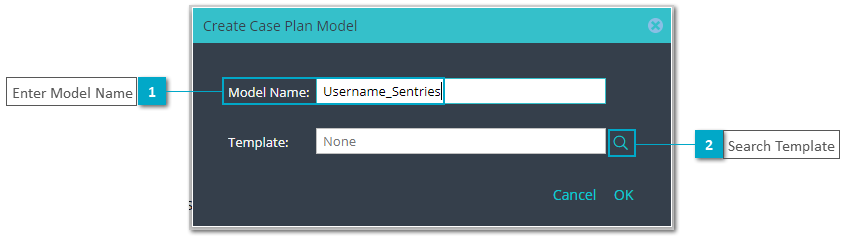
Step 2: Enter model name "Username_Sentries"
-
Step 3: Click button "Search" to open dialog "Select Template"
-
Step 4: Select template "TMPL_Sentry" in dialog "Select Template" with double click or click button "Select"

-
Step 5: Click button "OK" in dialog "Create Case Plan Model" to create the new model in selected folder
Exercise 2: Complete the Case Plan Model
The case plan template of this exercise already contains 3 human tasks, which are configured with the candidate group. Also the data of the human tasks are mapped. In this exercise you will complete the case plan as described above, by adding sentries to trigger the human tasks activation dependent on human task completion and specific data value.
-
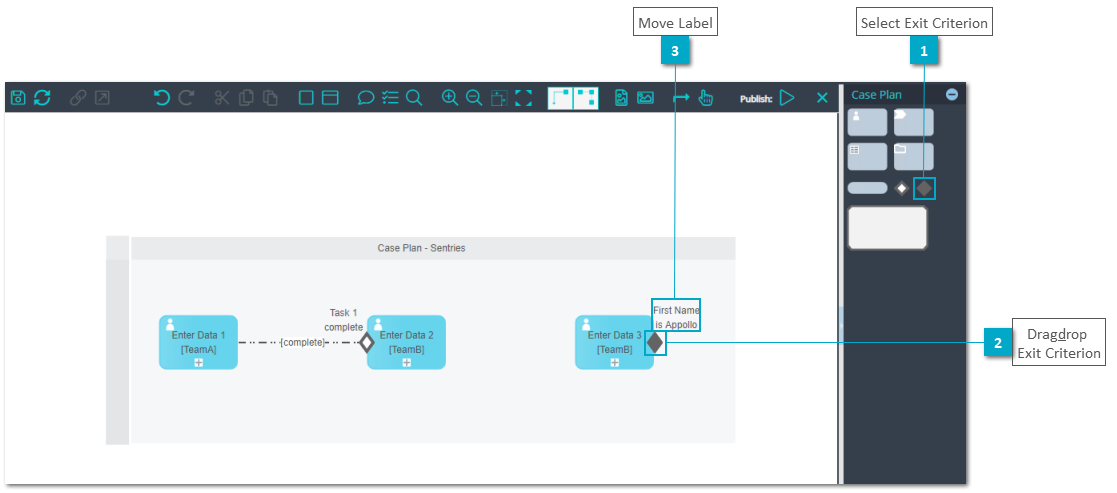
Step 1: Drag&drop an entry criterion element from palette on the border of human task "Enter Data 2 [TeamB]" with label "Task 1 complete"
-
Step 2: Select the label of the entry criterion and drag&drop it to the top of the element
-
Step 3: Connect human task "Enter Data 1 [TeamA]" with entry criterion of human task "Enter Data [TeamB]" with default label "[complete]"
-
Step 4: Drag&drop an exit criterion element from palette on the border of human task "Enter Data 3 [TeamB]" with label "First Name is Appollo"
-
Step 5: Select the label of the exit criterion and drag&drop it to the top of the element


Exercise 3: Configure Sentries
In this exercise you will configure the sentry condition for the exit criterion, which is activated if the first name is "Appollo"
-
Step 1: Select exit criterion to open TAB "Implementation" and then SubTAB "Marker" to define a sentry condition
-
Step 2: Enter "firstName" in textfield "Search data" and press key "Enter" to find attribute "firstName" of business object "caseData1"
-
Step 3: Drag&drop attribute "firstName" into the left field of "Sentry Conditon"
-
Step 4: Select operator "==" from the combobox
-
Step 5: Enter string "Appollo" in the right field of "Sentry Conditon" to complete it

Exercise 4: Publish the Case Plan Model
The case plan model has to be published into Camunda process engine.
-
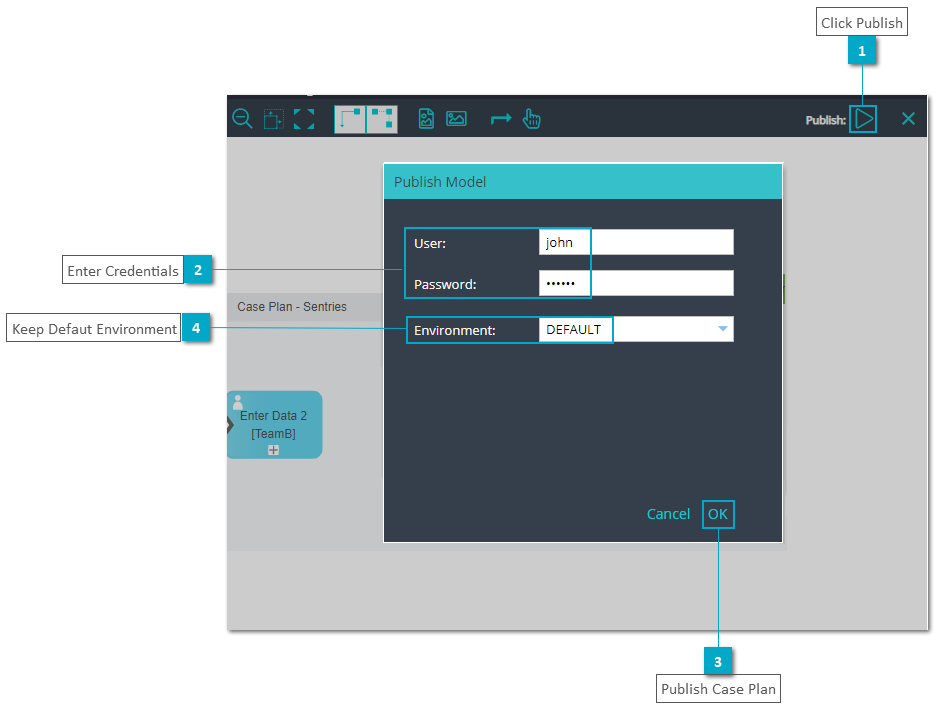
Step 1: Click button "Publish" to open dialog "Publish Model"
-
Step 2: Enter username and password
-
Step 3: Click button "OK" in dialog "Publish model" to publish the case plan into Camunda
Exercise 5: Publish the User Task Model
The case plan related user task model of the human tasks has to be published separately into the xAPPnow User Portal and is directly online.
-
Step 1: Double click at one of the human tasks to navigate to the related submodel (all human tasks are using the same user task model)
-
Step 2: Click button "Publish" to open the dialog "Publish Model"
-
Step 3: Enter username and password and keep option "DEFAULT" on the environment
-
Step 4: Publish the user task model

Exercise 6: Manage the Case Plan in User Portal
-
Step 1: Login into User Portal with user "john", who belongs to the group "TeamA".
-
Step 2: Open menu "Case Definition"
-
Step 3: Click button "Start" to start an instance of the selected case plan definition

-
Step 4: Open menu "My Cases"
-
Step 5: Select the instance of case plan definition "Username_Sentries" you just had started
-
Step 6: Click button "Open" to view active and available tasks of the case plan

-
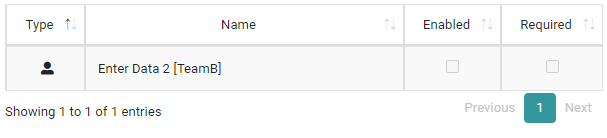
Step 7: As expected subdialog "Case Tasks" displays two active human tasks and one available task of the selected case plan. The task "Enter Data 2 [TeamB]" will become active after the "Enter Data 1 [TeamA]" is completed, as modeled in the case plan

-
Step 8: Open menu "MyTasks" and execute task "Enter Data 1 [Team A]", do not use first name "Appollo"
-
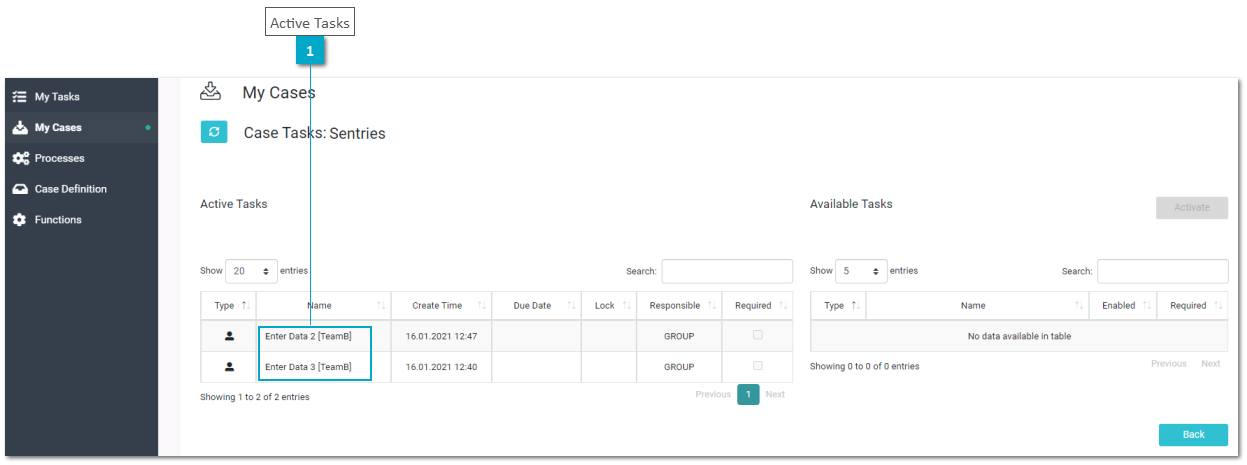
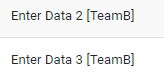
Step 9: Verify subdialog "Case Tasks" displays human tasks "Enter Data 2 [Team B]" and "Enter Data 3 [Team B]"
-
Step 10: Login into User Portal with user "jane", who belongs to the group "TeamB"
-
Step 11: Execute task "Enter Data 2 [Team B]"
-
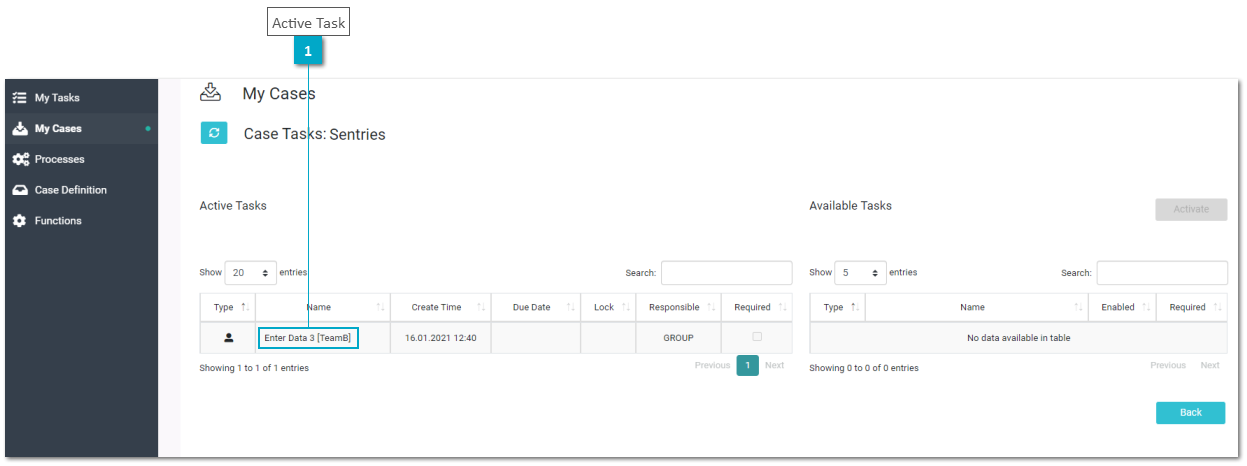
Step 12: Verify subdialog "Case Tasks" displays human tasks "Enter Data 3 [Team B]"
-
Step 13: Execute task "Enter Data 3 [Team B]"
-
Step 14: Open menu "My Cases" and verify that the instance of currently executed case plan is no longer available
-
Step 15: Open menu "Case Defintion"
-
Step 16: Open case plan definition "Username_Sentries"
-
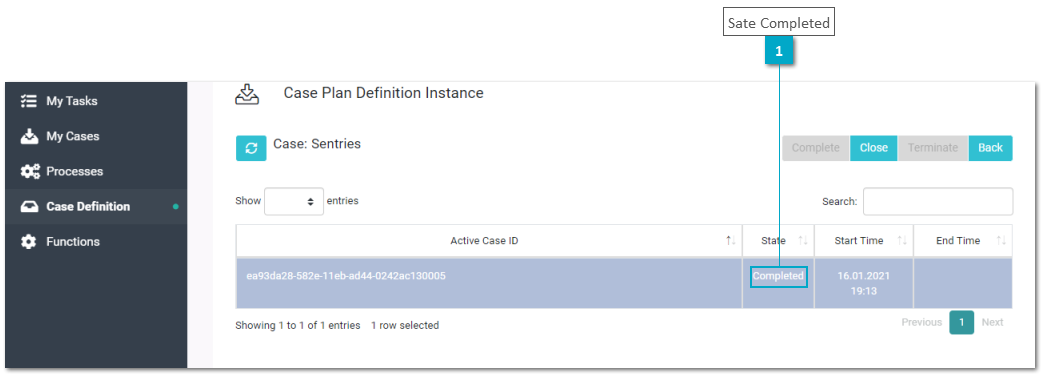
Step 17: Verify that currently executed case plan instance is in state "Completed"
-
Step 18: Repeat Steps 1 to 5 to execute again the Case Plan
-
Step 19: Open menu "MyTasks" and execute task "Enter Data 1 [Team A]", use first name "Appollo". This will activate the sentry condition defined for the exit criterion in Exercise 3 and the human task "Enter Data 3 [Team B]" will be skipped.
-
Step 20: Verify subdialog "Case Tasks" displays only human task "Enter Data 2 [Team B]"


























 Sate Completed The transition "Completed" automatically triggers when all plan items contained in the case plan model are completed, terminated, or disabled.
With automatic completion enabled (see Chaper 4: Markers), only required plan items have to reach theses states.
|