CMMN Training - Chapter 3: Stage, Milestone
Related subfolder of the training project: "C03"
Chapter Overview
In this training chapter you get familiar with CMMN stage and milestone.
Element Description:
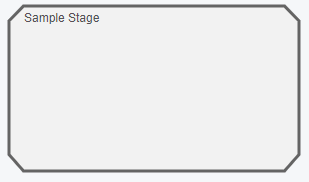
A stage provides the possibility to group tasks or other stages. A case plan may contain several stages that can be activated independently and also can be active in parallel. If a stage is active all contained plan items are in state available.
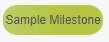
A stage is often used in combination with a milestone. Milestones represent that a specific status of the case plan is reached. Therefore, a milestone completion is mostly used as an entry criterion for a stage or task. In this way, a milestone is an ideal element to document the progress of a case plan.
|
 |
|
 |
Sample CMMN Case Plan
Tutorial Model: Automation/Case Plan/Training/CMMN/Chapter/C03/Stage_Milestone
Case Plan Explication:
-
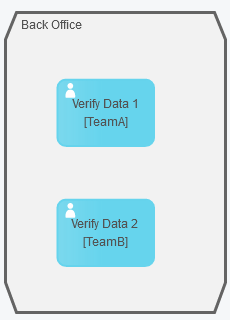
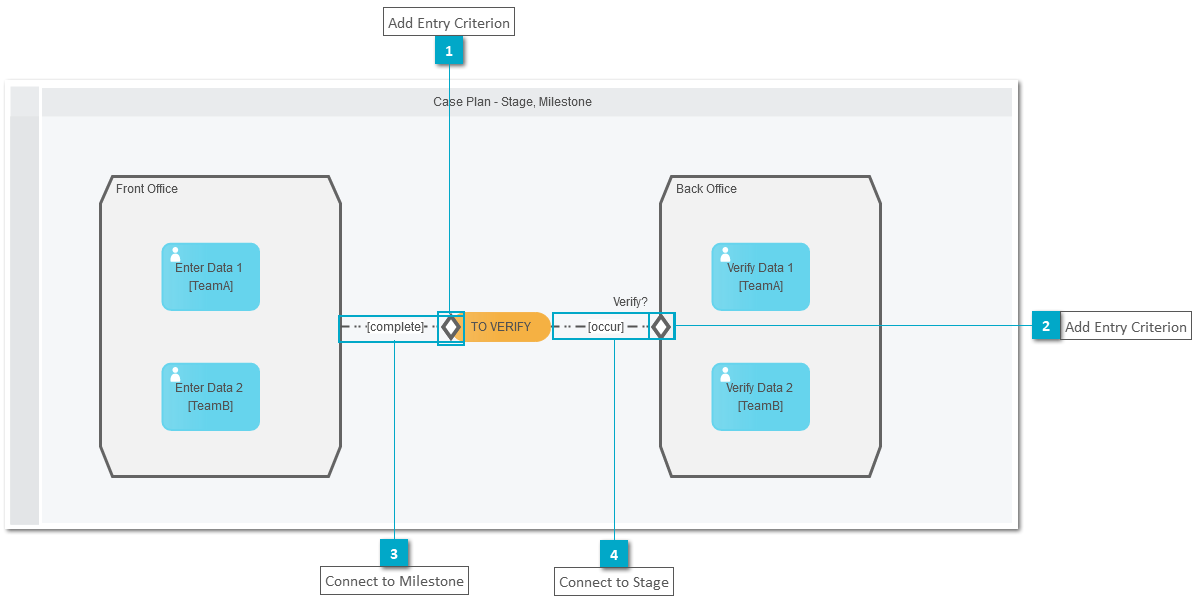
The case plan "CasePlan_Stage_Milestone" consists of stage "Front Office" and stage "Back Office"
-
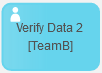
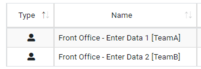
Both stages contain 2 human tasks to enter and verify data, which have to be executed by "TeamA" and "TeamB"
-
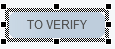
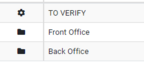
The completion of both human tasks completes stage "Front Office", which triggers the milestone "TO VERIFY"
-
The milestone "TO VERIFY" triggers the second stage "Back Office"
-
After both human tasks of stage "Back Office" are completed the stage itself and the case plan are completed

Remark: The candiate group of the human task is added in brackets to the label to better understand the responsibilities of this tutorial.
Exercise
In this exercise you will get familiar with the basic CMMN elements by implementing the case plan as described above. The case plan will then be published online, where the human tasks of the case plan can be executed directly in the xAPPnow User Portal.
Exercise 1: Create the Case plan Model
Remark: Add your user name as a prefix to the model name to easily filter your personal process in the runtime environment (User Portal, Camunda).
-
Step 1: Right click at model tree folder "Automation/Case Plan/Training/CMMN/Exercise/C03" to open context menu "Create Model"
-
Step 2: Enter model name "Username_Stage_Milestone"
-
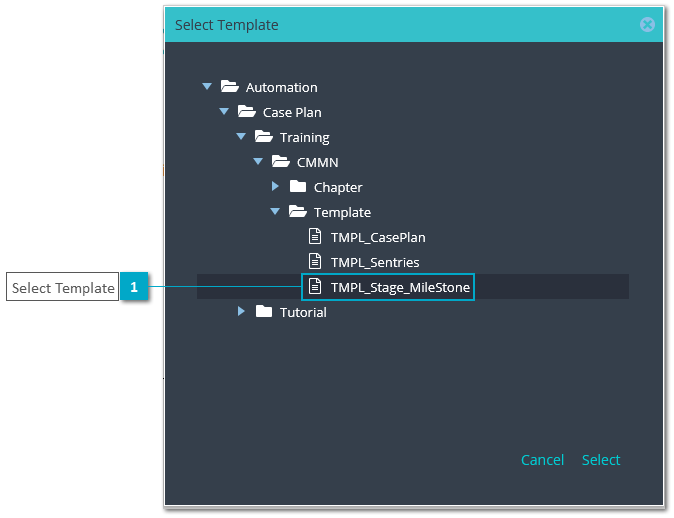
Step 3: Click button "Search" to open dialog "Select Template"

-
Step 4: Select template "TMPL_Stage_Milestone" in dialog "Select Template" with double click or click button "Select"
-
Step 5: Click button "OK" in dialog "Create Case Plan Model" to create the new model in selected folder
Exercise 2: Complete the Case Plan Model
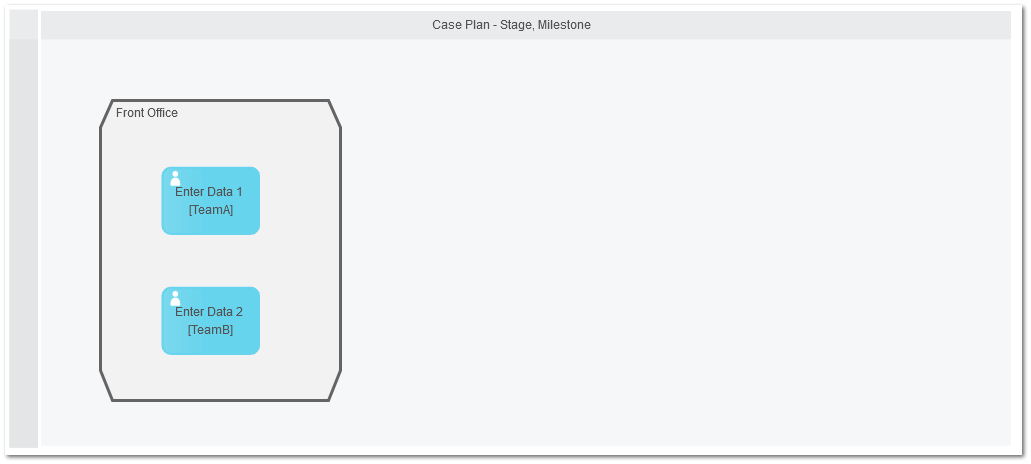
Complete the case plan model like the model above.
-
Step 1: Drag&Drop 2 human task from the palette into stage "Front Office" and enter label "Enter Data 1 [TeamA]" and "Enter Data 2 [TeamB]"
-
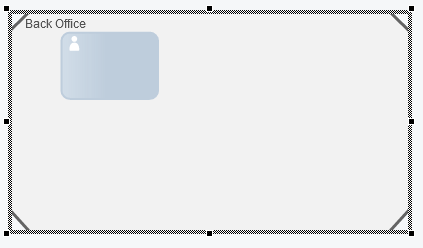
Step 2: Drag&drop a stage from case plan palette with label "Back Office" and place it next to the existent stage.Remark: The stage will contain by default a human task
-
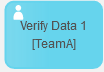
Step 3: Select human task inside the new stage "Back Office" and press F2 key to enter label "Verify Data 1 [TeamA]"
-
Step 4: Drag&Drop a human task from the palette into stage "Back Office" and enter label "Verify Data 2 [TeamB]"
-
Step 5: Resize stage "Back Office" similar to stage "Front Office"
-
Step 6: Drag&Drop a milestone from case plan palette between both stages with label "TO VERIFY"
-
Step 7: Drag&Drop 2 entry criterion: the first one on milestone "TO VERIFY" without label, and the second one on stage "Back Office" with label "Verify?"
-
Step 8: Connect stage "Front Office" and entry criterion of milestone "TO VERIFY" with sentry event "complete"
-
Step 9: Connect milestone "TO VERIFY" and entry criterion "Verify?" with sentry event "occur"


Exercise 3: Link User Task Model to Human Task
Link a user task model to human tasks presented on the model
-
Step 1: Select human task to open TAB "General" and then SubTAB "Element"
-
Step 2: Click button "Search" to open dialog "Select Submodel"
-
Step 3: Select user task model "BasicElements" as submodel with double click or click button "Select"

-
Step 4: In dialog "Multi Mapping"
-
map "caseData1" for human tasks "Enter Data 1 [Team A]" and "Verify Data 1 [Team A]"
-
map "caseData2" for human tasks "Enter Data 2 [Team B]" and "Verify Data 2 [Team B]"

Exercise 4: Assign Responsible to Human Tasks
Assign a candidate group to all human tasks
-
Step 2: Open TAB "Implementation" SubTAB "Responsible" of the human task
-
map "casePlanGroup.teamA" from SubTAB "Business Objects" to "Candiadate Groups" of human tasks "Enter Data 1 [TeamA]" and "Verify Data 1 [TeamA]"
-
map "casePlanGroup.teamB" from SubTAB "Business Objects" to "Candiadate Groups" of human tasks "Enter Data 2 [TeamB]" and "Verify Data 2 [TeamB]"

Exercise 5: Publish the Case Plan Model
The case plan model has to be published into Camunda process engine.
-
Step 1: Click button "Publish" to open dialog "Publish Model"
-
Step 2: Enter username and password and keep the default environment to make the publish
-
Step 3: Click button "OK" in dialog "Publish model" to publish the case plan into Camunda

Exercise 6: Publish the User Task Model
The case plan related user flow diagram of the human tasks has to be published separately into the xAPPnow User Portal and is directly online.
-
Step 1: Double click at one of the user tasks to navigate to the related submodel (both user tasks are using the same user task model)
-
Step 2: Click button "Publish" to open the dialog "Publish Model"
-
Step 3: Enter username and password and specify the environment to make the publish

Exercise 7: Manage the Case Plan in User Portal
-
Step 1: Login into User Portal with user "john", who belongs to the group "TeamA".
-
Step 2: Open menu "Case Definition"
-
Step 3: Click button "Start" to start an instance of the selected case plan definition

-
Step 4: Open menu "My Cases"
-
Step 5: Select the instance of case plan definition "Username_Stage_Milestone" you just had started
-
Step 6: Click button "Open" to view active and available tasks of the case plan

-
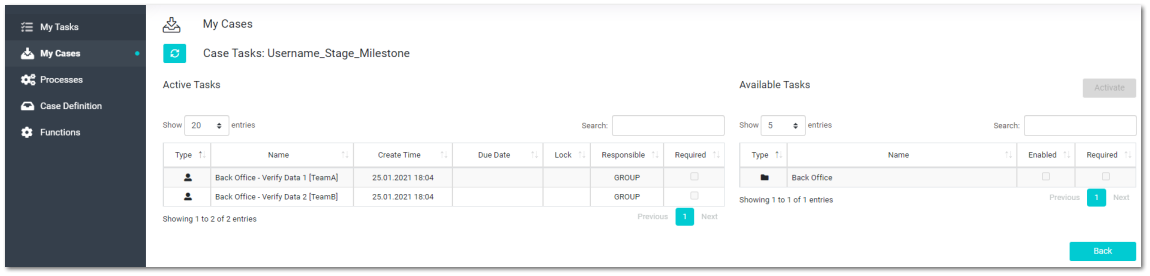
Step 7: As expected subdialog "Case Tasks" displays both active human tasks of stage "Front Office", the rest of the tasks will become active after this stage is completed

-
Step 8: Open menu "MyTasks" and execute task "Enter Data 1 [TeamA]"
-
Step 9: Verify subdialog "Case Tasks" displays active human task "Enter Data 2 [TeamB]"

-
Step 10: Login into User Portal with user "jane", who belongs to the group "TeamB"
-
Step 11: Execute task "Enter Data 2 [TeamB]"
-
Step 12: Verify subdialog "Case Tasks" to see that milestone "TO VERIFY" has been activated and it triggers the human tasks of stage "Back Office"
-
Step 13: Login into User Portal with user "john", who belongs to the group "TeamA" to execute task "Verify Data 1 [TeamA]"
-
Step 14: Verify subdialog "Case Tasks" displays active human task "Verify Data 2 [TeamB]"
-
Step 15: Login into User Portal with user "jane", who belongs to the group "TeamB" to execute task "Verify Data 2 [TeamB]"
-
Step 14: Open menu "My Cases" and verify that the instance of currently executed case plan is no longer available
-
Step 15: Open menu "Case Defintion"
-
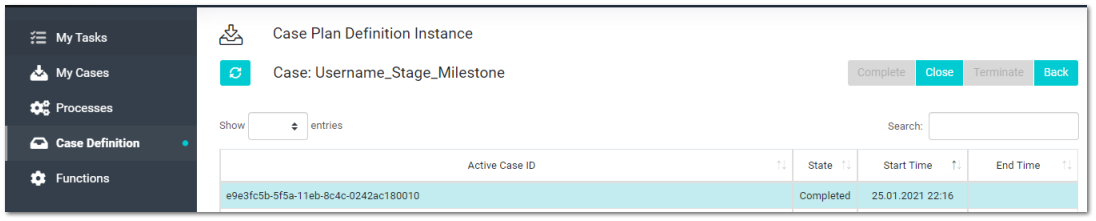
Step 16: Open case plan definition "Username_Stage_Milestone"
-
Step 17: Verify that currently executed case plan instance is in state "Completed"