xAPPnow LOW CODE PLATFORM - User Manual 

Still no account yet?

×

Main Window - xAPPnow Modeling Studio


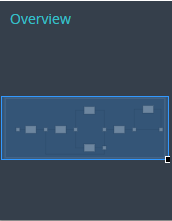
The top section of the xAPPnow Modeling Studio user interface contains the main menu, the main information of the domain, current project and model as well as the model specific toolbar. The visual designer area is the central window of the application user interface. This area displays the opened models but by default after login or when no model is opened it displays a Dashboard with important general information about the project. See Dashboard - xAPPnow Modeling Studio for more details. The visual designer area is surrounded by the model tree and basic components tree at the left side, the model specific palettes (see model types) at the right side and the model specific properties TABs (see model properties) at the bottom section. Additionally an overview window at the lower left corner of the application user interface provides a zooming and scrolling of the viusal designer area.


1

Main menu

1. Main menu
The main menu provides common project and administration functions as well as the help menu.
2

Main information

2. Main information Main Window - xAPPnow Modeling Studio
The main information contains the current domain, project name and pathname of the opened model
3

Toolbar

3. Toolbar
The toolbar provides model specific functions.
4

Visual designer area

4. Visual designer area
The visual designer area contains the graphic view of the model.
5

Model palette

5. Model palette
The palette elements are always model specific.
6

Component

6. Component
The basic components tree contains common artifacts of the project.
7

Model Tree

7. Model Tree
The model tree contains all folders and models of a project.
8

Overview

8. Overview
The overview window displays the current view detail of the model.
9

Properties TABs

9. Properties TABs
The Properties TABs are always model specific.
10

User Menu

10. User Menu
User data and functionalities and Logout