
BPMN Training Part 9: Collaboration, Message Events/Flows
Related subfolder of the training project: "C09"
Chapter Overview
In this training chapter you get familiar with major inter process communication elements provided by the BPMN standard.

In addition to a process model, a collaboration model is used to visualize inter process communication. The collaboration model consists of a pool and one or more collapsed pool elements connected by message flows. A collapsed pool element is linked to a collaboration model as submodel, providing a direct navigation with double click.
The following message events are mainly used for an inter process communication:
-
message start event
-
message intermediate catch event
-
message intermediate throw event
-
message end eventFurther message events are:
-
boundary interrupting message event
-
boundary non-interrupting message eventRemark: a timer boundery event is explained in chapter 13Properties of an event message:
-
An event message is unique within the process context
-
An event message may contain a message object specified in a business object model
Sample - Message Definiton Object "StartProcess"
The following sample demonstrates the definition of a message definition object.
Tutorial Model: Automation/Data Object/Training/BPMN/DEF
Message Definition Object Explanation:
The message definition object "StartProcess" is specified in a definition object model and is unique in the process context.
It contains the optional message object, which is a business object of type "ProcessData".

Sample BPMN Collaboration Model
The following sample demonstrate an inter process communication between the collaboration model "User Registration" and the collaboration model "Moderation Registration" using various message events.
Tutorial Model: Automation/Business Process/Tutorial/BPM/Message/UserRegistration
Process Explanation:
-
The process starts with a user task "Request Registration".
-
After the gateway "Is canceled?" the default flow "NO" triggers a message intermediate throw event "Start Moderation" which sends a "Start Moderation" message to the process "Registration Moderation"
-
Then the sequence flow triggers a message intermediate catch event "Receive Notification"
-
The process is now in a wait state until a "Notify Registration" message is received from the process "Registration Moderation"

Tutorial Model: Automation/Business Process/Tutorial/BPM/Message/RegistrationModeration
Process Explanation:
-
The process is started by a message start event after receiving the specific message "Start Moderation" from process "User Registration".
-
After the user task "Moderate Registration" is executed the default flow "YES" of gateway "Is moderated" triggers the message end event
-
The message end event sends a "Notify Registration" message to the process "User Registration" and terminates the process

Exercise
In this exercise you will get familiar with basic inter process communication by using a sender and receiver collaboration model and message start event and message end event.
Exercise 1: Create both Collaboration Models
Remark: Add your user name as a prefix to the model name to easily filter your personal process in the runtime environment (User Portal, Camunda).
-
1. Create the Receiver Collaboration Model:
-
Step 1: Right click at model tree folder "Automation/Business Process/Training/BPMN/Exercise/C09" to open context menu "Create Model"
-
Step 2: Enter model name "Username_MsgStartEvent" and keep option "Model Type: Collaboration" in dialog "Create Business Process Model"
-
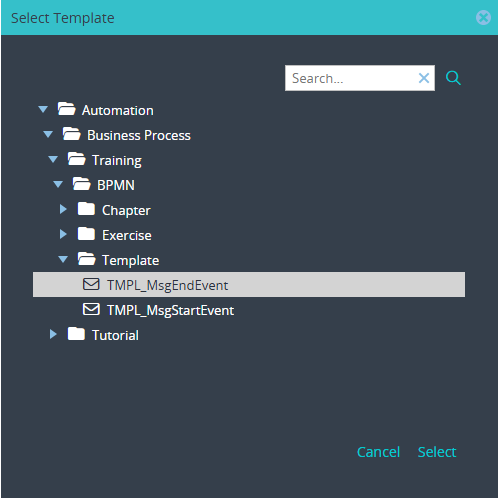
Step 3: Click button "Search" to open dialog "Select Template"
-
Step 5: Select template "TMPL_MsgStartEvent" in dialog "Select Template" with double click or click button "Select"


2. Create the Sender Collaboration Model:
-
Step 6: Right click at the folder and open context menu "Create Model" to open dialog "Create Business Process Model"
-
Step 7: Enter model name "Username_MsgEndEvent"
-
Step 8: Select model type "Collaboration"
-
Step 9: Click button "Search" to open dialog "Select Template"
-
Step 5: Select template "TMPL_MsgEndEvent" in dialog "Select Template" with double click or click button "Select"

Exercise 2: Complete both Collaboration Models
Remark: At first you always should model the receiver process.
1. Complete the Receiver Collaboration Model:
-
Step 1: Select message start event from the palette
-
Step 2: Replace the start event by drag&drop the message start event
-
Step 3: Draw a message flow from the collapsed pool "Sender Process" to the message start event
-
Step 4: Link submodel "Username_MsgEndEvent" to the collapsed pool "Sender Process"


2. Complete the Sender Collaboration Model:
-
Step 5: Select message end event from the palette
-
Step 6: Replace the end event by drag&drop the message end event
-
Step 7: Draw a message flow from the message start event to the collapsed pool "Receiver Process"
-
Step 84: Link submodel "Username_MsgStartEvent" to the collapsed pool "Receiver Process"


Exercise 2: Configure the Message Objects of the Message Events
Remark: At first you always have to configure the message catch event of the receiver process.
1. Configure the Message Start Event of the Receiver Collaboration Model:
-
Step 1: Select message start event
-
Step 2: Open TAB "Implementation"
-
Step 3: Drag&Drop "StartProcess" from SubTAB "Definition Objects" into "Message Definition Object"

2. Configure the Message End Event of the Sender Collaboration Model:
-
Step 1: Select message end event
-
Step 2: Open TAB "Implementation" SubTAB "Configuration"
-
Step 3: Click button "Search" to configure the "Receiver Process Name"

-
Step 4: Select collaboration model "Username_MsgStartEvent" as the corresponding receiver process

-
Step 4: Select message definition object "StartProcess" from the ComboBox

Exercise 3: Publish the both Collaboration Models
The process models have to be published into Camunda process engine. The receiver process must not be started on publish.
1. Publish the Receiver Collaboration Model "Username_MsgStartEvent:
-
Step 1: Click button "Publish" in the toolbar to open the dialog "Publish Model"
-
Step 2: Enter username and password

2. Publish the Sender Collaboration Model "Username_MsgEndEvent:
Remark: Do not set option "Start Process", because the receiver will be started by the message end event
-
Step 1: Click button "Publish" in the toolbar to open the dialog "Publish Model"
-
Step 2: Enter username and password
-
Step 3: Publish the process with option "Start Process"

Exercise 4: Test the Process in User Portal
-
Step 1: Login into User Portal with user "john", who belongs to the group "TeamA".
-
Step 2: Execute the task "Enter Data"
-
Step 3: Login into User Portal with user "jane", who belongs to the group "TeamB".
-
Step 4: Execute the task "Verify Data"
See details in Exercise 5 of Chapter BPMN Introduction - Chapter 2: Start Event, User Task, End Event, Sequence Flow




















 Collapsed Pool A collapsed pool element refers to a BPMN collaboration model which is assigned as submodel.
|

