BPMN Training Part 12: Boundary Event
Related subfolder of the training project: "C12"
Chapter Overview
In this training chapter you get familiar with BPMN activities containing interrupting and non-interrupting boundary events positioned at the border of the activity (see BPMN process model elements).
-
The element of an interrupting event has a solid border
-
The element of a none-interrupting event has a dashed border

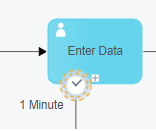
Boundary events are intermediate events of an activity, which can be triggered while the related acitivity is beeing performed. The behaviour of such an activity, in case the boundary event is triggered, depends on the type of the boundary event:
-
If an interrupting boundary event of an activity is triggered, then the activity completes directly, without processing any subsequent sequence flow.
-
If a none-interrupting boundary event of an activity is triggered, then the activity continues normally.
Boundary interrupting and none-interrupting intermediate events:

Further boundary interrupting intermediate events:

The following sample demonstrates the behaviour of a boundary none-interupting intermediate timer event.
Sample BPMN Process Model
Tutorial Model: Automation/Business Process/Training/BPMN/Chapter/C13/BoundaryEvent
Process Explanation:
1. Variant: Process execution without any trigger of a boundary event:
-
The process is started in the lane of group "TeamA" by a start event.
-
The sequence flow of the start event triggers the user task "Enter Data", which has to be executed by a user of group "TeamA".
-
After the user task "Enter Data" is finished by the user, the user task "Verify Data" is triggered by the sequence flow.
-
The user task "Verify Data" is positioned in the second lane of group "TeamB" and therefore has to be executed by a user of group "TeamB".
-
After the user has finished the user task "Verify Data" the sequence flow triggers the end event, which directly completes the process.
2. Variant: user task "Enter Data" of "TeamA" is not executed within a time duration of 1 minute
-
The user task "Enter Data" of "TeamA" is not interrupted and after completion the sequence flow triggers the user task "Verify Data"
-
The sequence flow of the none-interupting intermediate timer event triggers user task "Enter Data" of "TeamB"
-
The completion of user task "Enter Data" of "TeamB" triggers the user task "Verify Data"
-
The process ends after both instances of user task "Verify Data" of "TeamB" are completed
3. Variant: user task "Enter Data" of "TeamB" is not executed within a time duration of 1 minute
-
The user task "Enter Data" of "TeamB" is interrupted and cannot be completed
-
The sequence flow of the interupting intermediate timer event triggers the end event
-
The process ends after the user task "Verify Data" of "TeamB" is completed

Exercise
In this exercise you will get familiar with the boundary interrupting and none-interrupting intermediate events by implementing the process as described above. The process will then be published online, where the user tasks of the process can be executed directly in the xAPPnow User Portal.
Exercise 1: Create the Business Process Model
Remark: Add your user name as a prefix to the model name to easily filter your personal process in the runtime environment (User Portal, Camunda).
-
Step 1: Right click at model tree folder "Automation/Business Process/Training/BPMN/Exercise/C12" to open context menu "Create Model"
-
Step 2: Enter model name "Username_BoundaryEvent" and keep option "Model Type: Process" in dialog "Create Business Process Model"
-
Step 3: Click button "Search" to open dialog "Select Template"

-
Step 5: Select template "TMPL_BoundaryEvent" in dialog "Select Template" with double click or click button "Select"

Exercise 2: Complete the Process Model
Complete the process model like the model above.
-
Step 1: Open context menu of user task "Enter Data" of "TeamB"
-
Step 2: Drag&Drop a timer intermediate event boundary interrupting to the left side of the submodel marker
-
Step 3: Enter label "1 Minute"

-
Step 4: Select label and move the label to the left side of the event

-
Step 4: Drag&Drop an end event from the palette to the position below the user task "Enter Data"
-
Step 5: Draw a sequence flow from the midddle of the timer event to the end event

Exercise 3: Configure the Timer
-
Step 1: Use SHIFT + CLICK to select the timer intermediate event boundary interrupting of the user task "Enter Data" of "TeamB"
-
Step 2: Open TAB "Implementation" to configure the timer event
-
Step 3: Select timer type "Duration"
-
Step 4: Drag&Drop attribute "timerDuration" from SubTAB "Business Object" to configure the timer duration value of 1 minute.

Exercise 4: Publish the Process Model
The process model has to be published into Camunda process engine. The process will be started online directly.
-
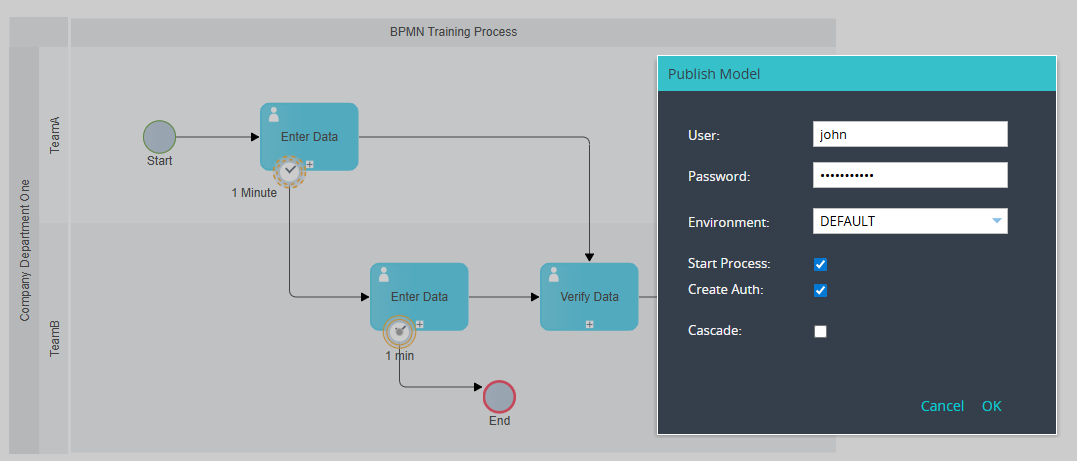
Step 1: Click button "Publish" to open the dialog "Publish Model"
-
Step 2: Enter username and password
-
Step 3: Publish the process with options "Start Process"
Exercise 5: Test the Process in User Portal
-
Step 1: Login into User Portal with user "john", who belongs to the group "TeamA".
-
Step 2: Login into User Portal with user "jane", who belongs to the group "TeamB".
Remark: Wait 1 minute until the task "Enter Data" is visible in the task list of user "jane" according to the timer configuration.
-
Step 3: Click button "Refresh" until the task "Enter Data" is available in the task list of user "jane"
Remark: Wait 1 minute until the task "Enter Data" is no longer visible in the task list of "TeamB" according to the timer configuration.
-
Step 4: Click button "Refresh" until the task "Enter Data" is no longer visible available in the task list of user "jane"
-
Step 5: Execute the task "Enter Data" of user "john"
-
Step 6: Click button "Refresh" to see the task "Verify Data" in the task list of user "jane"
-
Step 7: Execute the task "Verify Data" to terminate the process