Training Manage "My Apps"
Overview
The goal of this topic is to train you in the management of the access to My Apps to the corresponding groups. The User Portal domain administrator is the responsible of My Apps configuration and management during the process of developing a project.
Exercise
In this exercise you will configure an App to be displayed in "My Apps" menu for a specific group. As a precondition for configuration, there must be at least one App published on the domain. Also it is required to have Groups added, we reccomend to execute the Training Manage User Portal Groups first. To begin this training you must Log in into User Portal using credentials of the Domain Administrator.
Exercise 1: Set Groups Access to App
-
Step 1: Select menu "MyApps" to display configured apps. It should appear empty because no application has been configured yet.
-
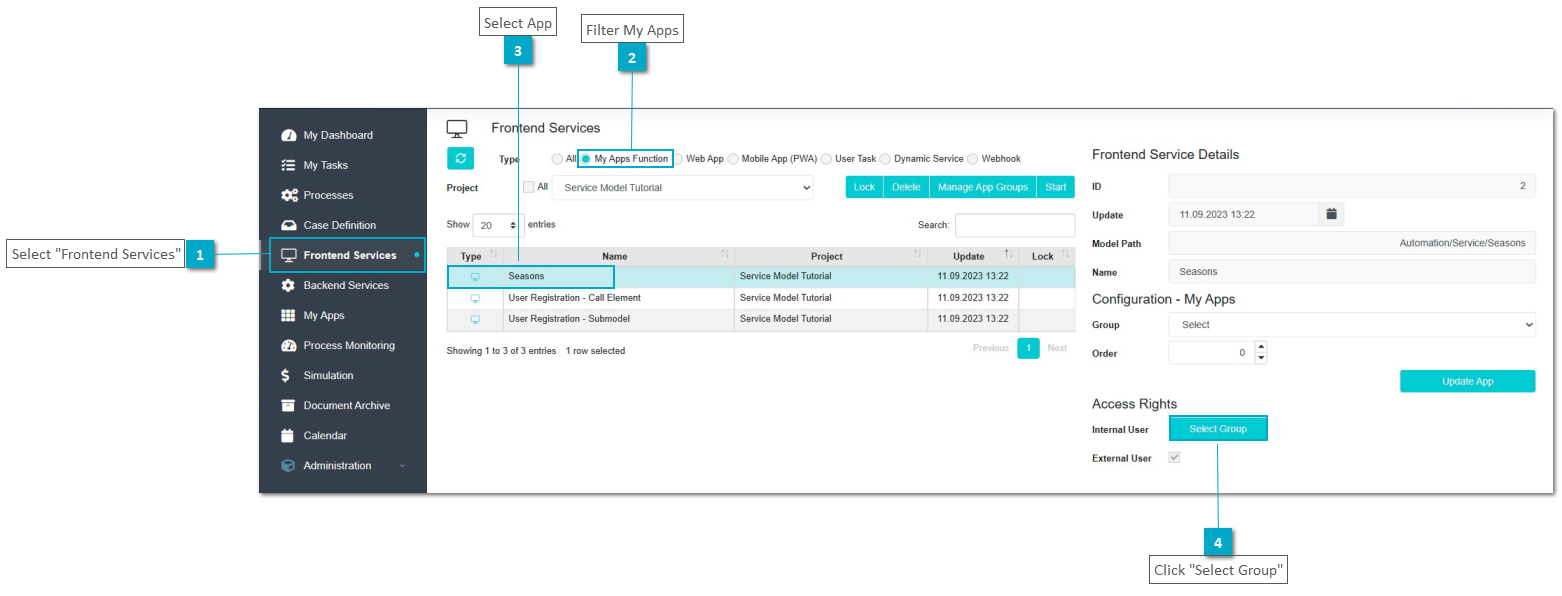
Step 2: Select menu "Frontend Services" to list all functions, applications and PWA published on the domain.
-
Step 3: Select on the radiobutton group filter "My Apps Function" to only display the applications and select "Seasons"
-
Step 4: Click button "Select Group" on the panel "Configuration - My Apps" located on the right, to open dialog "Function APP Groups"
-
Step 5: Click button "Add" to open dialog "Add Group"

-
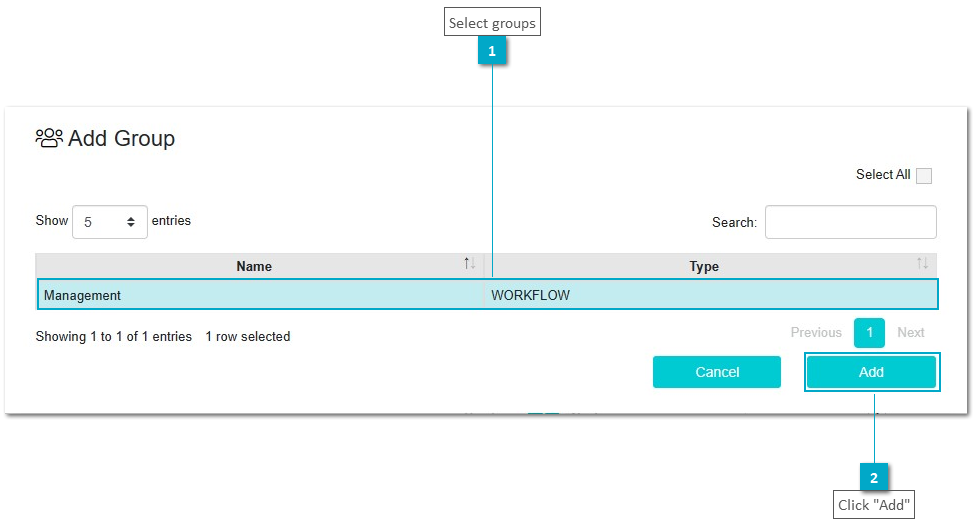
Step 6: Selct one, some or all groups and click button "Add" to return to dialog "Function APP Groups"
-
Step 7: Click button "OK" to give permission to the selected groups to access the application through menu "My Apps"

-
Step 8: Repeat Step 3 to 7 for Apps "User Registration - Submodel" and "User Registration - Call Element"
Open menu "My Apps" to check that the applications icons are now visible and can be started

Exercise 2: Create group for ordering and grouping apps
-
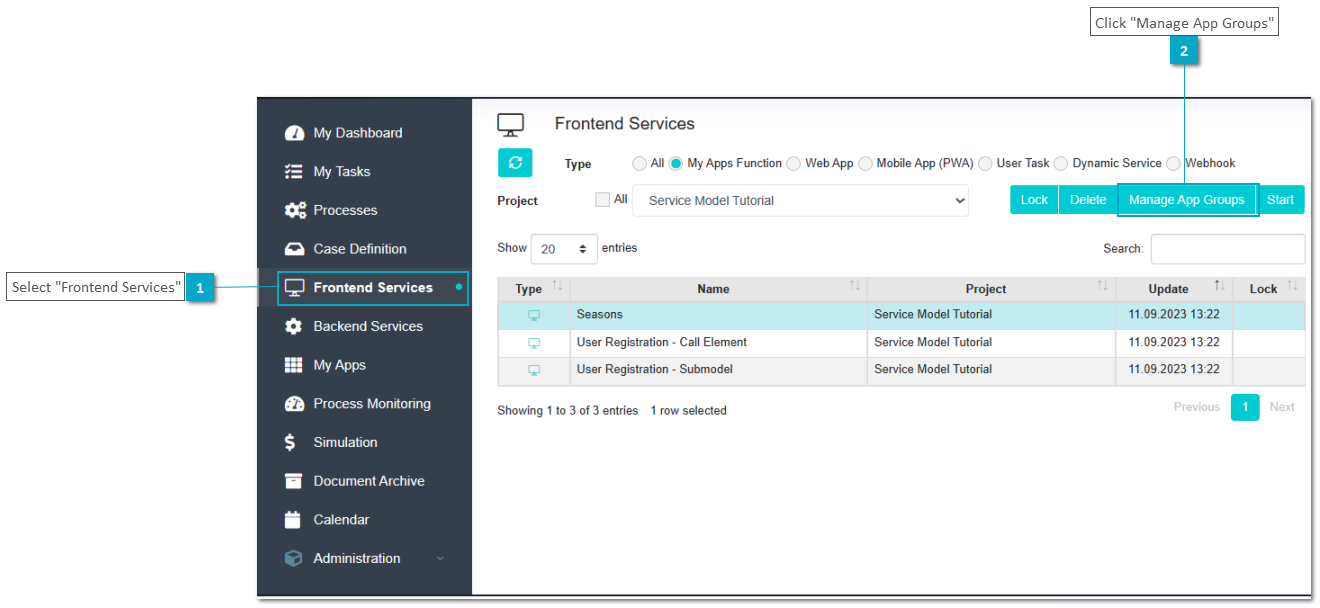
Step 1: Select menu "Frontend Services" to list all functions, applications and PWA published on the domain.
-
Step 2: Click button "Manage App Groups" to list the name of the groups defined to set the ordering and grouping of the apps on My Apps.
-
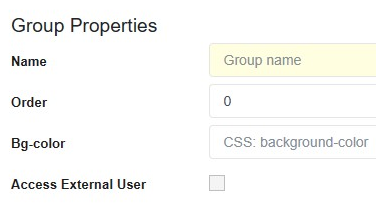
Step 3: Click button "New Group" to display a panel for entering the information for the group

-
Step 4: Enter the required data for the group:
-
Name: Seasons
-
Order: 0
-
Bg-Color: <specify background color>
-
Tenant Specific: <checked to specify for a specific tenant>
-
Step 5: Click button "Save" to add the group.

-
Step 6: Repeat steps 3, 4 and 5 to create a new group using the folloing data:
-
Name: Registration
-
Order: 1
-
Bg-Color: <specify background color>
-
Tenant Specific: <checked to specify for a specific tenant>
-
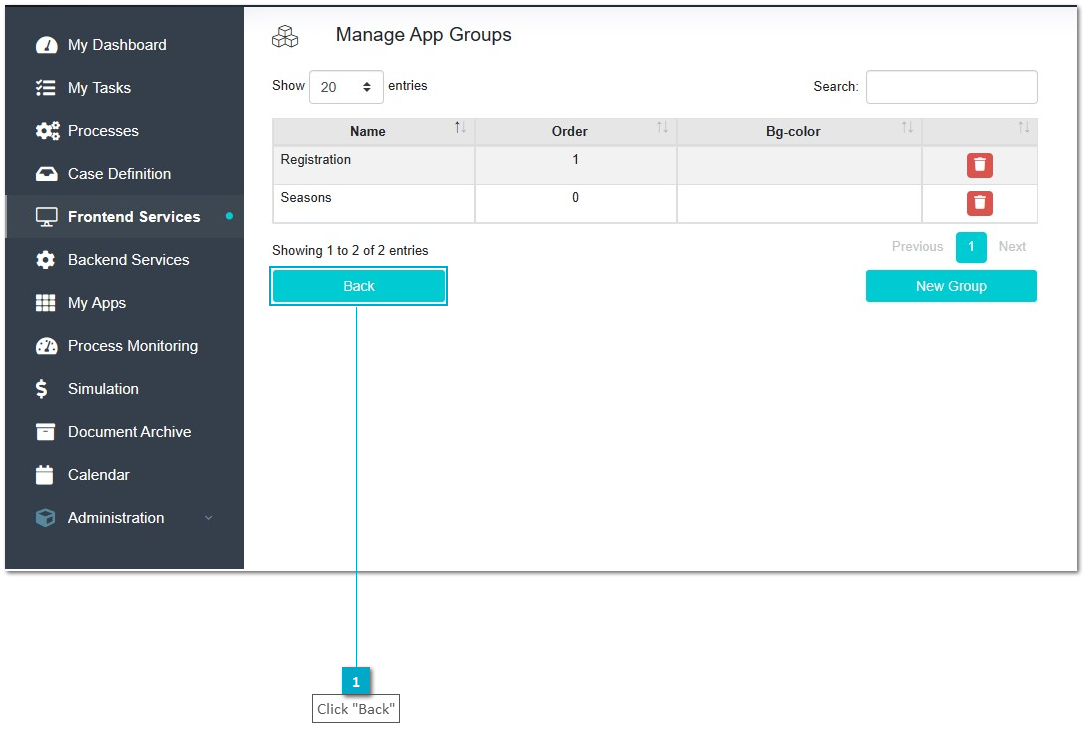
Step 7: Click button "Back" to return to the functions list
Exercise 3: Order and Group Apps
-
Step 1: On menu "Frontend Services", select filter "My Apps Function" on the radiobutton group to only display the applications and then select "Seasons"
-
Step 2: Click combobox "Group" on the panel "Configuration - My Apps" located on the right, below the "Frontend Service Details" to display the groups added in Exercise 2.
-
Step 3: Select the group "Seasons" from the list and set order 0 in textfield "Order" to set the order in which the app will be displayed.
-
Step 4: Click button "Update App" to save the changes.

-
Step 5: Repeat step 1 and 2 for app User Registration - Call Element
-
Step 6: Select the group "Registration" from the list and set order 1 in textfield "Order" to set the order in which the app will be displayed.
-
Step 7: Click button "Update App" to save the changes.
-
Step 8: Repeat step 1 and 2 for app User Registration - Submodel
-
Step 9: Select the group "Registration" from the list and set order 0 in textfield "Order" to set the order in which the app will be displayed.
-
Step 10: Click button "Update App" to save the changes.
-
Step 11: Select menu "MyApps" to display configured apps and check the configurations.