xAPPnow LOW CODE PLATFORM - User Manual 

Still no account yet?

×

Training Manage User Portal Groups


Overview

 
The goal of this topic is to train you in the management of Groups in Camunda through User Portal. The User Portal domain administrator is the responsible of create, update and delete groups, and also assign users to groups.


Exercise

In this exercise you will create new groups and will assign users to them. To start this training you must Log in into User Portal using credentials of the Domain Administrator.
 
 
Exercise 1: Create new group
 
  • Step 1: Expand menu "Administration" to visualize all menu entries and select "Group" to list all groups in "Group Administration" overview.
  • Step 2: Click button "Create" to open dialog "Create Group".


    Training Manage User Portal Groups


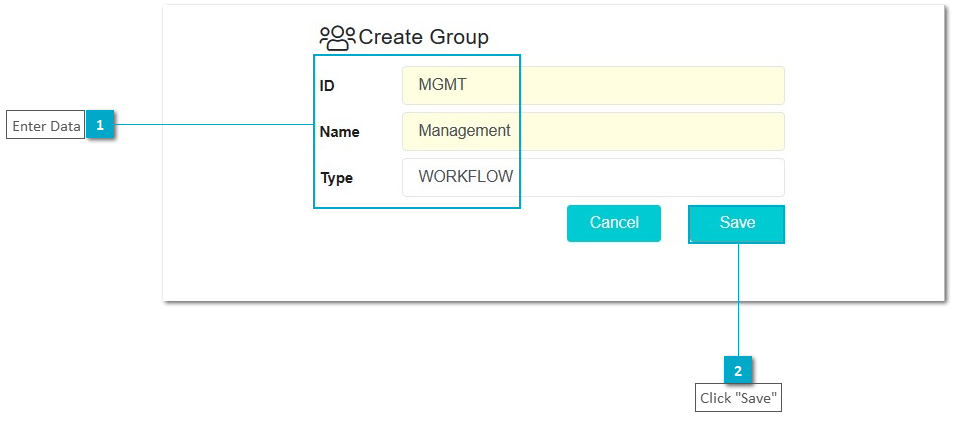
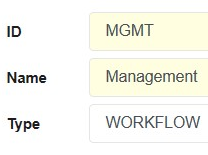
  • Step 3: Enter the required data to define the new group:
  • ID: <group ID> (e.g.: MGMT)
  • Name: <group name> (e.g.: Management)
  • Type: <group type> (e.g.: WORKFLOW)
  • Step 4: Click button "Save" to add the new group to the list.
     
     
    Training Manage User Portal Groups


Exercise 2: Assign User to a Group
 
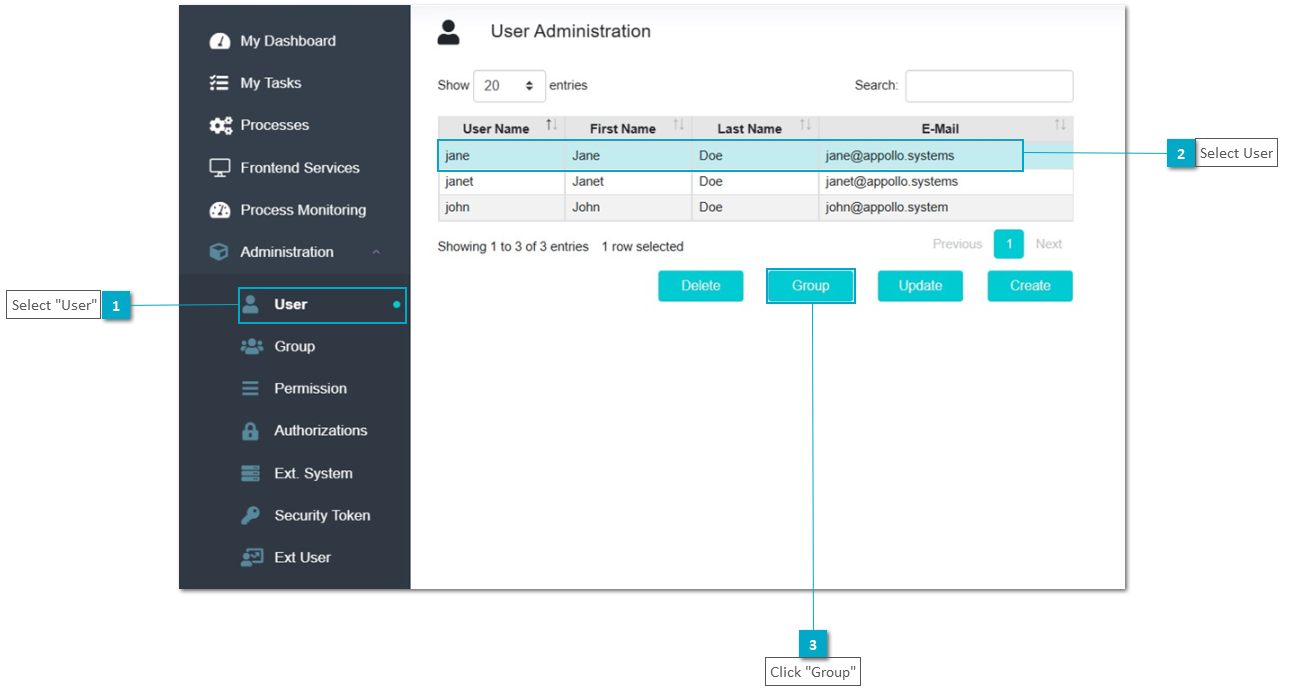
  • Step 1: On decollapsed menu "Administration" select "User" to list all users in "User Administration" overview.
  • Step 2: Select a user from the list and click button "Group" to open dialog "User Groups"


    Training Manage User Portal Groups


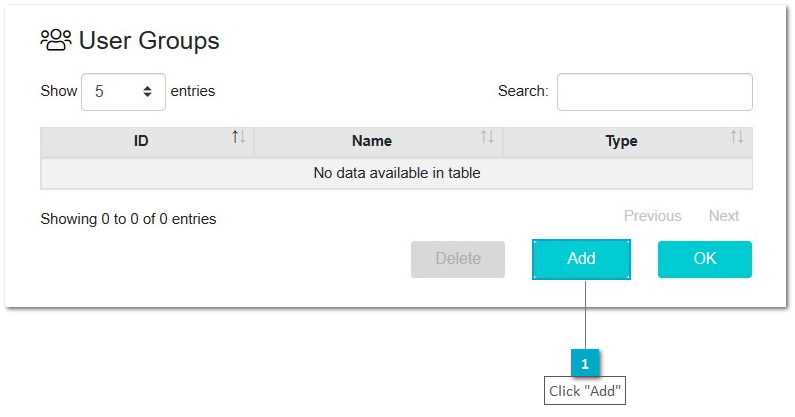
  • Step 3: Click button "Add" to open dialog "Add Groups"


Training Manage User Portal Groups
 
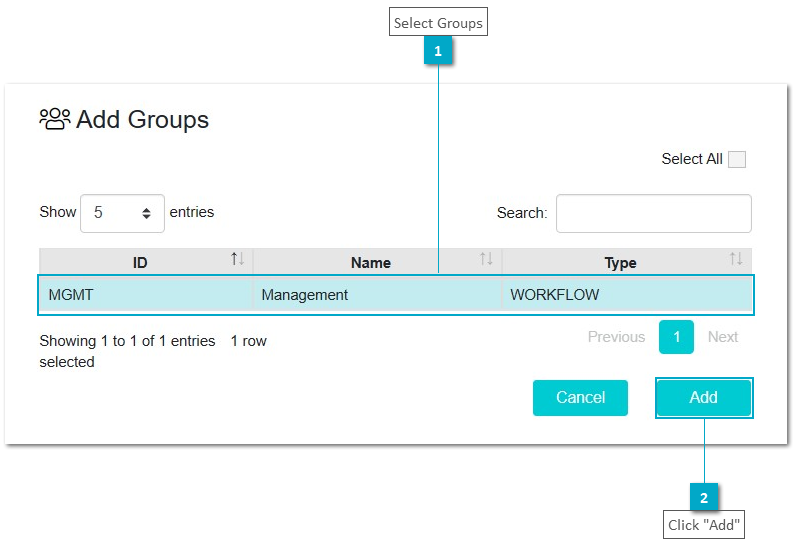
  • Step 4: Selct one, some or all groups and click button "Add" to return to dialog "User Groups"
 
 
Training Manage User Portal Groups
 
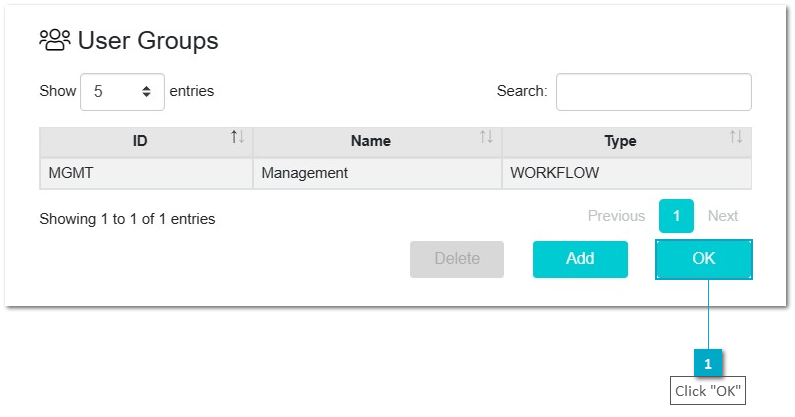
  • Step 5: Click button "OK" to add the user to the selected groups.
 
 
Training Manage User Portal Groups


Exercise 3: Check Users of a Group
 
  • Step 1: On decollapsed menu "Administration" select "Group" to list all groups in "Group Administration" overview.
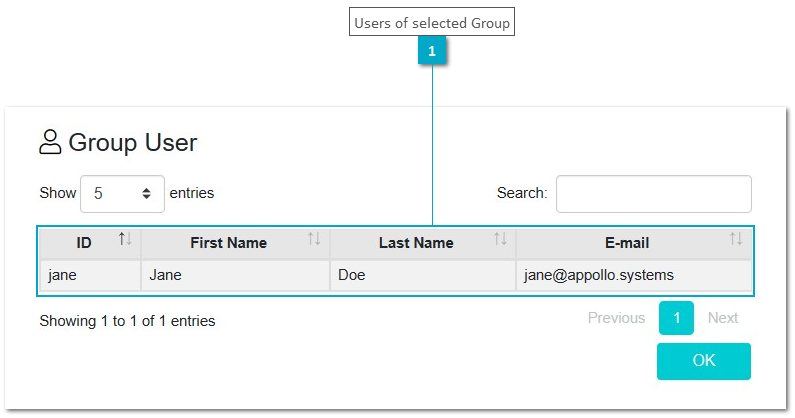
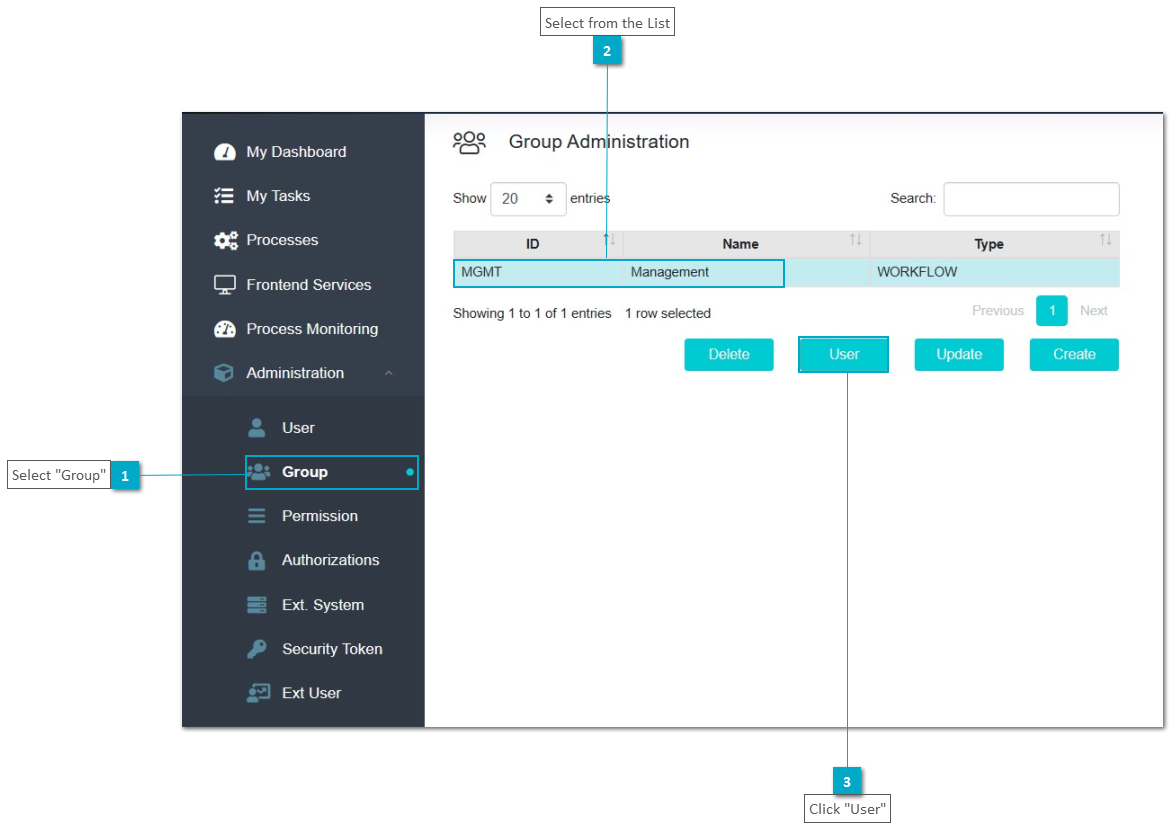
  • Step 2: Select a group of the list and click button "User" to display the dialog "Group User" with a list of the users assigned to the selected group.
     
     
    Training Manage User Portal Groups
     
     
    Training Manage User Portal Groups


    1

    Expand Menu

    1. Expand Menu
    Expand menu "Administration" to visualize all menu entries
    2

    Select "Group"

    2. Select "Group"
    Select "Group" to list all groups in "Group Administration" overview
    3

    Click "Create"

    3. Click "Create"
    Click button "Create" to open dialog "Create Group"
     
    1

    Enter Data

    1. Enter Data
    Enter the required data to define the new group
    2

    Click "Save"

    2. Click "Save"
    Click button "Save" to add the new group to the list
     
    1

    Select "User"

    1. Select "User"
    On the decollapsed menu "Administration" select "Users" to list all users in "User Administration" overview
    2

    Select User

    2. Select User
    Select a user from the list
    3

    Click "Group"

    3. Click "Group"
    Click button "Group" to open dialog "User Groups"
     
1

Click "Add"

1. Click "Add"
Click button "Add" to open dialog "Add Groups"
 
1

Select Groups

1. Select Groups
Selct one, some or all groups from the available groups on the list
2

Click "Add"

2. Click "Add"
Click button "Add" to return to dialog "User Groups"
 
1

Click "OK"

1. Click "OK"
Click button "OK" to add the user to the selected groups.
 
1

Select "Group"

1. Select "Group"
On decollapsed menu "Administration" select "Group" to list all groups in "Group Administration" overview.
2

Select from the List

2. Select from the List
Select a group of the list
3

Click "User"

3. Click "User"
Click button "User" to display the dialog "Group User" with a list of the users assigned to the selected group.
 
1

Users of selected Group

1. Users of selected Group
List of users which belong to the selected group