Training External System Administration
Overview
The goal of this topic is to train you in the administration of external systems access configurations in User Portal. The User Portal domain administrator is the responsible of create, configure and delete the external system configurations for a specific domain.
Exercise
In this exercise you will create a new external system configuration to access a database, which will allow the correct execution of the project for the Low-Code Tutorial Service Model - DB Connector. To start this training you must Log in into User Portal using credentials of the External System Administrator to have access to the External System configuration menu.
Exercise 1: Create new External System Object
-
Step 1: Select menu entry "Ext. System" to display the list of configurations of the specific domain.
-
Step 2: Click list "New External System" to select DB Connection Type

-
Step 3: Click button "Create" to open dialog "External System Administration"

-
Step 4: Click over the icon image to select it, or type the text of the icon identifier on the "Icon" textfield.

-
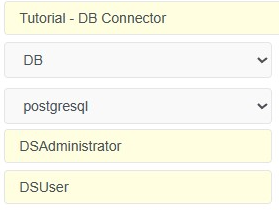
Step 5: Enter the required data to create the external system object:
-
External System: Enter the name of the External System
-
Connection Type: Displays the connection type selected before click "Create"
-
DB System: Displays the available DB system
-
Admin Connection Object: Enter the name of the Administrator Connection Object (this name must be the same as the name of the Connection Object created in Modeling Studio)
-
User Connection Object: Enter the name of the User Connection Object (this name must be the same as the name of the Connection Object created in Modeling Studio)
-
Step 6: Click button "Save" to add the external system access in User Portal.

The object will be listed in the overview table of External Systems Configuration.

Note: After configuring access to the database server, the database can be generated and updated from Modeling Studio and, after publish the processes and the frontend service models, these ones can be executed in User Portal. In case of wrong credentials or missing configurations, the DB Connector will display a Fatal Error dialog like on the image below with details of the problem detected.