BPMN Training Part 3: Task, Subprocess
Related subfolder of the training project: "C03"
Chapter Overview
In this training chapter you get familiar with the unspecific BPMN task element and the subprocess model type.

BPMN Task Element
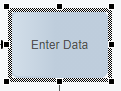
The unspecific task element is a preferred activity for a rapid modeling of a business process, because you just need to add a meaningful label (e.g. "Read Data", "Save Data").
Sample BPMN Process Model
Process Explanation:
-
The process is started in the lane of group "TeamA" by a start event.
-
The sequence flow of the start event triggers the task "Enter Data", which has to be executed by a user of group "TeamA".
-
After the task "Enter Data" is completed by the user, the task "Verify Data" is triggered by the sequence flow.
-
The task "Verify Data" is positioned in the second lane of group "TeamB" and therefore has to be executed by a user of group "TeamB".
-
After the user has completed the task "Verify Data" the sequence flow triggers the end event, which directly completes the process.

BPMN Subprocess
A subprocess can be used to structure a process. A subprocess can contain multiple activities to perform a part of a total process.
Major properties of a subprocess are:
-
A subprocess always belongs to the entire parent process only. No other process can use this subprocess.
-
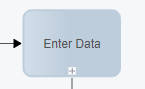
A subprocess is linked as a submodel of a task element (see submodel marker).
-
A subprocess can be reused within the same process for several tasks.
Remark: An error is displayed in TAB "Validation" if a task has no subprocess assigned. You can ignore the error message in case the model is used for documentation, only.
Sample BPMN Process Model
Tutorial Model: Automation/Business Process/Training/BPMN/Chapter/C03/Task_Subprocess
In the following sample each task has a subprocess assigned which can be noticed by the submodel marker.

Sample BPMN Subprocess Model
Tutorial Model: Automation/Business Process/Training/BPMN/Chapter/C03/Task_Subprocess.$.EnterData
-
The subprocess always contains a start and end event
-
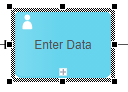
The subprocess contains a user task "Enter Data" which has a frontend service model "user task" as submodel

Further properties of a subprocess are:
-
The model name of a subprocess contains a prefix build by the model name of the parent process and a separator ".$."
-
A subprocess is executed by the same responsible of the calling task.
-
A subprocess inherits the process data of the parent model. The data of the subprocess are private.
Further BPMN Subprocess Types
Further subprocess types (part of the expert training):
Exercise
In this exercise you will get familiar with the task and subprocess elements by implementing the process as described above. The process will then be published online, where the user tasks of the process can be executed directly in the xAPPnow User Portal.
Exercise 1: Create the Business Process Model
Remark: Add your user name as a prefix to the model name to easily filter your personal process in the runtime environment (User Portal, Camunda).
-
Step 1: Right click at model tree folder "Automation/Business Process/Training/BPMN/Exercise/C03" to open context menu "Create Model"
-
Step 2: Enter model name "Username_Task_Subprocess" and keep option "Model Type: Process" in dialog "Create Business Process Model"
-
Step 3: Click button "Search" to open dialog "Select Template"

-
Step 5: Select template "TMPL_Basic" in dialog "Select Template" with double click or click button "Select"

Exercise 2: Complete the Process Model
Complete the process model like the process model including the subprocess models above.
-
Step 1: Open context menu of the start event and add a task "Enter Data" element to first lane of "TeamA"

-
Step 2: Add the second task "Verify Data" and the end event. For documentation only the model is completed.

Exercise 3: Create the Subprocess for Task "Enter Data"
-
Step 1: Select task "Enter Data"
-
Step 2: Open General TAB and click button "Search" to create the subprocess

-
Step 3: Enter the subprocess name "EnterData" in dialog "Create Subprocess Model" and click button "OK" to create the subprocess "Username_Task_Subprocess.$.EnterData", which is opened directly.

Remark: A subprocess always contains the prefix of the parent process followed by the characters ".$."
Exercise 4: Complete the Subprocess for Task "Enter Data"
-
Step 1: Implement the subprocess model below by using the context menu or by dragging the elements from the palette.

-
Step 2: Select the user task "Enter Data" and open the General TAB
-
Step 3: Click button "Search" to link the user task model "BasicElements" as submodel to the user task, uncheck option "Generate User Task Title" and click button "Select"

-
Step 4: Click button "Back to Parent Model" in the toolbar to navigate back to the parent process

Exercise 5: Create the Subprocess for Task "Verify Data"
-
Step 1: Select task "Verify Data" in the parent process
-
Step 2: Open General TAB and click button "Search" to create the subprocess
-
Step 3: Click button "Create (Subprocess)" in dialog "Select or Create Submodel"
-
Step 4: Enter the subprocess name "VerifyData" in dialog "Create Subprocess Model"
-
Step 5: Click button "OK" to create the subprocess "Username_Task_Subprocess.$.VerifyData", which is opened directly.

Exercise 6: Complete the Subprocess for Task "Verify Data"
-
Step 1: Implement the subprocess model below by using the context menu or by dragging the elements from the palette.
-
Step 2: Select the user task "Verify Data" and open the General TAB
-
Step 3: Click button "Search" to assign the user task model "BasicElements" as submodel to the user task
-
Step 4: Click button "Back to Parent Model" in the toolbar to navigate back to the parent process

Exercise 7: Publish the Process Model
The process model has to be published into Camunda process engine. The process will be started online directly.
-
Step 1: Click button "Publish" in the toolbar to open the dialog "Publish Model"
-
Step 2: Enter username and password
-
Step 3: Publish the process with option "Start Process"

Exercise 8: Execute the Process in User Portal
-
Step 1: Login into User Portal with user "john", who belongs to the group "TeamA".
-
Step 2: Execute the task "Enter Data"
-
Step 3: Login into User Portal with user "jane", who belongs to the group "TeamB".
-
Step 4: Execute the task "Verify Data"
See details in Exercise 5 of Chapter BPMN Introduction - Chapter 2: Start Event, User Task, End Event, Sequence Flow