BPMN Training Part 4: Call Activity
Related subfolder of the training project: "C04"
Chapter Overview
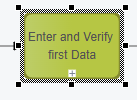
The call activity can be identified by a thick border.

A call activity links to a globally reusable business process. A call activity can also be linked to a CMMN case plan (see CMMN Introduction).
Sample BPMN Process Model
Tutorial Model: Automation/Business Process/Training/BPMN/Chapter/C04/CallActivity
Process Explanation:
-
The process is started in the lane of group "System" by a start event.
-
The sequence flow of the start event triggers the call activity "Enter and Verify first Data".
-
The call activity links to the global process "StartEndEvent_UserTask" which is explained in Chapter 2
-
After the global process "StartEndEvent_UserTask" is completed, the call activity "Enter and Verify second Data" is triggered by the sequence flow.
-
The call activity links to the same global process "StartEndEvent_UserTask".
-
After the global process "StartEndEvent_UserTask" is completed the sequence flow triggers the end event, which directly completes the process.

Exercise
In this exercise you should remodel the process above and execute the process in the xAPPnow User Portal.
Exercise 1: Create the Business Process Model
Remark: Add your user name as a prefix to the model name to easily filter your personal process in the runtime environment (User Portal, Camunda).
-
Step 1: Right click at model tree folder "Automation/Business Process/Training/BPMN/Exercise/C04" to open context menu "Create Model"
-
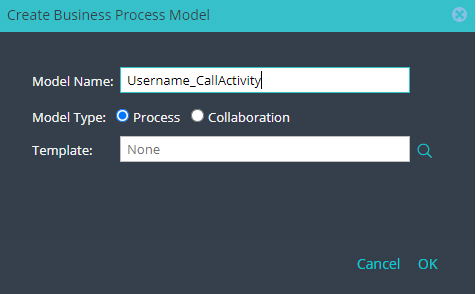
Step 2: Enter model name "Username_CallActivity" and keep option "Model Type: Process" in dialog "Create Business Process Model"
-
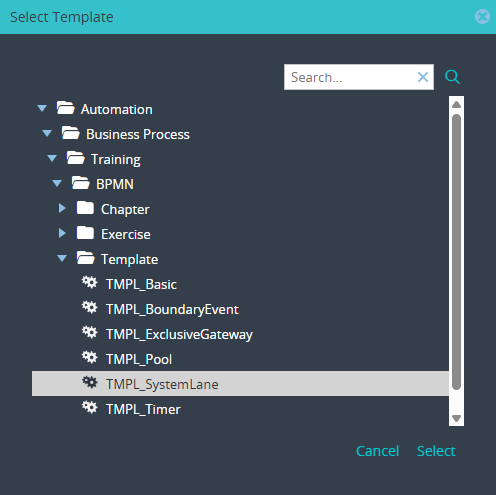
Step 3: Click button "Search" to open dialog "Select Template"
-
Step 5: Select template "TMPL_SystemLane" in dialog "Select Template" with double click or click button "Select"
Exercise 2: Complete the Process Model
Complete the process model like the model above.
-
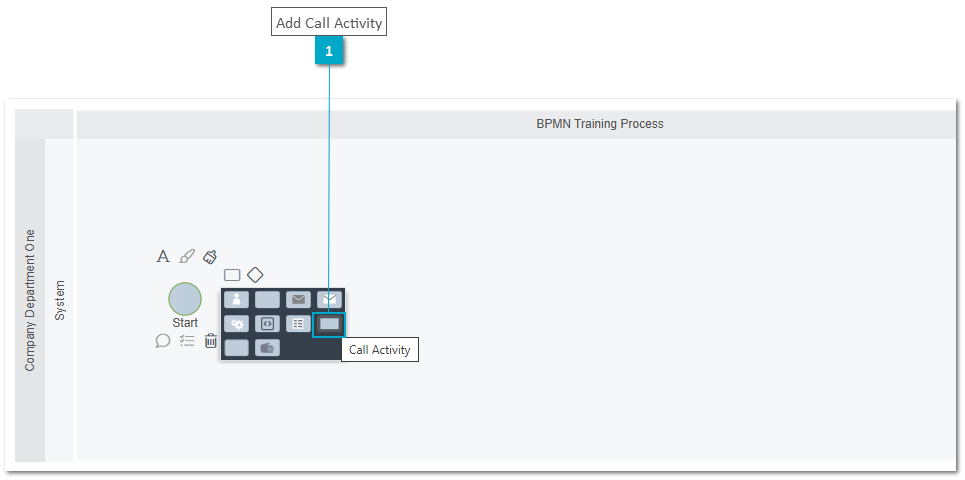
Step 1: Open the context menu of the start event and click at the call activity to add it to the "System" lane
-
Step 2: Enter the label "Enter and Verify first Data" for the call activity
-
Step 3: Add a second call activity "Enter and Verify second Data"
-
Step 4: Select both call activities and configure a color
-
Step 5: Add an end event to terminate the process
-
Step 6: Link both call activities with the previously created global process of excercise chapter 2 "Username_StartEndEvent_UserTask"

Exercise 3: Publish the Process Model
The process model has to be published into Camunda process engine. The process will be started online directly.
-
Step 1: Click button "Publish" in the toolbar to open the dialog "Publish Model"
-
Step 2: Enter username and password
-
Step 3: Publish the process with options "Start Process"

Exercise 4: Test the Process in User Portal
-
Step 1: Login into User Portal with user "john", who belongs to the group "TeamA".
-
Step 2: Execute the task "Enter Data"
-
Step 3: Login into User Portal with user "jane", who belongs to the group "TeamB".
-
Step 4: Execute the task "Verify Data"
-
Step 5: Repeat steps 1 to 4 as the call activity executes the same global process twice
See details in Exercise 5 of Chapter BPMN Introduction - Chapter 2: Start Event, User Task, End Event, Sequence Flow