Training Frontend Service - Rest Connector (Basic)
Related subfolder of the training project: "Automation/Service/Tutorial/Service/RESTConnector/Basic"
Chapter Overview
In this training chapter you will get familiar with the REST Connector to integrate an external system using a HTTP method.
The tutorial uses a REST API provided by TYPICODE located at https://jsonplaceholder.typicode.com. In this sample we use a REST call to get a list of faked posts, which we will display in a UI table with columns Post ID, User ID, Title and the Text of the post.
The following specification of the REST API must be used
-
Base URL: https://jsonplaceholder.typicode.com
-
HTTP Method: GET
-
URL Substring: /posts
-
JSON output: list of string values
|
{
"userId": 1,
"id": 1,
"title": "delectus aut autem",
"completed": false
}
|
Enum Definition Object
For the sample you have to add an enum to specify the HTTP method variants.
Tutorial Model: Automation/Data Object/Tutorial/Service/RESTConnector/DEF
The screenshot below demonstrates the enum "MethodVariantsPosts" used for this tutorial. In our sample we will explain the HTTP method variant "GET_POSTS".

Constant Definition Object
In a fourth step you have to add a constant definition object to specify the URL substring of the HTTP method variants.
Tutorial Model: Automation/Data Object/Tutorial/Service/RESTConnector/DEF
The screenshot below demonstrates the constant definition object "UrlSubstring" providing the URL Substring "posts" used in this tutorial.

Business Object Model
For this sample we need one business object "Post" for the corresponing JSON output.

Service Integration Model
After the enum, constant and business objects are specified, we can configure the REST API using a service integration model.
Tutorial Model: Automation/Service Integration/RESTConnector/JsonPlaceholder
In this sample the service method "Posts" must be specified in the SubTABs of TAB "Implementation"
-
SubTAB "HTTP Method"In this SubTAB the following configuration has to mapped from Sub TABs "Business Objects" and "Definition Objects"
-
URL Substring - "Tutorial.Service.RESTConnector.DEF.UrlSubstring.POSTS"
-
Method Variants - "Tutorial.Service.RESTConnector.DEF.MethodVariantPosts"
-
Input Object (not necessary for this tutorial)
-
Output Object - "postLst"
-
Header Object (not necessary for this tutorial)

-
SubTAB "Method Variant"In this SubTAB the method variant has to be specified.
-
We can keep the default HTTP GET method in column "Type"
-
For the current sample we have one variant, which does not have any parameter. Therefore we leave column "URL Parameter" as empty.
-
The variant also does not have a body and we keep the default NONE in column "Method Body".

-
TAB "Implementation" SubTAB "URL Parameter"In our sample no header is required.
-
TAB "Implementation" SubTAB "Method Headers"In this SubTAB the header keys are specified and mapped with corresponding attributes from SubTAB business objects.In our sample no header is required.
Model Explanation
The frontend service model starts with a REST Connector "Get Posts" to execute a REST call, which returns a list of posts with its attributes ID, User ID, Title and Text. The returned output list of posts is displayed in UI page "Display Posts".In case an error occurs, the call element "Error Handler" is triggered which displays the details of the fatal error in detail in a modal dialog.
Exercise - Rest Connector
In this exercise you will learn to use a method call of the REST connector.
Exercise 1: Create the Model "JSONPlaceholder"
-
Step 1: Right click at model tree folder "Automation/Service/Training/Service/RestConnector/Exercise" to open context menu "Create Frontend Service"
-
Step 2: Enter model name "Basic" and set option "Model Type: Dynamic Frontend Service" in dialog "Create Frontend Service Model"
-
Step 3: Click button "Search" to open dialog "Select Template" to select model "TMPL_JSONPlaceholder" from folder ".../Template"
-
Step 4: Click button "OK" to create the model

Exercise 2: Complete the model "Basic"
-
Step 1: Right click on start event to open context menu, drag&drop a REST connector and entel label "Get Posts"
-
Step 2: Draw a standard flow from REST connector "Get Posts" to ui page "Display Posts"
-
Step 3: Draw a fatal flow from REST connector "Get Posts" to call element "Handle Error"

Exercise 3a: Configure the Service Integration Model of the REST Connector "Get Posts"
-
Step 1: Select REST connector "Get Posts" and open TAB "General", SubTAB "Element"
-
Step 2: Click button "Search" to open dialog "Select or Create Submodel" and select service integration model "JsonPlaceholder" from folder "Automation/Service Integration/RESTConnector/JsonPlaceholder"

Exercise 3b: Configure the Method Variant of the REST Connector "Get Posts"
-
Step 1: Select REST connector "Get Posts" and open TAB "Implementation", SubTAB "Configuration" to configure the REST connector
-
Step 2: Select Method "Get Posts" to configure the REST connector "Method"
-
Step 3: Map connection object "JSONPlaceholder" from SubTAB "Definition Object"
-
Step 4: Map business error object "errorRest" from SubTAB "Business Object"

Exercise 3c: Check the corresponding input/output mapping onfigure the Method Variant of the REST Connector "Get Posts"
In this sample we only have one output business object. The auto mapping feature will directly map "postLst" after selecting the method "Get Posts" in SubTAB "Configuration".
-
Step 1: Select REST connector "Get Posts" and open TAB "Mapping" to verify the mapping of "postLst"

Exercise 4a: Publish the Model
-
Step 1: Click button "Publish" to open dialog "Publish Model"
-
Step 2: Enter username and password
-
Step 3: Click button "OK" to publish the frontend service model
Exercise 4b: Publish the Fatal Error Handler
-
Step 1: Open model "Automation/Service/Base/API/FatalErrorHandler" to publish the fatal error handler
Exercise 5: Test the Model in User Portal
-
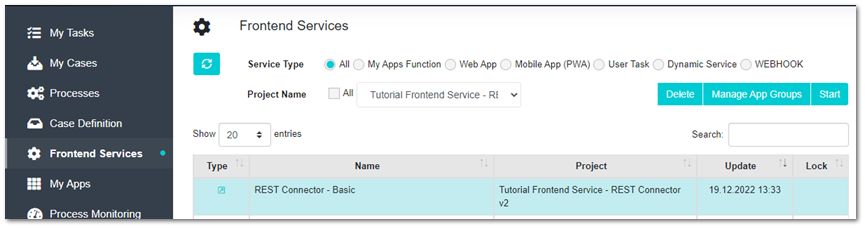
Step 1: Login into User Portal and open menu "Frontend Service" to start frontend service "REST Connector - Basic"
-
Step 2: In UI page "Display Posts" check list of posts