xAPPnow LOW CODE PLATFORM - User Manual 

Still no account yet?

×
8

General Modeling - Model View, Zoom, Windows, TABs

 
In this chapter you will familiarize with model view properties.
 
Exercise 1: Modify Model Position
 
  • Step 1: Click on the blue rectangle on the Overview Window and move and resize it to modify the model view and position


General Modeling - Model View, Zoom, Windows, TABs


  • Step 2: Click on the graphic and change the model position with  "SHIFT" + mouse wheel
 
 
Exercise 2: Modify Model Zoom
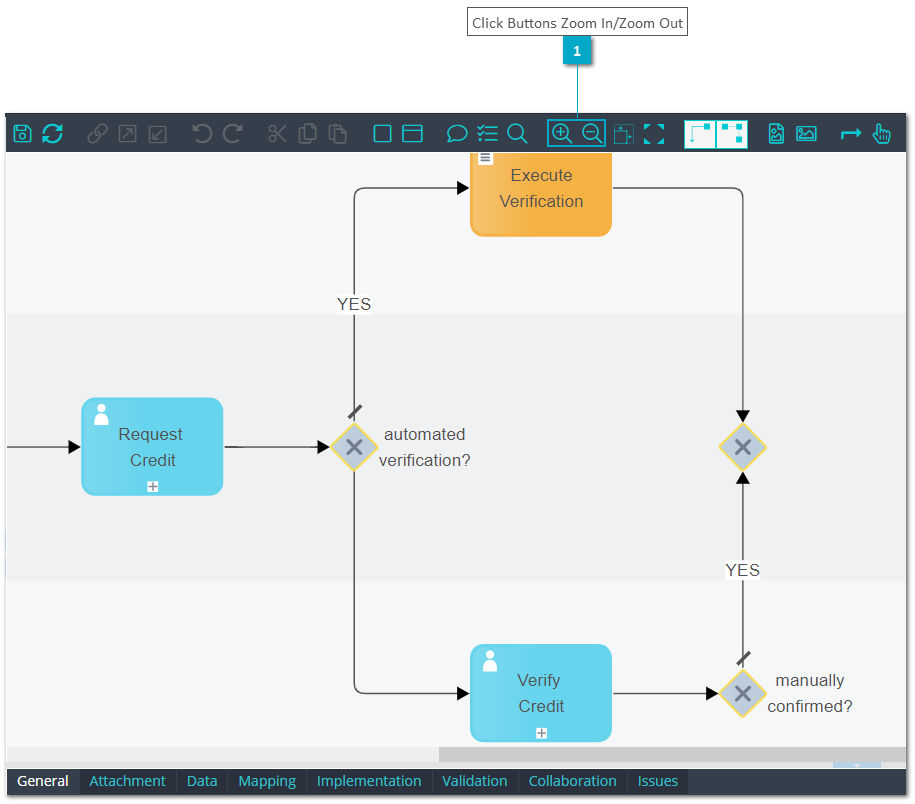
 
  • Step 1: Click buttons "Zoom In" and "Zoom Out" on the Toolbar to modify zoom


General Modeling - Model View, Zoom, Windows, TABs


  • Step 2: Click on the graphic and change the zoom with  "CTRL" + mouse wheel


Exercise 3: Maximize/Minimize Windows and TABs
 
  • Step 1: Click or double click button "Maximize/Restore Editor Windows" on the Toolbar to hide left, right and bottom windows and maximize designer area.


General Modeling - Model View, Zoom, Windows, TABs


  • Step 2: Click button "Resize Property Window" to change size of property TAB window.
 
Remark:
  • Single click opens properties TAB to 1/2 window height.
  • Double click opens properties TAB to 2/3 window height.


General Modeling - Model View, Zoom, Windows, TABs


1

Click on Overview

1. Click on Overview
Click on the blue rectangle on the Overview Window and move it to modify the model position
 
1

Click Buttons Zoom In/Zoom Out

1. Click Buttons Zoom In/Zoom Out
Click on buttons "Zoom In" and "Zoom Out" on the Toolbar
 
1

Click Button Maximize/Restore Editor Windows

1. Click Button Maximize/Restore Editor Windows
Click button "Maximize/Restore Editor Windows" to hide left, right and bottom windows an maximize designer area.
 
1

Click on Button Resize Property Window

1. Click on Button Resize Property Window
Click button "Resize Property Window" to change size of property TAB window.