
General Modeling - Flows
In this chapter you will learn how to draw several flows and change the port position.
Exercise 1: Direct Flow Connections
Important: The element must be deselected to draw a flow
-
Step 1: Left-click at the element and drag the mouse to the next element until the element is visualizing the ports
-
Step 2: Release the mouse at the desired port
-
Step 3: Create a new connection and abort the connection using “Esc” (escape)

Exercise 2: Angled Flow Connections
Important: The element must be deselected to draw a flow
-
Step 1: Left-click at the element and drag the mouse to the desired angled position
-
Step 2: Release the mouse
-
Step 3: Left click and drag the mouse to the next position etc.
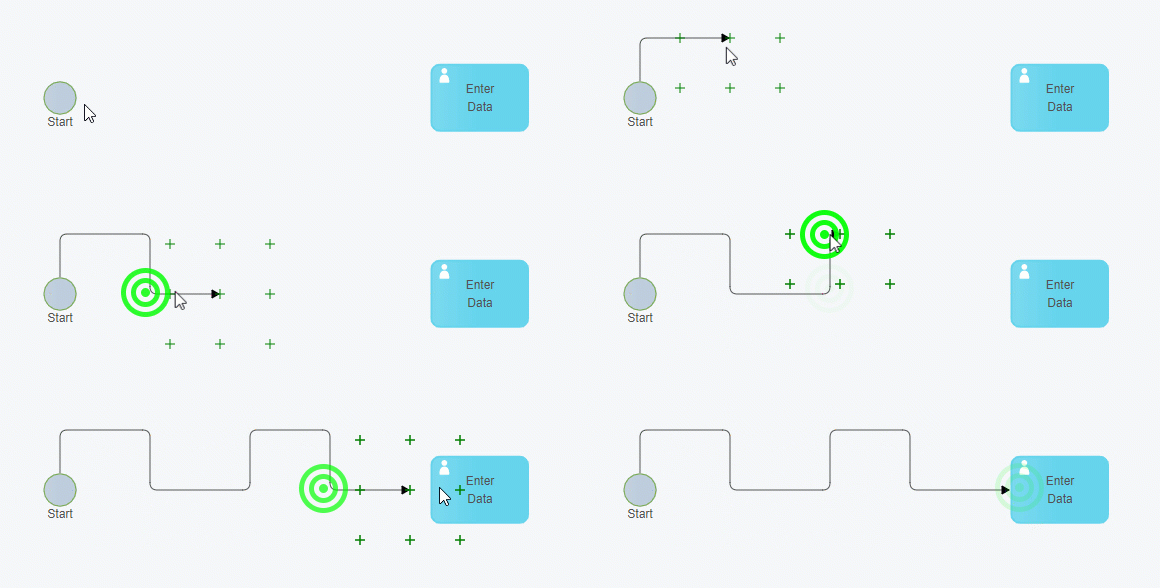
Remark: After you release the mouse button the angle position is automatically following the mouse pointer

Exercise 3: Change Flow Port Position
-
Step 1: Select the flow
-
Step 2: Click at the source port of the flow
-
Step 3: Move the flow to another port
-
Step 4: Click at the destination port of the flow
-
Step 5: Move the flow to another port
Remark: Only valid ports of an element are displayed (see Basic Training - Validation)
