General Modeling - Context Menu
In this chapter you will familiarize with the context menu of elements.
Exercise 1: Use the Context Menu to connect Elements directly on Process Models
Remark: The context menu appears automatically after approx. 0.5 seconds or by right-clicking the mouse
-
Step 1: Right click to open context menu of joining exclusive gateway and click a user task element to connect it with label"Confirm Credit". The flow is connected directly.Remark: Press Ctrl+Enter keys to perform a break line on elements label

-
Step 2: Open context menu of user task "Confirm Credit" and drag&drop an exclusive gateway element to connect it with label "credit accepted?"

Exercise 2: Use the Context Menu to connect Elements on a desired position on Process Models
-
Step 1: Open context menu of exclusive gateway "credit accepted?" and drag&drop a script task to first lane "System" while holding down left mouse key with label "Save Data"
Remark: Enter a new line for a label using "CTRL+Enter"

Exercise 3: Edit and Modify the Label Format
-
Step 1: Open context menu of user task "Confirm Credit" and click label icon to select menu "Label Font" with font size 18

-
Step 2: Open context menu of user task "Confirm Credit" and click label icon to select menu "Label Color" with color red

Exercise 4: Modify the Flow Type
-
Step 1: Open context menu of output gateway flow and click flow type icon to replace by default flow

Exercise 5: Modify the Flow Format Color and Width
-
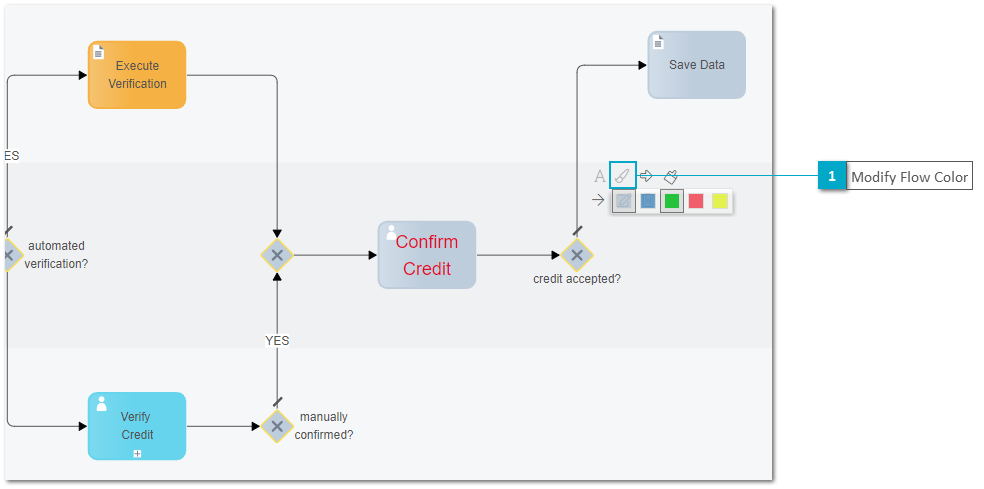
Step 1: Open context menu of output gateway flow and click color icon to select color green
-
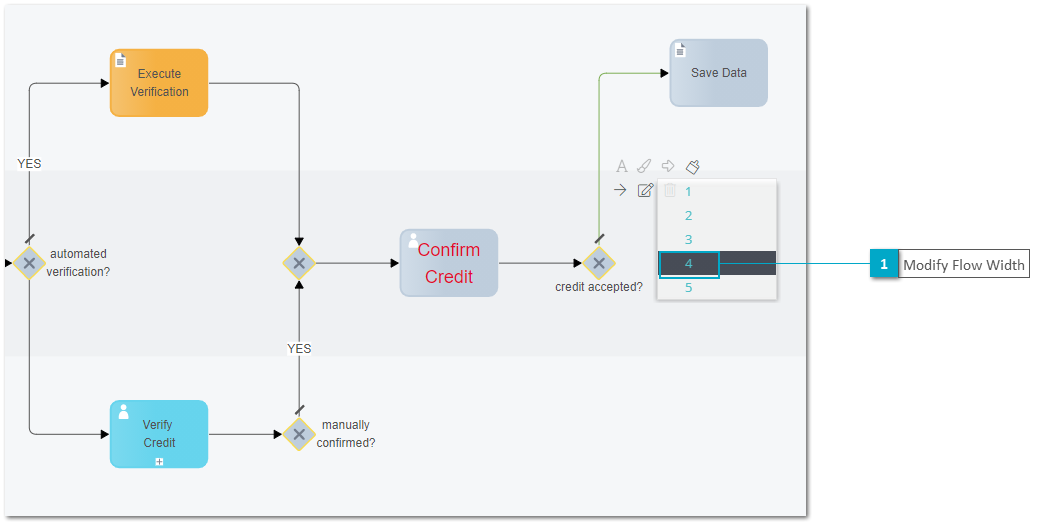
Step 2: Open context menu of output gateway flow and click width icon to select number 4
Exercise 6: Modify Element Color
-
Step 1: Open context menu of script task "Save Data" and select element color icon to configure color orange