Basic Training - Validation
Chapter Overview
In this training chapter you will get familiar with the validation feature of the xAPPnow Modeling Studio.
During modeling a dynamic model validation is executed continuously, dependent on the current state of the model and related user action. The dynamic model validation supports for a correct modeling in a way that only valid elements are presented in a context menu, flows can only be connected to valid ports etc. In addition, each user action continuously updates the validation status ("Error", "Info", "Warning") of the model in TAB "Validation", which also includes the validation status of related submodels. A validation is also executed before a model is published, which is only possible without any error.
Exercise
In this exercise you will check various validations supported during modeling.
Exercise 1: Check Validation supported by the Context Menu
-
Step 1: Double click on process model "Automation/Business Process/EasyCredit“ in the model tree to open the process model
-
Step 2: Open pool context menu and check that only valid elements can be selected

-
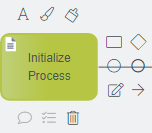
Step 3: Open task context menu and check that only valid elements and flows can be selected

-
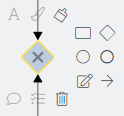
Step 4: Open gateway context menu and check that only valid elements and flows can be selected
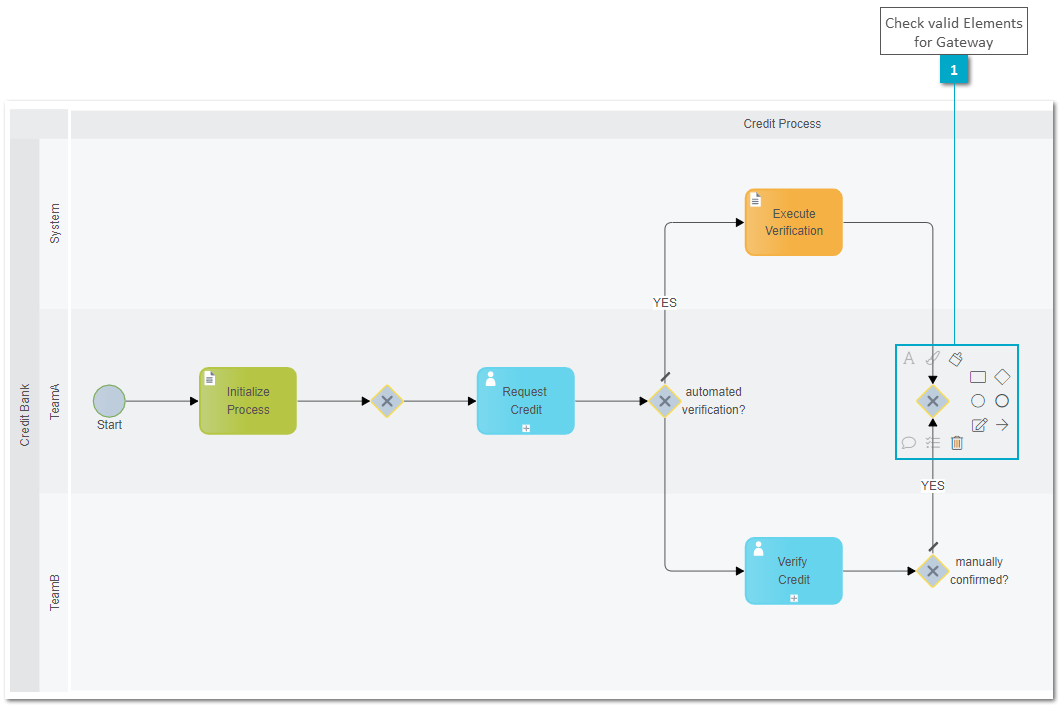
Exercise 2: Check Validation supported by Flows
Remark: Only valid ports are displayed for connections
-
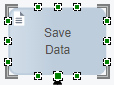
Step 1: Drag&drop a script task from the palette to add it with label "Save Data" to lane "System"
-
Step 2: Drag a flow from joining gateway to the script task "Save Data" and check enabled connection ports

-
Step 3: Drag a flow from user task "Request Credit" to the start event and check that it does not enable connection ports.
Remark: To release the arrow flow, when there is not connection ports, use right click or Escape
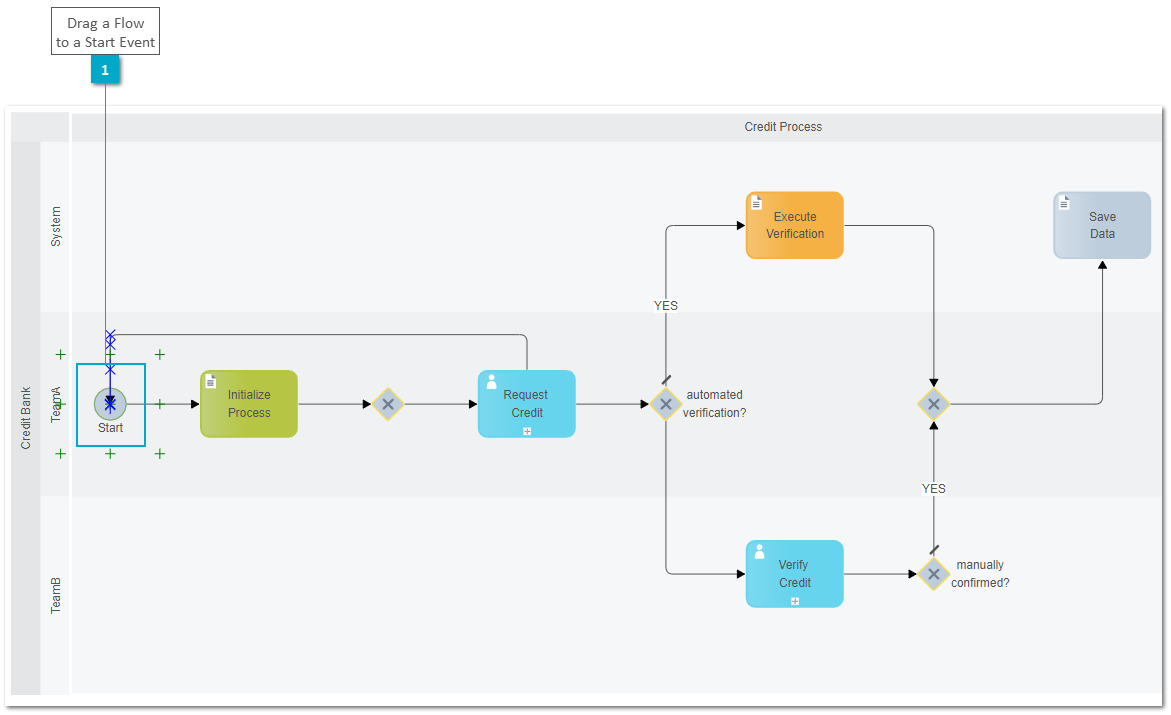
Exercise 3: Check Validation supported by Element Update
Remark: Only valid element types can be used for to update an element
-
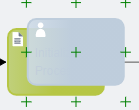
Step 1: Drag a user task from the palette and drop it over script task "Initialize Process"

-
Step 2: Drag an end event from the palette and drop it over start event. (This is not possible, start events can be updated only with other start events. Test by moving the end event)
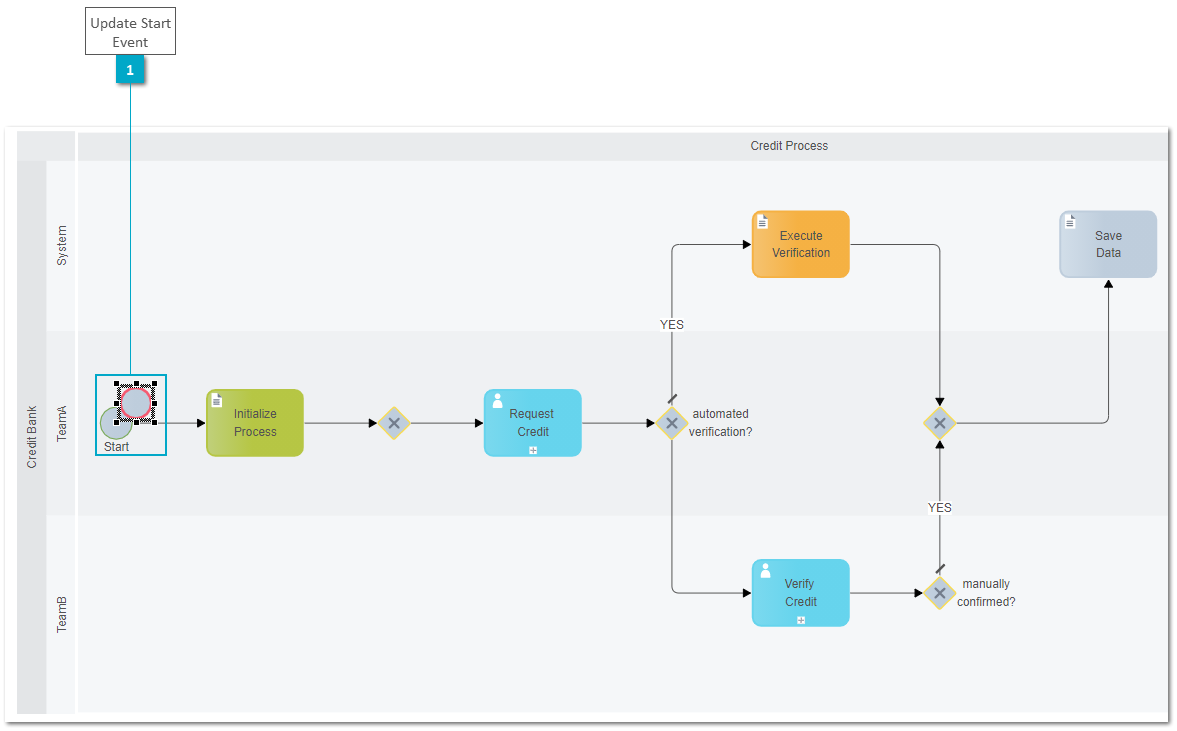
Exercise 4: Check Validation displayed on TAB Validation
Remark: Each user action triggers the validation status of the model including validation of related submodels
-
Step 1: Open TAB "Validation" and check all validation messages
-
Step 2: Delete the start event and check the error message