Basic Training - Modeling in Levels
Chapter Overview
In this training chapter you will get familiar to use xAPPnow according to project phases, which could be realized by working in different levels. Models of one level can be used as a reference for models of the same type which are in a different level.
Level Types:
-
Innovation: The first level "Innovation"can be used to model a first draft of an application. The models of this level can be referenced to models of level "Analysis".
-
Analysis: We recommend to use this level for the analysis of the project. Models of this level can be referenced to the previous level "Innovation" and with the next level "Automation".
-
Automation: This level is typically used to develop the application. Models of this level can be referenced to the previous level "Analysis".
-
Test: This level is used to test models of level "Automation", by linking models as submodel. We recommned to create automated component tests in level "Test".
Exercise
In this exercise, you will link models from different levels and you will navigate through them.
Exercise 1: Reference Model from another Level
-
Step 1: Double click on process model "Automation/Business Process/CreditProcess4EyesPrinciple" in the model tree to open the process model
-
Step 2: Open TAB "General" and SubTAB "Model"
-
Step 3: Click button "Search" to open dialog "Select Analysis Model"

-
Step 4: Select reference model "Analysis/Business Process/Sample/CreditProcess4EyesPrinciple" with double click or click button "Select"

Exercise 2: Navigate to the Reference Model of related Level
-
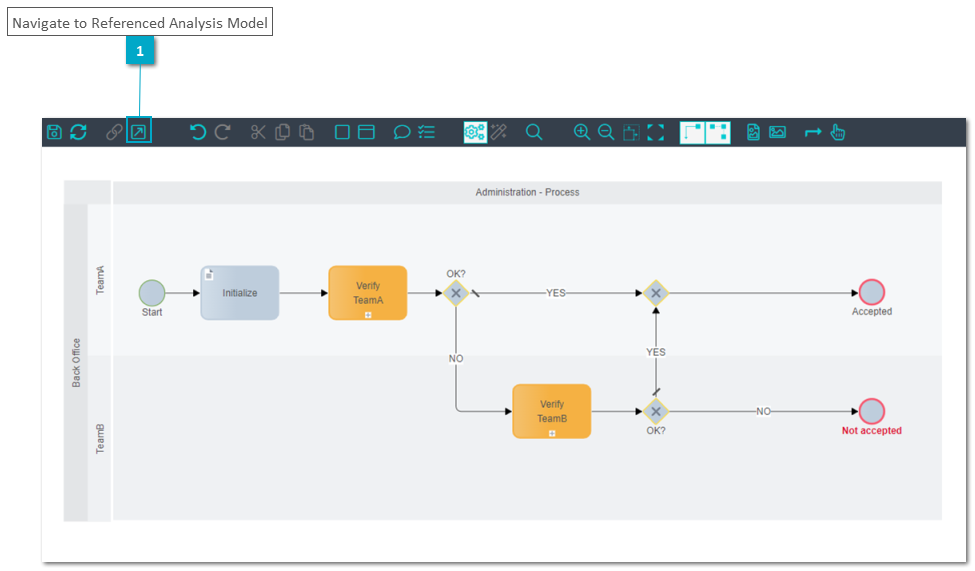
Step 1: Click button "Go to referenced analysis model" in the toolbar to navigate to referenced model "Analysis/Business Process/Sample/CreditProcess4EyesPrinciple"
-
Step 2: Click button "Go to referenced automation model" in the toolbar to navigate to referenced model "Automation/Business Process/CreditProcess4EyesPrinciple"