Basic Training - Export/Import
Chapter Overview
In this training chapter you will get familiar with the export and import features of xAPPnow Modeling Studio. By using these features, you'll be able to create backups for projects, levels and models or restore existing backups of any of these elements. The filename extension depends on the exported element type.
Exercise
In this exercise, you will backup and restore a project, a model and you will create a new model based on an imported model.
Exercise 1: Project Backup
-
Step 1: Open toolbar menu "Project" to select function "Export..."
-
Step 2: Click button "Export" in dialog "Export Project" to download current project

Exercise 2: Project Restore
Remark: To complete this exercise, first go to the main menu of Modeling Studio and create a new project, then follow the steps described below.
-
Step 1: Open toolbar menu "Project" to select function "Import..."
-
Step 2: Click button "Yes" in dialog "Confirmation" to confirm "override existing models"
-
Step 3: Click button "Search" in dialog "Select one file to import" to select project file with extension ".appolloprj"
-
Step 4: Click button "OK" to import selected project file


Exercise 3: Backup a Model
-
Step 1: Open context menu of model "Automation/Business Process/EasyCredit" in the model tree
-
Step 2: Select function "Export" > "Model" to download the model
Exercise 4: Restore a Model
Remark: To complete this exercise you should perform first some modifications on model "Automation/Business Process/EasyCredit" and then restore it following the steps described below.
-
Step 1: Open context menu of model "Automation/Business Process/EasyCredit" in the model tree to select function "Import"
-
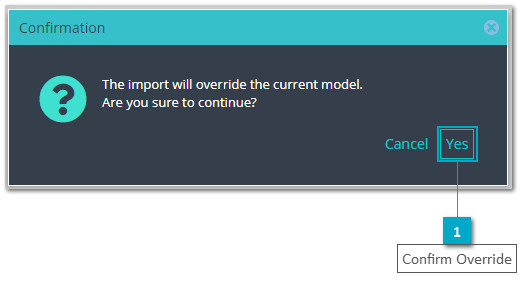
Step 2: Click button "Yes" in dialog "Confirmation" to confirm "override current model"
-
Step 3: Click button "Search" in dialog "Select one file to import" to select process model file with extension ".appollombp"
-
Step 4: Click button "OK" to import selected project file

Exercise 5: Create Model based on imported Model
-
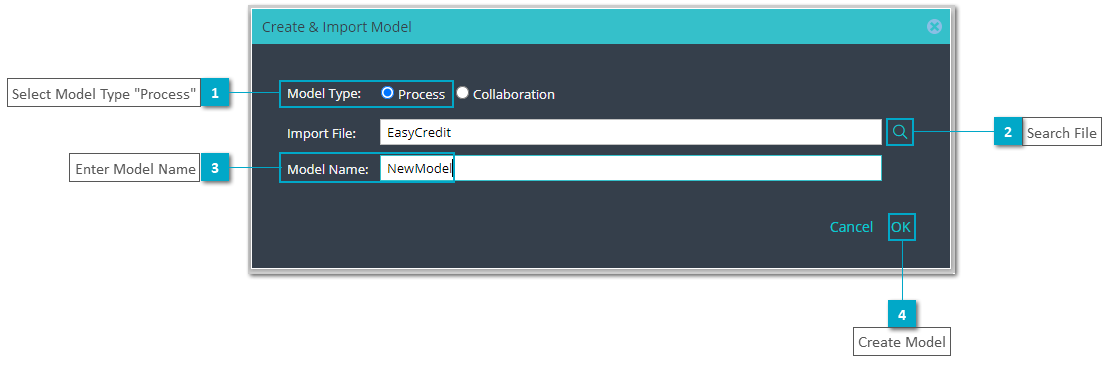
Step 1: Open context menu of folder "Automation/Business Process in the model tree to select function "Import" > "Create & Import Model"
-
Step 2: Keep model type "Process" in dialog "Create & Import Model"
-
Step 3: Click button "Search" to select process model file with extension ".appollombp"
-
Step 4: Enter model name "NewModel"
-
Step 5: Click button "OK" to create and open imported process model