
Basic Training - BPMN Process Model
Chapter Overview
In this training chapter you will get familiar with basic process modeling according to the BPMN standard as well as further model types and low code development.
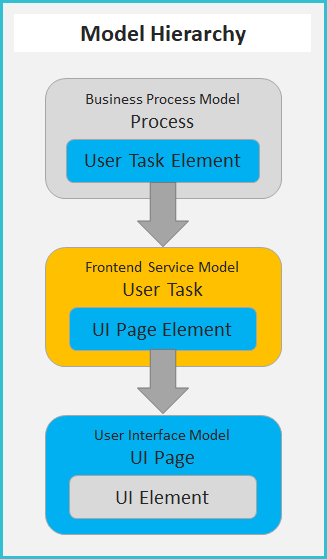
You will learn the typical model hierarchy consisting of a business process, a frontend service model type "User Task" and a UI page.
Additionally, you will use the xAPPnow User Portal, where you execute the user tasks of the process online.
Model Hierarchy:
The following graphic demonstrates the model hierarchy and the elements to link the related submodel.
-
The business process contains a BPMN user task element, which links a frontend service model User Task.
Remark: A UI page can also be structured into UI panel, which itself can be linked to a reusable referenced UI panel.
Exercise
In this exercise you will create the business process below. Then you will link frontend service model User Task, which itself will be linked to a UI page.
Process Explanation:
-
The process is started in the lane of group "TeamA" by a start event.
-
The sequence flow of the start event triggers the first user task "Verify", which has to be executed by a user of group "TeamA".
-
After this user task "Verify" is finished by the user, the first gateway "OK?" is triggered by the sequence flow.CASE 1: Verification of group "Team A" is OKThe conditional flow "YES" is executed, which triggers the joining gateway and subsequently the end event "Accepted"
CASE 2: Verification of group "Team A" is NOT OK
The conditional flow "NO" is executed, which triggers the second user task "Verify"
CASE 3: Verification of group "Team B" is OK
The conditional flow "YES" is executed, which triggers the joining gateway and subsequently the end event "Accepted"
CASE 4: Verification of group "Team B" is NOT OK
The conditional flow "NO" is executed, which triggers the end event "NOT Accepted"

Frontend Service Model "User Task" Explanation:
-
The user task model is started by a start event.
-
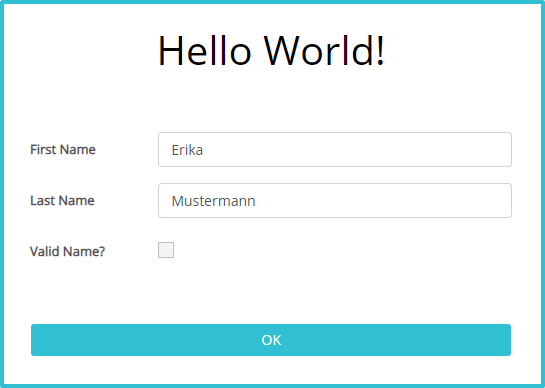
The sequence flow of the start event triggers the UI element "Hello World", which is linked to the UI page below.
-
The button flow "OK"of the UI page triggers the end event.

UI Page Explanation:
-
The UI page contains two input fields "First Name" and "Last Name"
-
The checkbox "Valid Name" is used for the verification of the input data
-
The UI page is closed with button "OK"
Exercise 1: Create the Process Model
After login into Modeling Studio, create process model "Username_MyProcess“ in the model tree.
Remark: Add your user name as a prefix to the process model name to easily filter your personal process in the runtime environment (User Portal, Camunda).
-
Step 2: Select "Create Model" to open dialog "Create Business Process Model"
-
Step 3: Enter model name "Username_MyProcess“ and keep option "Model Type: Process"
-
Step 4: Click button "Search" to open dialog "Select Template"

-
Step 5: Select template "TemplateProcess" with double click or click button "Select"

-
Step 6: Click button "OK" in dialog "Create Business Process Model" to add the new process model
Exercise 2: Model the Parent Process
-
Step 1: Open pool context menu and click at start event element to add it with label "Start" to first lane "TeamA"
-
Step 2: Select second lane and press F2 key to enter label "TeamB" or open TAB "General" SubTAB "Element" to enter role "TeamB"

-
Step 3: Open context menu of start event and click at user task element to connect it with label "Verify"

-
Step 4: Open context menu of user task "Verify" and click at exclusive gateway element to connect it with label "OK?" then drag&drop it above the exclusive gateway

-
Step 5: Open context menu of exclusive gateway "OK?" and drag&drop a user task element into lane "TeamB" to connect it with label "Verify"
-
Step 6: Select conditional flow of exclusive gateway "OK?" and press F2 to enter label "NO" then drag&drop it to the middle of the conditional flow
-
Step 7: Open context menu of second user task "Verify" and click at exclusive gateway element to connect it with label "OK?"
-
Step 8: Open context menu of second exclusive gateway "OK?" and click at end event element to connect it with label "Not Accepted"
-
Step 9: Select conditional flow of second exclusive gateway "OK?" and press F2 to enter label "NO" then drag&drop it to the middle of the conditional flow
-
Step 10: Open context menu of exclusive gateway "OK?" of lane "TeamA" and drag&drop an exclusive gateway element to connect it as joining exclusive gateway.
-
Step 11: Select this new conditional flow of exclusive gateway "OK?" and click F2 to enter label "YES" then drag&drop it to the middle of the conditional flow
-
Step 12: Open context menu of conditional flow "YES" to mark it as a default flow


-
Step 13: Open context menu of joining exclusive gateway and click at end event element to connect it with label "Accepted"
-
Step 14: Draw a conditional flow from second exclusive gateway "OK?" to the joining exclusive gateway
-
Step 15: Select this conditional flow and press F2 to enter label "YES" then drag&drop it to the middle of the flow
-
Step 16: Open context menu of conditional flow "YES" to mark it as a default flow

-
Step 17: Select both user tasks using CTRL + left click and open context menu to to set element color light blue

-
Step 18: Open context menu of end event "Not Accepted" to set label color red and label font bold

Exercise 3: Link a User Task Model to the User Task Elements of the Process
-
Step 1: Select first user task “Verify“ to open TAB "General" SubTAB "Element"
-
Step 2: Click button “Search“ to open dialog “Select or Create Submodel“

-
Step 3: Select user task model “Demo“ with double click or click button "Select"

-
Step 4: Repeat Steps 1 to 3 for second user task "Verify"
Exercise 4: Link a UI Page Model to the UI Page Element of the User Task model
-
Step 1: Double click at any of the user tasks "Verify" to navigate to user task model "Demo"
-
Step 2: Select UI page “Hello World“ to open TAB "General" SubTAB "Element"
-
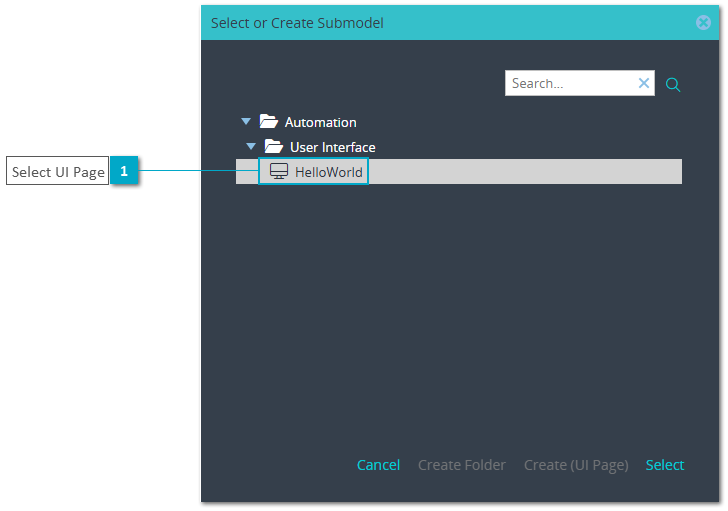
Step 3: Click button “Search“ to open dialog “Select or Create Submodel“

-
Step 4: Select UI page “HelloWorld“ with double click or click button "Select"
Exercise 5: Select the Button Flow of the UI Page "Hello World"
-
Step 1: Open context menu of button flow of UI Page "Hello World" to select button "OK“

Exercise 6: Complete UI Page
-
Step 1: Double click at UI page element “Hello World“ to navigate to UI page model “Hello World“
-
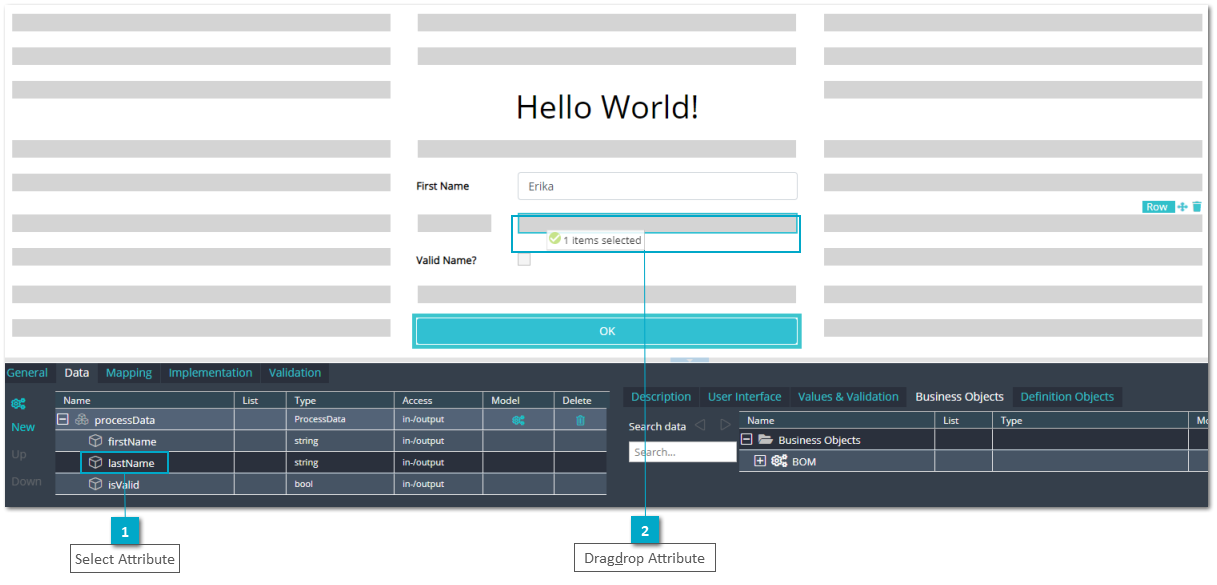
Step 2: Open TAB "Data" to drag&drop attribute lastName to span below textfield First Name
-
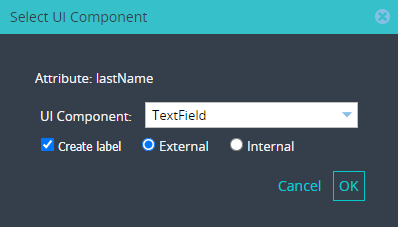
Step 3: Keep the default options "Textfield" and "Create Label" in dialog "Select Component" and press button "OK"
-
Step 4: Click button "Show/Hide Spans" to show free spans continously.
-
Step 5: Click button "Preview" to test the UI page in a new browser window.
-
Step 6: Click button "Back to Parent Model“ in the tool bar to navigate back until parent process is displayed again

Exercise 10: Implement Flow Conditions
-
Step 1: Select conditional flow "NO" of first exclusive gateway "OK?" to open TAB "Implementation"

-
Step 2: Type localData.processData.isValid at the left script area to access attribute "isValid"
-
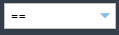
Step 3: Select value "==" from the combobox to specify condition operator
-
Step 4: Type false at the right script area
-
Step 5: Select conditional flow "NO" of second exclusive gateway "OK?" to open TAB "Implementation"
-
Step 6: Repeat steps 2 to 4 to implement condition of selected flow

Exercise 11: Publish Process Model “Username_MyProcess“
-
Step 1: Click button "Publish" to open the dialog "Publish Model"
-
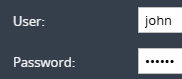
Step 2: Enter username and password and set options "Start Process" and "Cascade"
-
Step 3: Click button "OK" to open dialog "Publish Models"

-
Step 4: Click to select "All Models" and click button "Publish" to validate and publish both models then click button "Close"

Exercise 12: Execute Process in User Portal with end event "Accepted"
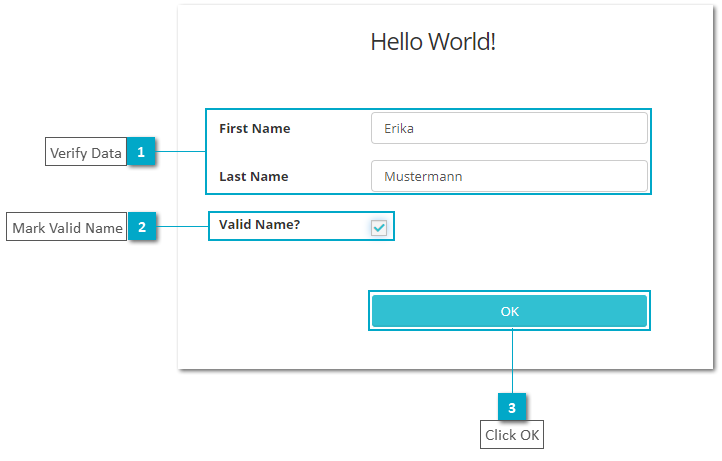
In this exercise the process will be executed with end event "Accepted". Therefore, the checkbox "Valid Name?" has to be checked in UI page of task "Verify"
Remark: At this point the process was started automatically by the publish function.
-
Step 1: Login into User Portal with user "john", who belongs to group "TeamA"
-
Step 2: Select task "Verify" with double click or click button "Start" to initiate the task
-
Step 3: Verify "First Name" and "Last Name"
-
Step 4: Mark "Valid Name?" checked and click button "OK" to complete the task
-
Step 5: Login into User Portal with user "jane", who belongs to group "TeamB"
-
Step 6: Click button "Refresh" of the task list of user "jane" to check that no task "Verify" exists, because the process has terminated.

Exercise 13: Execute Process in User Portal with end event "Not Accepted"
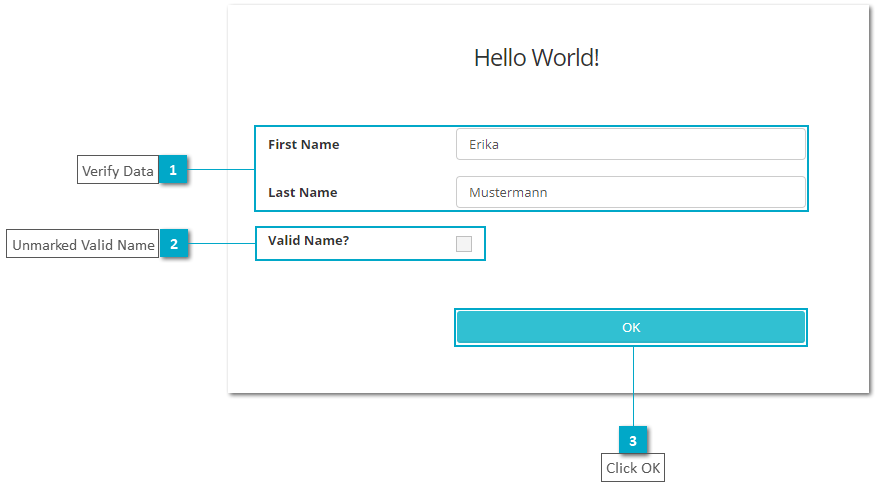
In this exercise the process will be executed with end event "Not Accepted". Therefore, the checkbox "Valid Name?" has to be unchecked in UI page of task "Verify"
Remark: At this point the process has be started manually, first.
-
Step 1: Login into User Portal with user "john", who belongs to group "TeamA"
-
Step 2: Open menu function "Processes" and select process “Username_MyProcess“ with double click or click button "Start" to start the process
-
Step 3: Open menu function "My Tasks" and select task "Verify" with double click or click button "Start" to initiate the task
-
Step 4: Verify "First Name" and "Last Name"
-
Step 5: Keep "Valid Name?" unchecked and click button "OK", then process flow goes to task "Verify" of lane "TeamB"

-
Step 6: Login into User Portal with user "jane", who belongs to group "TeamB"
-
Step 7: Select task "Verify" with double click or click button "Start" to initiate the task
-
Step 8: Verify "First Name" and "Last Name"
-
Step 9: Keep "Valid Name?" unchecked and click button "OK" to complete the task, which terminates the process with end event "Not Accepted"























 Select Cascade Click to also publish submodels. For more details see Toolbar - Publish Model Dialog
|









