xAPPnow LOW CODE PLATFORM - User Manual 

Still no account yet?

×

Training User Portal Manage Project


Overview

The goal of this topic is to train you in the management of User Portal Projects. The User Portal system administrator is the responsible for create, update and delete projects. And assign domains to projects
 

Exercise

In this exercise you will create a new project "Appollo" and assign a dto this project. To start this training you must Log in into User Portal using credentials of the System Administrator defined during the installation process.
 
Exercise 1: Create new project
 
  • Step 1: Expand menu "Administration" to visualize all menu entries and select "Projects" to list all projects.
 
  • Step 2: Click button "Create" to open the dialog "Create Project".
 
Training User Portal Manage Project
 
 
  • Step 3: Enter project "Appollo" and click button "Save"
 
Training User Portal Manage Project


Exercise 2: Assign Tenant to a Project
 
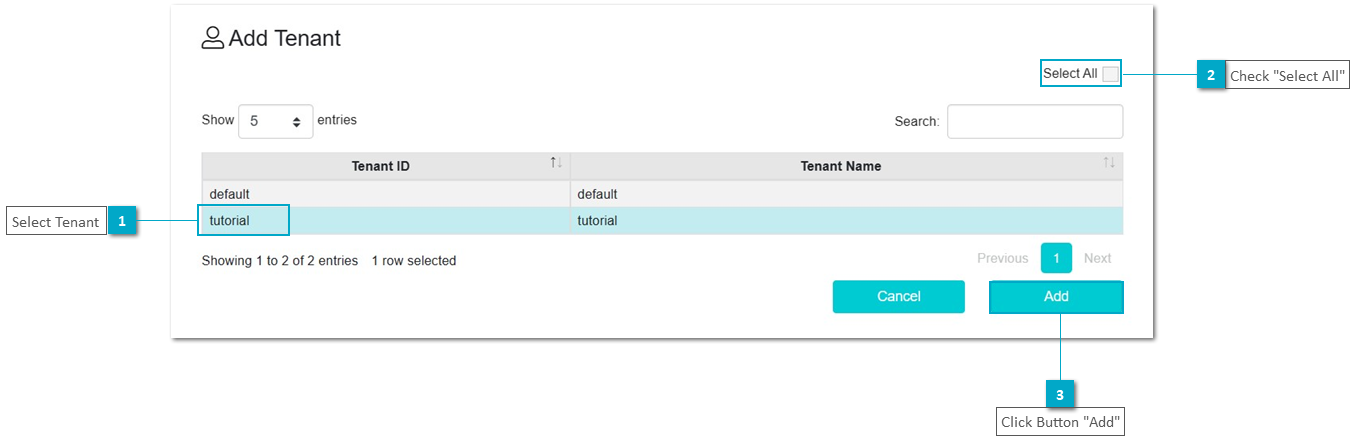
  • Step 1: After click button "Create" the dialog "Add Tenant" is automatically displayed. Select tenant "tutorial" and click button "Add" to assign the tenant to the project. You could also check "Select All" option to add all tenants to the created project.


Training User Portal Manage Project


1

Expand "Administration"

1. Expand "Administration"
Expand menu "Administration" to visualize all menu entries
2

Select "Projects"

2. Select "Projects"
Select "Projects" to list all projects
3

Click Button "Create"

3. Click Button "Create"
Click button "Create" to open the dialog "Create Project"
 
1

Enter "Name"

1. Enter "Name"
Enter project name
2

Click "Save"

2. Click "Save"
Click button "Save" to crete a new project
1

Select Project

1. Select Project
Click to select your project
2

Click "Tenant"

2. Click "Tenant"
Click button "Tenant" to open dialog "Project Tenants"
1

Click "Add"

1. Click "Add"
Click button "Add" to open dialog "Add Tenant"
1

Select Tenant

1. Select Tenant
Select the tenant you want to assign to the project
2

Check "Select All"

2. Check "Select All"
Check "Select All" option to assign all tenants to the project
3

Click Button "Add"

3. Click Button "Add"
Click button "Add" to assign the tenant to the project