Training Frontend Service - Submodel Element
Related subfolder of the training project: "Automation/Service/Training/Service/Exercise/Submodel"
Chapter Overview
In this training chapter you will get familiar with the submodel element as well as some further error handling concepts.
Features Submodel Element
-
a submodel element is used to link reusable service models
-
service models that are linked to a submodel element are directly included into the parent service model and published together as one single component

-
a submodel element may receive child model error and therefore has up to three types of output flows
-
sequence flow (standard flow)2. error flow (business error)3. fatal flow (technical error)
-
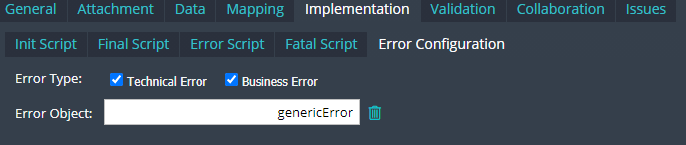
TAB "Implementation" SubTAB "Error Configuration" of the submodel element
-
You can select the error type to activate the corresponding error flow or fatal flow, if the error is not handled in the child model
-
you have to map an error object to receive the output of the child model
-
You can implement "Error Script" or "Fatal Script", which are executed before the related output flow is triggered
Business Error End Event & Technical Error End Event
A service model can handle a business error or technical error by itself or propagate the error to the parent model using a "Business Error End Event" or a "Technical Error End Event"

Exercise - Submodel Element
In this exercise you should reimplement part the client service models above to understand the usage of a submodel element and related error handling concepts.
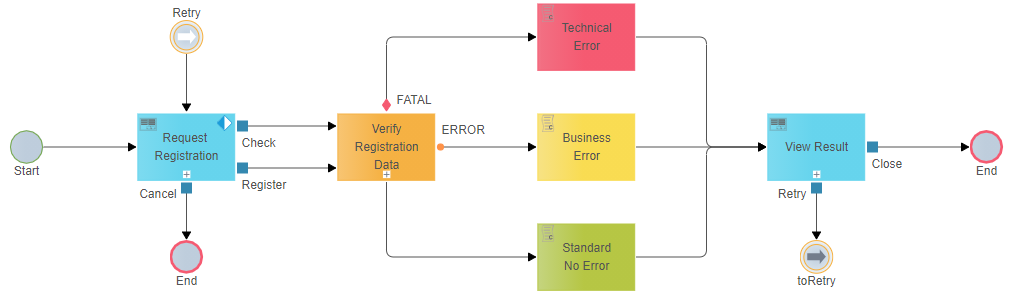
The sample starts with a UI page to enter user registration data. Dependent on the age and the button "Check Database" or "Register" the different flow types of the submodel element are processed.

The registration result and the executed flow type are displayed in the second UI page.

Exercise 1: Create the Submodel "VerifyRegistration"
-
Step 1: Right click at model tree folder "Automation/Service/Training/Service/Exercise/Submodel" to open context menu "Create Model"
-
Step 2: Enter model name "VerifyRegistration" and set option "Model Type: Submodel" in dialog "Create Frontend Service Model"
-
Step 3: Click button "Search" to open dialog "Select Template" to select model "TMPL_VerifyRegistration" from folder ".../Template/Submodel"
-
Step 4: Click button "OK" to create the model

Exercise 2: Complete Submodel "VerifyRegistration"
-
Step 1: Right click at script element "Check Database" and open the context menu to add a technical error end event "Technical Error".
-
Step 2: Select technical error end event "Technical Error" and open TAB "Implementation", SubTAB "Init Script" to enter script:
localData.genericError.isBusinessError = false;

-
Step 3: Open SubTAB "Configuration" and map "genericError" on Error Object textfield
-
Step 4: Right click at script element "Verify Age" and open the context menu to add gateway "Legal Age?" and move the label above the gateway
-
Step 5: Right click at gateway "Legal Age?" and open the context menu to add end event "End"
-
Step 6: Right click again at gateway "Legal Age?" and open the context menu to drag&drop business error end event "Business Error" below the gateway

-
Step 7: Select conditional flow of end event "End" and press F2 to enter label "YES" and move it to the middle of the conditional flow.
-
Step 8: Select conditional flow "YES" and open TAB "Implementation" to enter flow condition:
localData.moderationCriteria.hasReachedLegalAge == true
-
Step 9: Select conditional flow of business error end event "Bussiness Error" and press F2 to enter label "NO" and move it to the middle of the conditional flow.
-
Step 10: Select conditional flow "NO" and open TAB "Implementation" to enter flow condition:
localData.moderationCriteria.hasReachedLegalAge == false

-
Step 11: Select business error end event "Business Error" and open TAB "Implementation", SubTAB "Init Script" to enter script:
localData.genericError.isBusinessError = true

-
Step 12: Open SubTAB "Configuration" and map "genericError" on Error Object textfield
Exercise 3: Create Parent Model "UserRegistration"
-
Step 1: Right click at model tree folder "Automation/Service/Training/Service/Exercise/Submodel" to open context menu "Create Model"
-
Step 2: Enter model name "UserRegistration" and set option "Model Type: Dynamic Frontend Service" in dialog "Create Frontend Service Model"
-
Step 3: Click button "Search" to open dialog "Select Template" and select model "TMPL_UserRegistration" from folder ".../Template/Submodel"
-
Step 4: Click button "OK" to create the model

Exercise 4: Complete Parent Model "UserRegistration"
-
Step 1: Drag&Drop a submodel element from the palette between UI Page "Request Registration" and Script "Business Error" and enter label "Verify Registration Data"
-
Step 2: Open context menu of submodel to set background color "orange"

-
Step 2: Draw button flow "Check" and button flow "Register" from UI page "Request Registration" to submodel "Verify Registration Data"
-
Step 3: Draw a sequence flow from submodel "Verify Registration Data" to script element "Standard No Error"
-
Step 4: Draw an error flow from submodel "Verify Registration Data" to script element "Business Error"
-
Step 5: Draw a fatal flow from submodel "Verify Registration Data" to script element "Technical Error"

-
Step 6: Select submodel "Verify Registration Data" and open TAB "General", SubTAB "Element"
-
Step 7: Click button "Search" to open dialog "Select or Create Submodel" and select model "VerifyRegistration" from folder ".../Training/Service/Exercise/Submodel"
-
Step 8: Select submodel "Verify Registration Data" and open TAB "Implementation", SubTAB "Error Configuration" to map error object "genericError" with "Error Object"

Exercise 5: Test the Model in User Portal
-
Step 1: Click button "Publish"
-
Step 2: Login into xAPPnow User Portal and open menu "Functions" to test this model