Training Backend Service Model - PDF Generate only Placeholders
Related subfolder of the training project: "Automation/Service/Training/Service/Exercise/PDFConnector/Server"
Chapter Overview
In this training chapter you will get familiar with the PDF Connector which allows to generate a PDF given a template with placeholders.
Precondition
Before you can start working with a PDF Connector the following preconditions have to be available
-
PDF Template - a pdf template that will be used in the sample. You can download from TAB "Attachments" of the model: "Automation/Service/Tutorial/Service/PDFConnector/Server/GeneratePlaceholders"
-
Business Object - a business object containing the attributes that will be replaced on the template
-
Error Object & Error Definition Object - special kind of business object and definition object to store the possible errors returned by the PDF connector
-
Error Handler - submodels to handle fatal error of the PDF connector
1. PDF Template
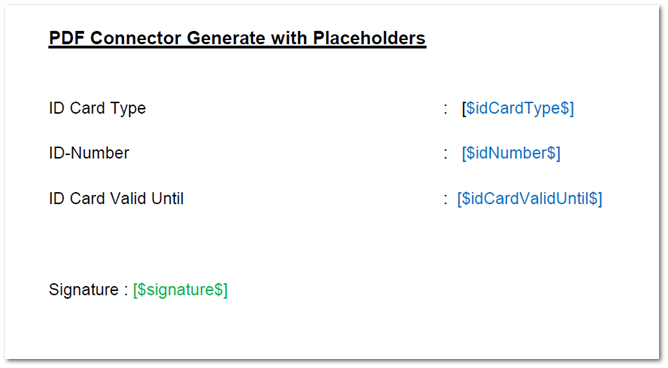
To execute this tutorial you need a sample pdf template called "PDF_GeneratePlaceholder.pdf". This pdf file contains placeholders that will be replaced with the values given as parameters. A placeholder must have the format [$<attributeName>$]. The parameters business object must contain the attribute names which must have the identical names of the corresponding placeholders of the PDF template.
2. Business Object
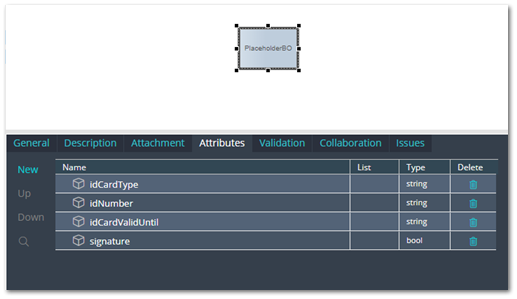
This business object will contain the attributes given as input parameters. This must be manually created in Business Object Model with the exact names defined on the PDF template. The following screenshot displays this business object.
Tutorial Model: Automation/Data Object/Tutorial/Service/BO
3. Error Object & Error Definition Object
Step number three is very important to handle possible error (e.g. "authentication exception") that could occur during an PDF call.
For each connector type (DB, REST, PDF etc.) you have to add a specific Error Definition Object and the related specific Error Object once within each project, as well as one single generic error BO "GenericError". The Error Object defined that holds the current error category, error code and error details as well as the boolean attribute isBusinessError (false = Fatal Error). The business object "GenericError" is a general error object to accept all kinds of error and is typically used to display an error in the UI page.
Tutorial Model: Automation/Data Object/Appollo/CommonBO
The screenshot below demonstrates the error object "ErrorFile" which is required for a PDF Connector
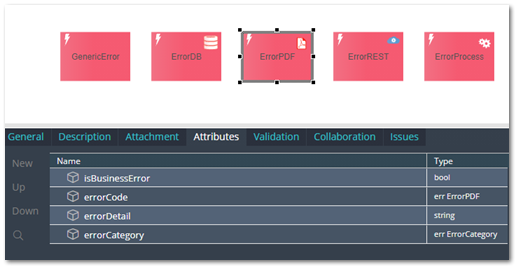
Tutorial Model: Automation/Data Object/Appollo/CommonDef
The screenshot below demonstrates the error definition object "ErrorFile" which is required for a PDF Connector and contains the multi-lingual error codes.
Additionally, the error definition "ErrorCategory" contains the multi-lingual connector names to be used in UI pages to display the multi-lingual error category.
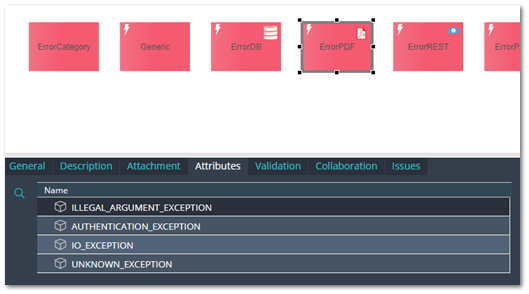
4. Error Handling
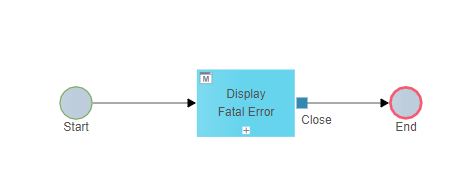
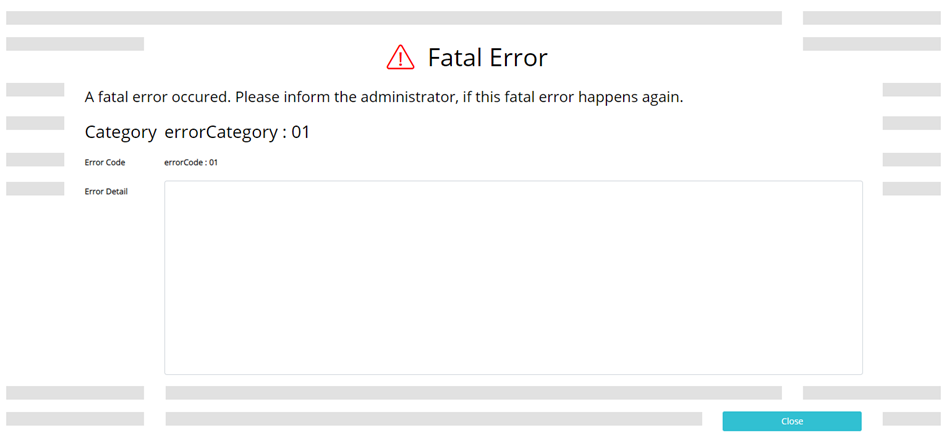
Within this last precondition we will add a submodel for the fatal error handling to the project. The fatal error will be displayed in a multi-lingual UI Dialog "FatalError" plus the stack trace, which can be analysed by the developer or system administrator.
Tutorial Model: Automation/Service/Base/API/FatalErrorHandler
The screenshot below demonstrates the submodel "FatalErrorHandler"
Tutorial Model: Automation/User Interface/Base/UIPage/FatalError
The screenshot below demonstrates the design of UI dialog "FatalError" on the editor
Model Explanation
The model only contains the PDF connector configured to ends the model in case a successfull operation or in case an error, it throws the technical error end event to be displayed on a parent Business Process which calls the connector.
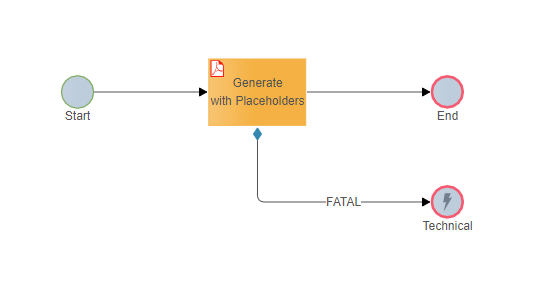
Exercise - PDF Connector Generate with Placeholders
In this exercise you will learn how to use a PDF connector with a Generate function.
Exercise 1: Create the Model "GeneratePlaceholders"
-
Step 1: Right click at model tree folder "Automation/Service/Training/Service/Exercise/PDFConnector/Server" to open context menu "Create Model"
-
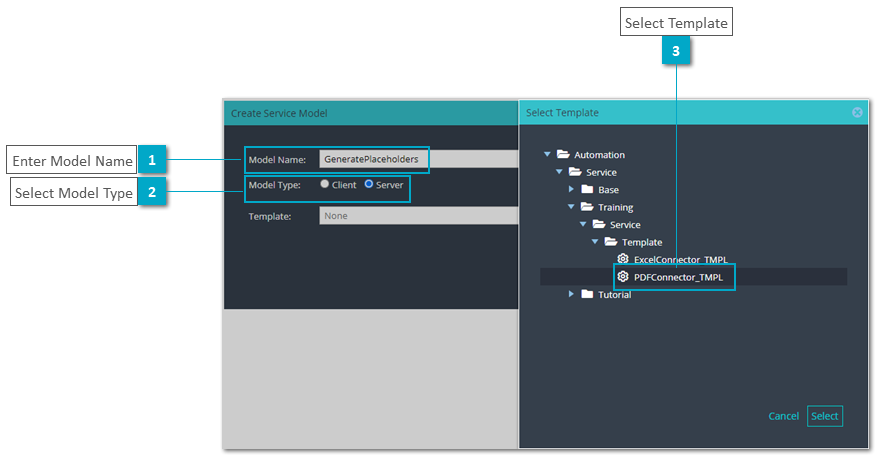
Step 2: Enter model name "GeneratePlaceholders" and select option "Model Type: Server" in dialog "Create Service Model"
-
Step 3: Click button "Search" to open dialog "Select Template" to select model "PDFConnector_TMPL" from folder ".../Template/PDFConnector_TMPL"
-
Step 4: Click button "OK" to create the model
Exercise 2: Complete the model "GeneratePlaceholders"
-
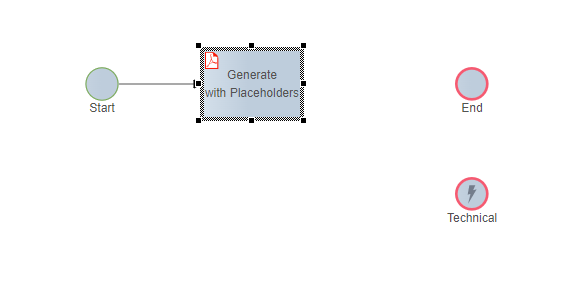
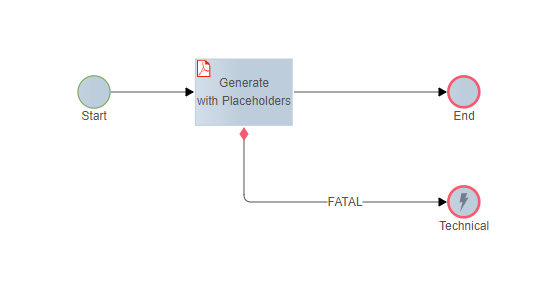
Step 1: Right click at event "Start" to open context menu and select a pdf connector, enter label "Generate with Placeholders"
-
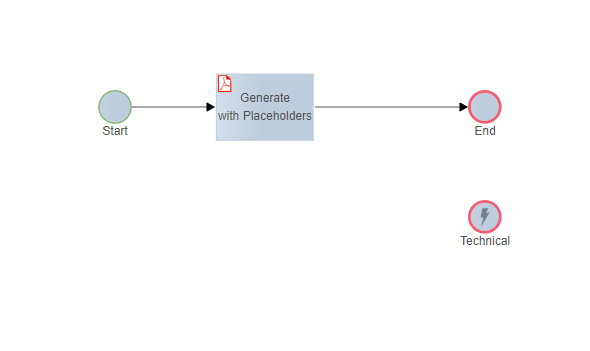
Step 2: Draw a standard flow from PDF connector "Generate with Placeholders" to End Event element
-
Step 3: Draw a fatal flow from PDF connector element "Generate with Placeholders" to Error End Event element "Technical"
Exercise 3: Configure PDF Connector
Function "Generate PDF from Template"
-
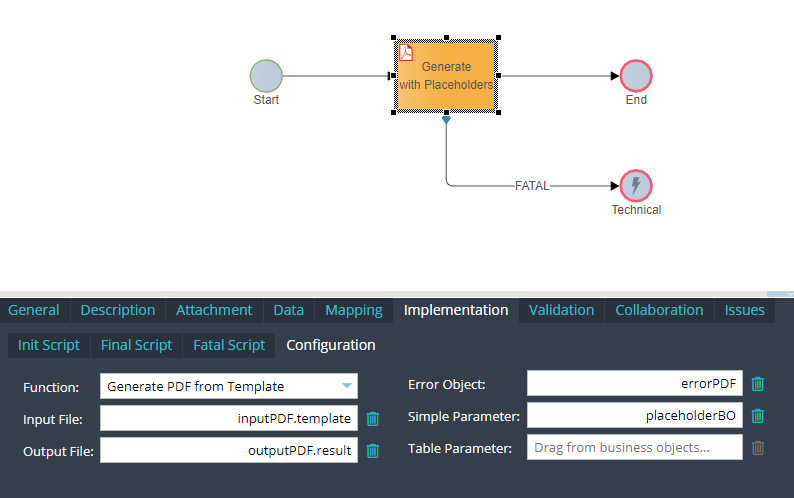
Step 1: Select PDF Connector "Generate with Placeholders" and open TAB "Implementation", SubTAB "Configuration" to configure the PDF Connector
-
Step 2: Select Function: "Generate PDF from Template", map on Input File: "inputPDF.template", on OutputFile: "outputPDF.result", on Error Object : "errorPDF" and Simple Parameter with "placeholderBO"
-
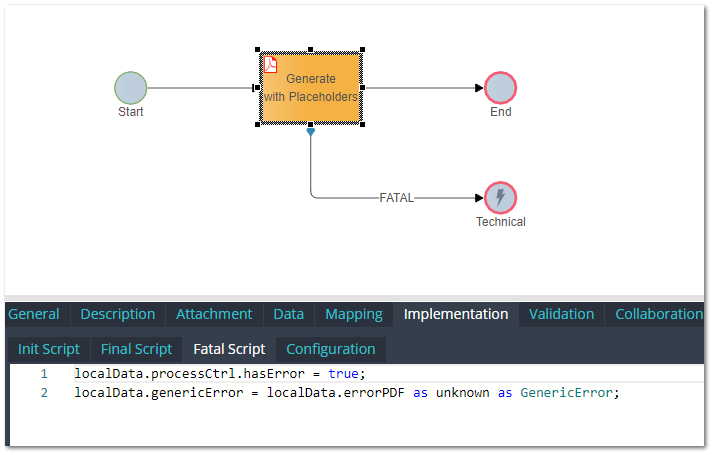
Step 3: Select SubTAB "Fatal Script" and enter the following script:
localData.processCtrl.hasError = true;
localData.genericError = localData.errorPDF as unknown as GenericError;
Exercise 4: Set Service Server Model as Submodel
-
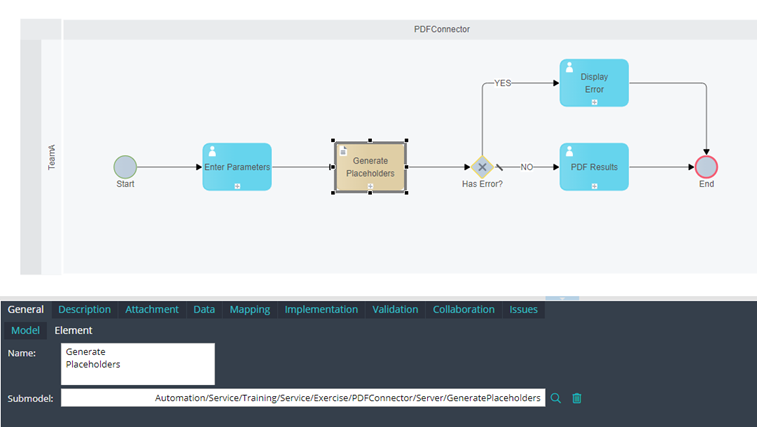
Step 1: Open model "Automation/Business Process/Training/PDFConnector/GeneratePlaceholders"
-
Step 2: Select script element "Generate Placeholders" and open TAB "General", SubTAB "Element" to change Submodel
-
Step 3: Click button "Search" to open dialog "Select or Create Submodel" to select model "GeneratePlaceholders" from folder ".../Exercise/PDFConnector/Server/GeneratePlaceholders"
Exercise 5a: Publish the Business Process Model
-
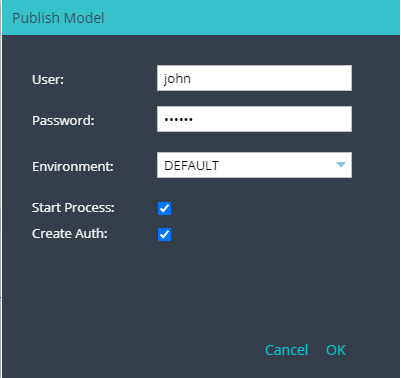
Step 1: Click button "Publish" to open dialog "Publish Model"
-
Step 2: Enter username and password and set option "Start Process"
-
Step 3: Click button "OK" to publish the business process model
Exercise 5b: Publish the Frontend Service Models
-
Step 1: Open model "Automation/Service/Base/API/FatalErrorHandler" to publish the fatal error handler
-
Step 2: Enter username and password
-
Step 3: Click button "OK" to publish the frontend service model
-
Step 4: Open model "Automation/Service/Training/Service/Exercise/PDFConnector/Client/EnterParameters"
-
Step 5: Repeat steps 2 and 3 for this model
-
Step 6: Open model "Automation/Service/Training/Service/Exercise/PDFConnector/Client/FinalResult"
-
Step 7: Repeat steps 2 and 3 for this model
Exercise 6: Test Model in User Portal (Standard Execution)
-
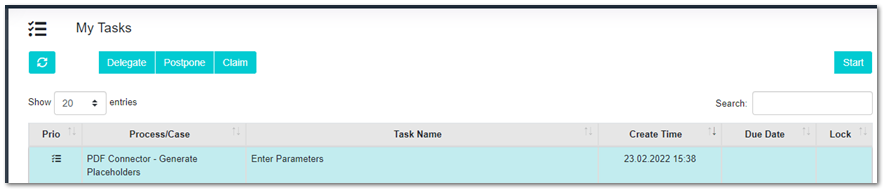
Step 1: Login into User Portal and open menu "MyTasks" to start task "Enter Parameters"
-
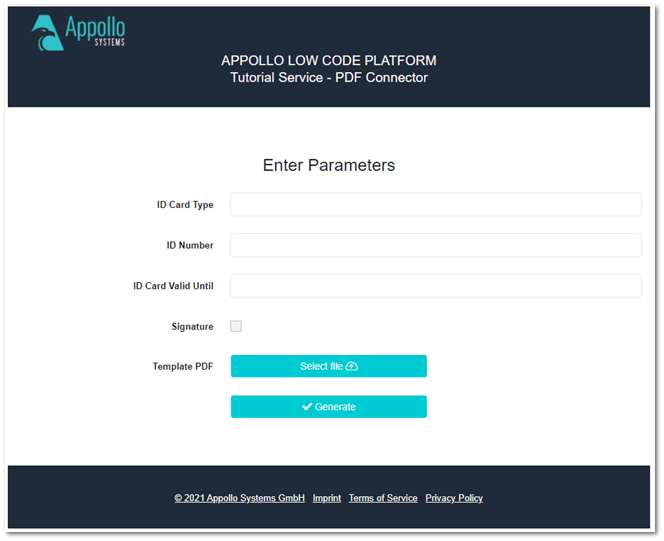
Step 2: Enter parameters data and select the pdf file template then click button "Generate"
-
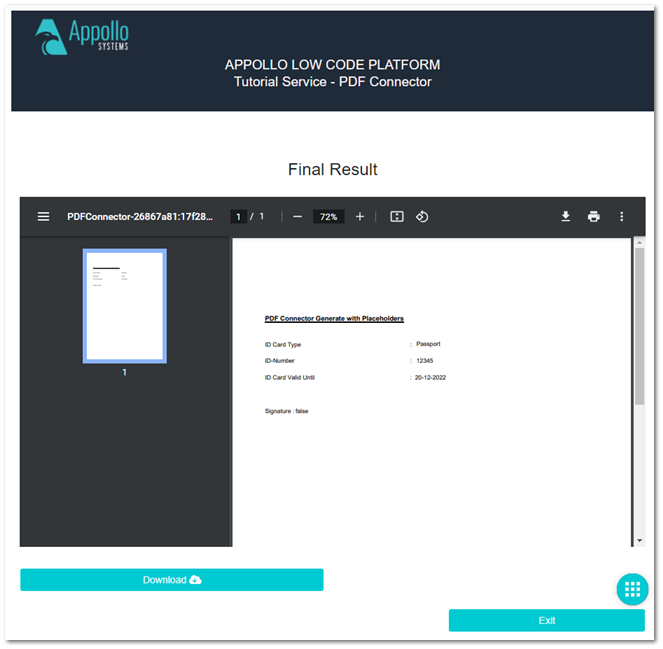
Step 3: Open menu "MyTasks" to start task "PDF Results" to check the values