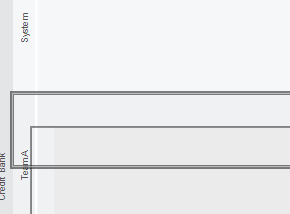
General Modeling - Pools and Lanes
In this chapter you will learn how to work with pools and lanes of a business process model.
Exercise 1: Edit Pool Label "Process Name"
-
Step 1: Select the pool label (top section), press F2 key and change the label of the pool. It can also be modified by opening TAB "General", SubTAB "Element" to edit "Name"Remark: The top section of a pool is used to define the name of the process being modeled
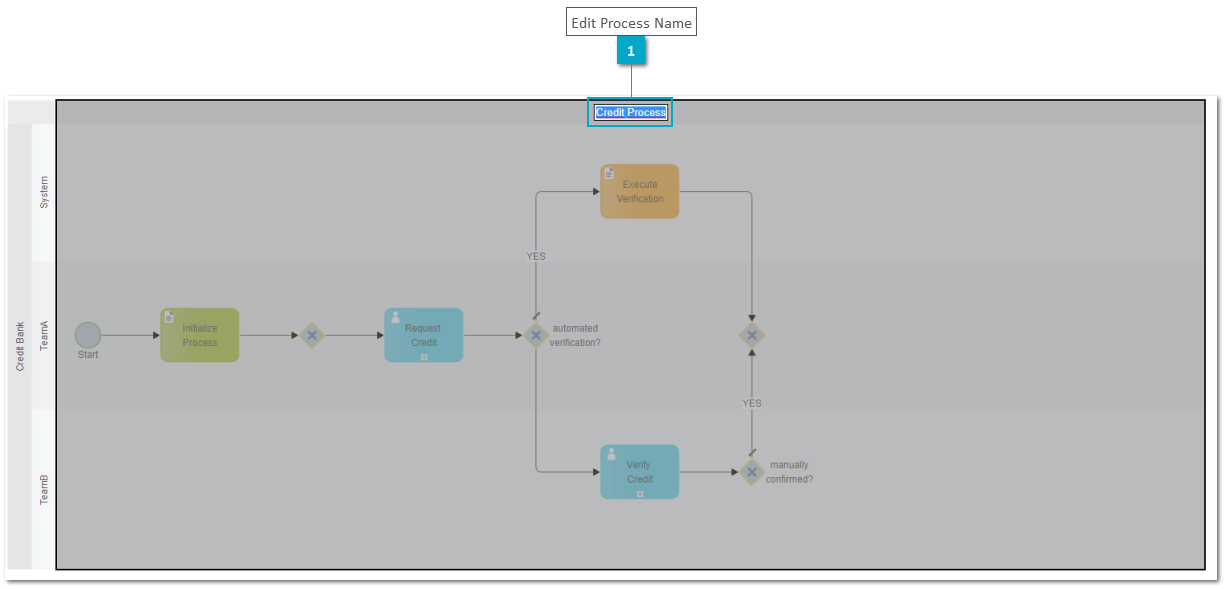
Exercise 2: Edit Pool Label "Organization Name"
-
Step 1: Select the pool label (left section), press F2 key and change the label of the pool. It can also be modified by opening TAB "General", SubTAB "Element" to edit "Name"Remark: The left section of a pool is used to define the name of the organization in which the process takes place.
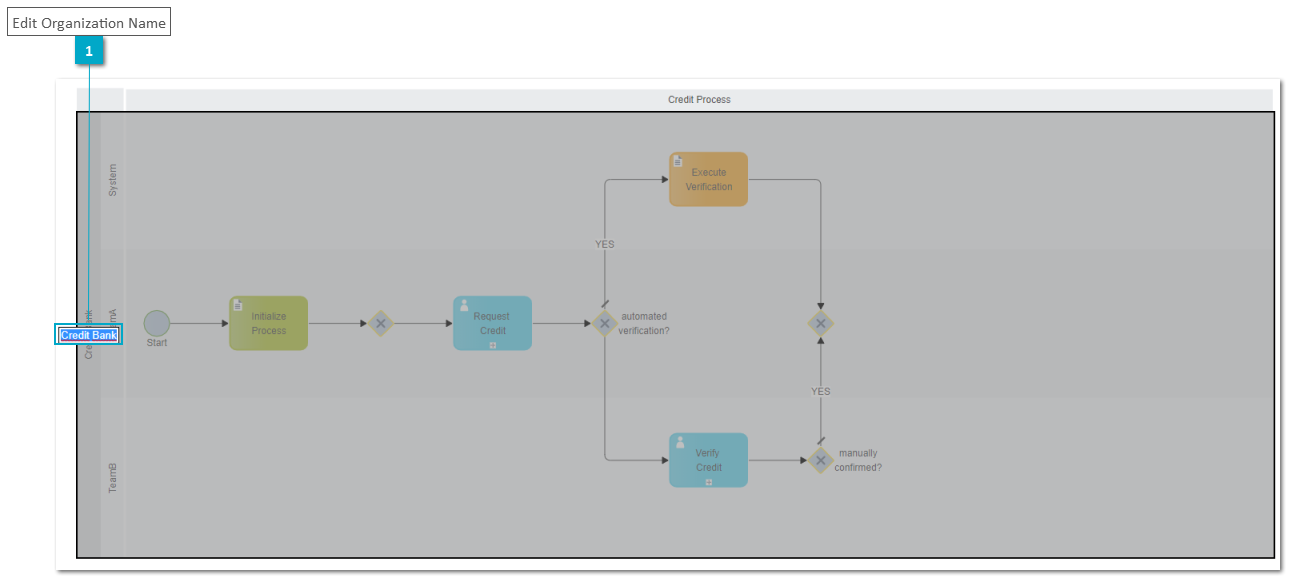
Exercise 3: Edit Label "Lane Name"
-
Step 1: Select a lane, press F2 key and change the label of the selected lane. It can also be modified by opening TAB "General", SubTAB "Element" to edit "Name"Remark: A lane represents a role or a Camunda group

Exercise 4: Add Lane to a Pool
-
Step 1: Drag&drop a lane element from the palette into the pool to add a new lane
-
Step 2: Select the added lane
-
Step 3: Drag&drop lane to move it to a different possition

Exercise 5: Move Lane
-
Step 1: Select a lane
-
Step 2: Move the lane with the mouse
Exercise 6: Delete Lane from a Pool
-
Step 1: Select the added lane
-
Step 2: Press Del key to delete the lane.