General Modeling - Grouping of Elements
In this chapter you will learn how to work with the grouping of elements
Exercise 1: Create a Group of Elements
-
Step 1: Open model "Automation/System Architecture/Index" in the model tree
-
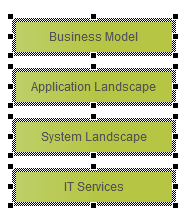
Step 2: Select all green colored component elements on the model
-
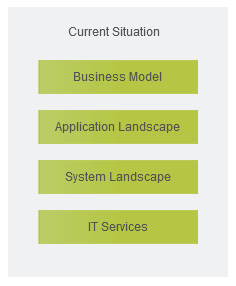
Step 3: Press Ctrl+G keys to create a group with the selected elements
-
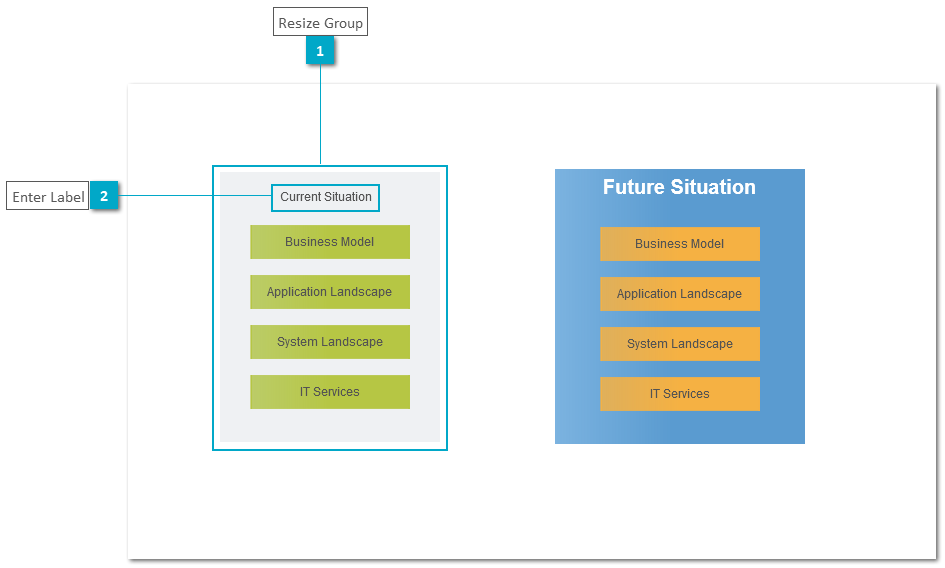
Step 4: Select the group and modify the size
-
Step 5: Press F2 key to enter label "Current Situation"
-
Step 6: Select label with Shift+Click and move it to the top of the group

-
Step 7: Right click at group label to open context menu
-
Step 8: Configure label font size 20 and style bold
-
Step 9: Select group and move it to any desired position