Create UI Page "EnterData"
Chapter Overview
In this training chapter you will create a UI Page "EnterData" which contains, two headings, two textfields with their labels to enter values for firstName and lastName and a button "OK" to move to the second UI Page

Exercise
In this exercise you will create a UI Page "EnterData" with a heading, two labels, two textfields and a button with a flow to a next UI Page.
Exercise 1: Create User Interface Model "EnterData"
-
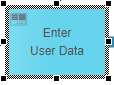
Step 1: On model "Automation/Service/Training/HelloWorld" select UI Page element "Enter User Data" and open Sub TAB "Element"
-
Step 2: Click button "Search" to open dialog "Select or Create Submodel"

-
Step 3: Select folder "Automation/User Interface/Training/UiPage" and click button "Create (UI Page)" to open dialog "Create User Interface Model"

-
Step 4: Enter model name "EnterData" and select option "From: Template" to open dialog "Select Template"

-
Step 5: Select template "Automation/User Interface/Training/UiTemplate/HelloWorld" with double click or click button "Select" and then click button "OK"

Exercise 2: Complete User Interface Model "EnterData"
-
Step 6: Open TAB "Data", Sub TAB "Business Object"
-
Step 7: Enter "person" in textfield "Search data" and press key "Enter" to find business object "Person"
-
Step 8: Drag&drop business object "Person" into TAB "Data"
-
Step 9: Decollapse business object "person", drag&drop attribute "firstName" into second span of fifth row to open dialog "Select Component" and click button "OK"


-
Step 10: Repeat step 9 for attribute "lastName" and drag&drop into second span of sixth row.

-
Step 11: Click on Toolbar button "Back To Parent" to return to the mobile app model