Create UI Page "DisplayData"
Chapter Overview
In this training chapter you will create a UI Page "DisplayData" containing two textfields, and a button to move to the previous UI Page.

Exercise
In this exercise you will create a UI Page "DisplayData" with two textfields to display the first name and last name.
Exercise 1: Create User Interface Model "DisplayData"
-
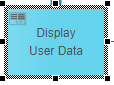
Step 1: On model "Automation/Service/Training/HelloWorld" select UI Page element "Display User Data" to open Sub TAB "Element"
-
Step 2: Click button "Search" to open dialog "Select or Create Submodel"

-
Step 3: Select folder "Automation/User Interface/Training/UiPage" and click button "Create (UI Page)" to open dialog "Create User Interface Model"

-
Step 4: Enter model name "DisplayData" and select option "From: UI Page" to open dialog "Select Template"

-
Step 5: Select template "Automation/User Interface/Training/UiPage/EnterData" with double click or click button "Select" and then click button "OK"

Exercise 2: Design layout of UI Page "DisplayData"
-
Step 6: Select each label and remove them from fifth and sixth rows using button to delete them

-
Step 7: Move textfield of fifth row to the first span of the sixth row
-
Step 8: Select first textfield, open TAB "Element Properties" and select H-Alignment "Right"


-
Step 9: Select Heading "HELLO WORLD!", open TAB "Implementation", Sub TAB "User Interface", enter Label "Say hello to..." and press key "Enter" to change title

-
Step 10: Click on Toolbar button "Back To Parent" to return to the mobile app model