Basic Training - Collaboration
Chapter Overview
In this training chapter you will get familiar with the collaboration feature of the xAPPnow Modeling Studio.
Exercise
For the exercise you will use an existing process model to check the collaboration possibilities. Collaborations can be added to any item.
Exercise 1: Create a Collaboration
-
Step 1: Double click on process model "Automation/Business Process/CreditProcess4EyesPrinciple" in the model tree to open the process model
-
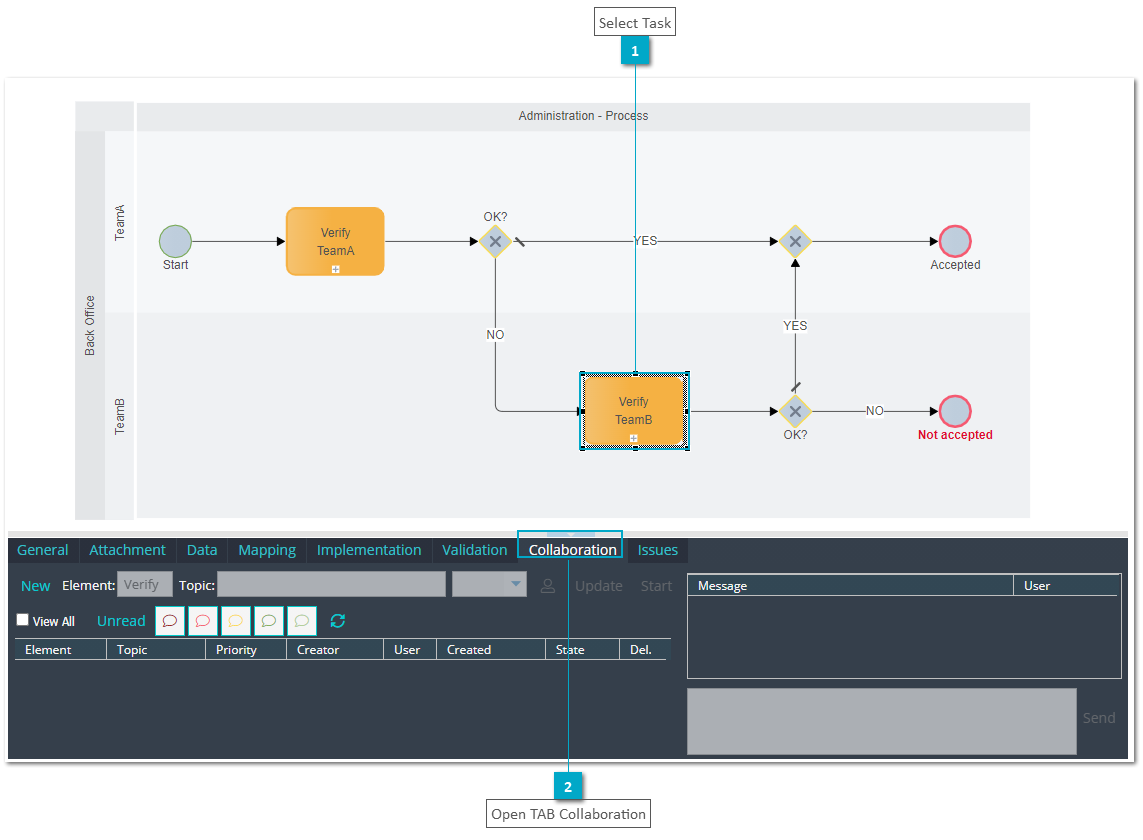
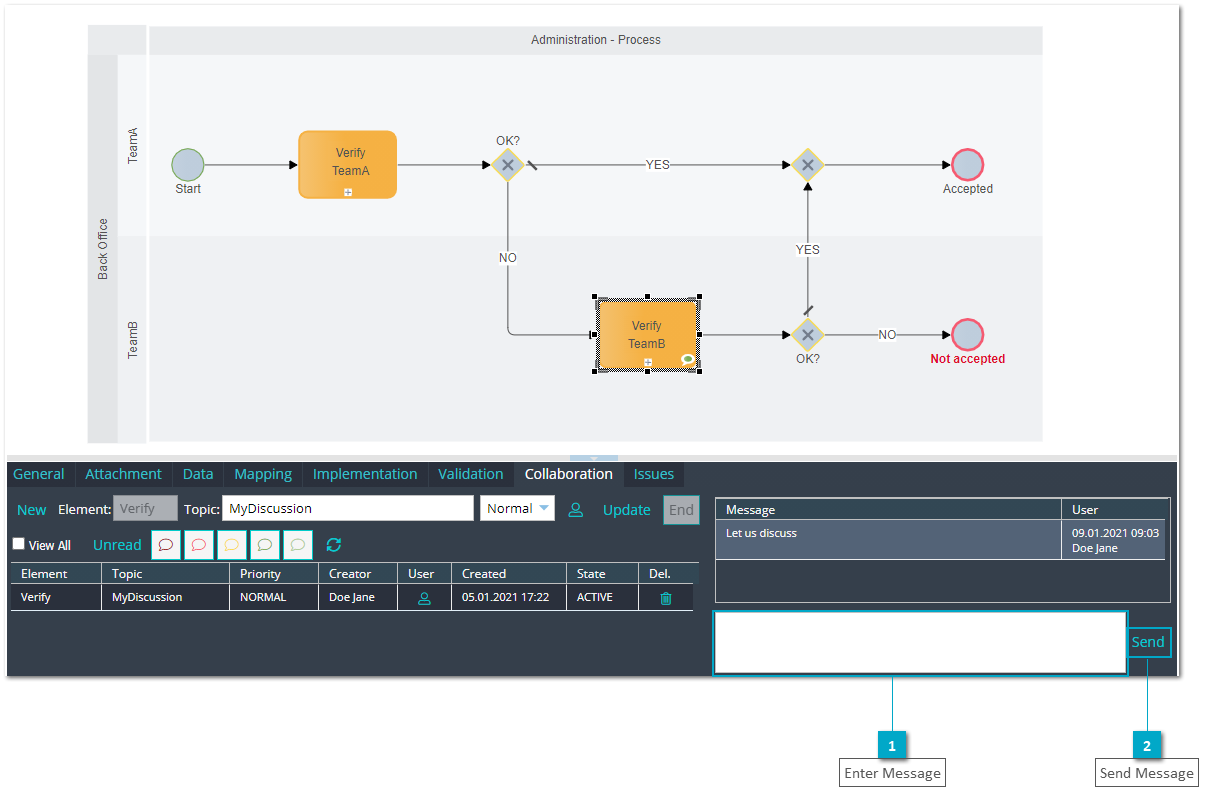
Step 2: Select second task "Verify" from pool lane "TeamB" and open TAB "Collaboration"
-
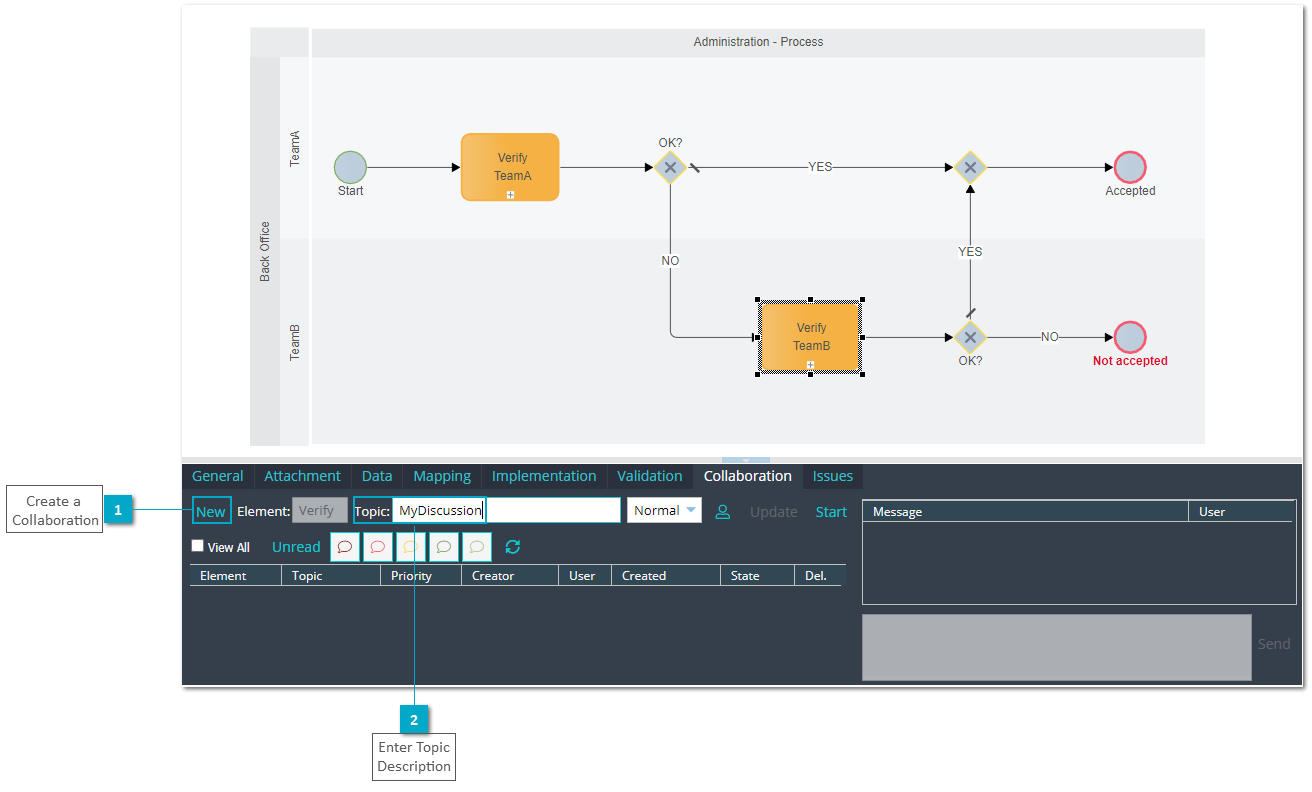
Step 3: Click button "New" to create a collaboration
-
Step 4: Enter topic description "MyDiscussion"
-
Step 5: Click button "Collaboration Participants" to open dialog "Collaboration Participants"
REMARK: To create a new collaboration the project must be assigned to more than one user. To add new users to a project see Project User Management
-
Step 6: Select collaboration participant and click button "OK"

-
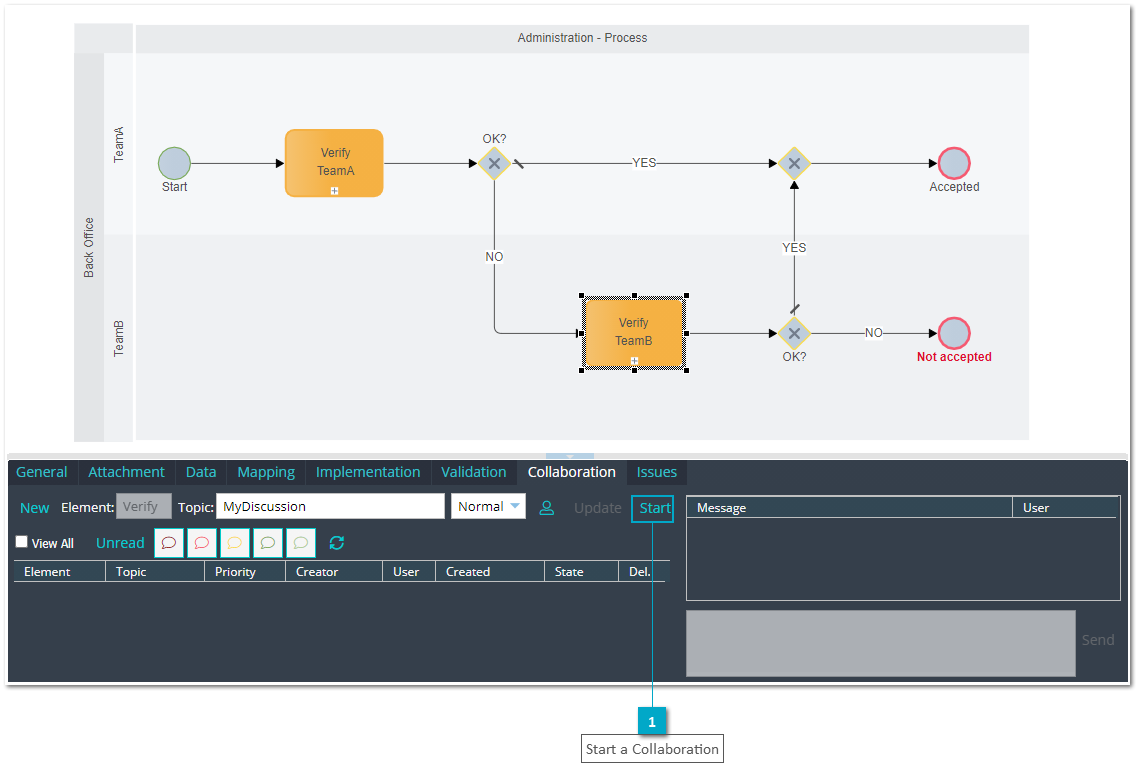
Step 7: Click button "Start" to initiate the collaboration
-
Step 8: Enter message "Let us discuss"
-
Step 9: Click button "Send" to send the message
-
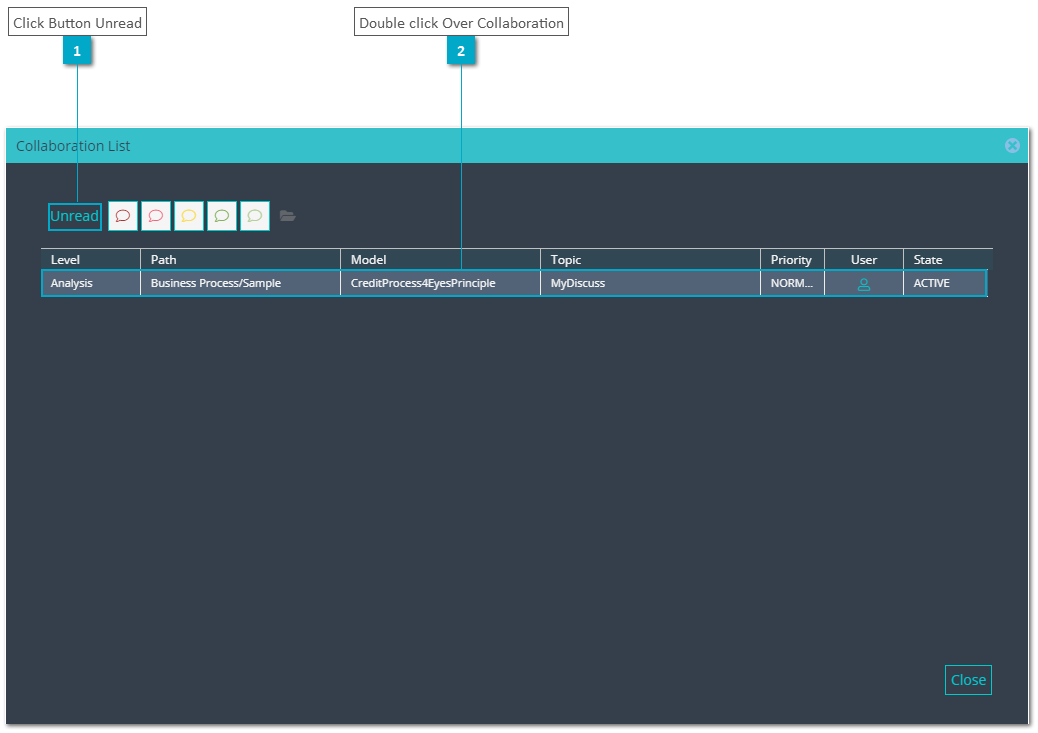
Step 10: Open any other model and click button "Show Collaboration List" in the toolbar

-
Step 11: Click button "Unread" to display collaboration and double click over collaboration to open model "Automation/Business Process/CreditProcess4EyesPrinciple" with the Task "Verify" selected
-
Step 12: Another user should login and repeat step 11 to send a reply message (step 8 and step 9)
-
Step 13: As the first user click button refresh to view the message