UI Element - Table
Related subfolder of the training project: "Training/UIM/Exercise/Advanced"
Chapter Overview
In this training chapter you get familiar with the configuration possibilities of the UI Element Table.
TAB "Element Properties"
The TAB "Element Properties" contains the configuration for
-
visible rows
-
manual sorting
-
UI table look& feel (entries, paging, search/filter, data configuration)
-
advanced programming support (force selection, sort manual, save state, download button)

TAB "Data Mapping"
The TAB "Data Mapping" contains mapping possibilities for the UI element
-
data mapping
-
single selection
-
multiple selection
-
visible rows
-
selected cell number

TAB "Single Selection"
The TAB "Single Selection" contains a demonstration of a Data Mapping variant, where an attribute is defined to store the selection of a row in the UI Table

TAB "Multiple Selection"
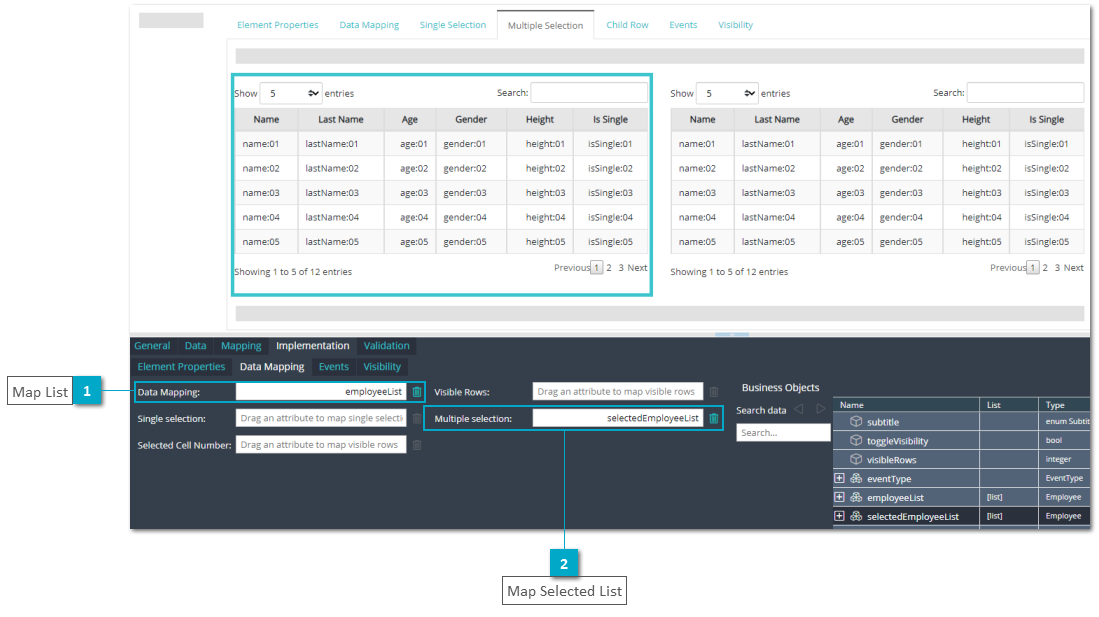
The TAB "Multiple Selection" contains a demonstration of a Data Mapping variant, where an attribute is defined to store the selection of multiple rows in the UI Table

TAB "Child Row"
The TAB "Child Row" contains a demonstration to link a UI panel as submodel of a UI table, which is displayed on row selection.

TAB "Events"
The TAB "Events" contains the events and related "Action" and "Validation" scripts of the UI element.
-
onRowClick
-
onRowDoubleClickFor each UI element the related event action is displayed at the right side of the UI element. In case of a validation error a default error message is displayed at the top right of the UI page and the action script is not executed.
 TAB "Visibility"The TAB "Visibility" contains the visibility configuration and the "Visibility" scripts of the UI element.
 -
editable/readonly
-
visible/invisibleFor each UI element the visibility can be changed by the checkbox "Visibility Toggle".

Exercise
In this exercise you will get familiar with the configuration possibilities of the UI element by completing the UI TABs as described above. You can test the implementation in UI Page Preview, in the Preview of the Frontend Service Model and optionally in the xAPPnow User Portal.
Exercise 1: Create UI Page "Table"
-
Step 1: Open context menu of folder "Automation/User Interface/Training/UIM/Exercise/Advanced" in the model tree
-
Step 2: Select menu function "Create Model" to open dialog "Create User Interface Model"
-
Step 3: Enter model name "Table" and keep option "Model Type: UI Page"
-
Step 4: Select option "From: UI Page" to open dialog "Select UI Page", open folder "…/Training/UIM/Template/Advanced" to select template "TMPL_Table" with double click then keep default option for "Default Device" and click button "OK" to create the UI page

Exercise 2 a: TAB "Element Properties" - Basic
-
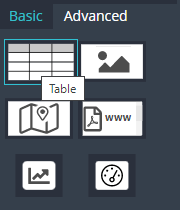
Step 1: Drag&Drop attribute "employeeList" from TAB "Data" into second free span and keep default in dialog "Select Component" to add the UI Table to the UI page.

-
Step 2: Repeat Step 1 to add a UI Table for attribute "employeeList" to sections of
-
Sort Manual [Sort Manual: Checked]
-
Show Entries [Show Entries: Unchecked]
-
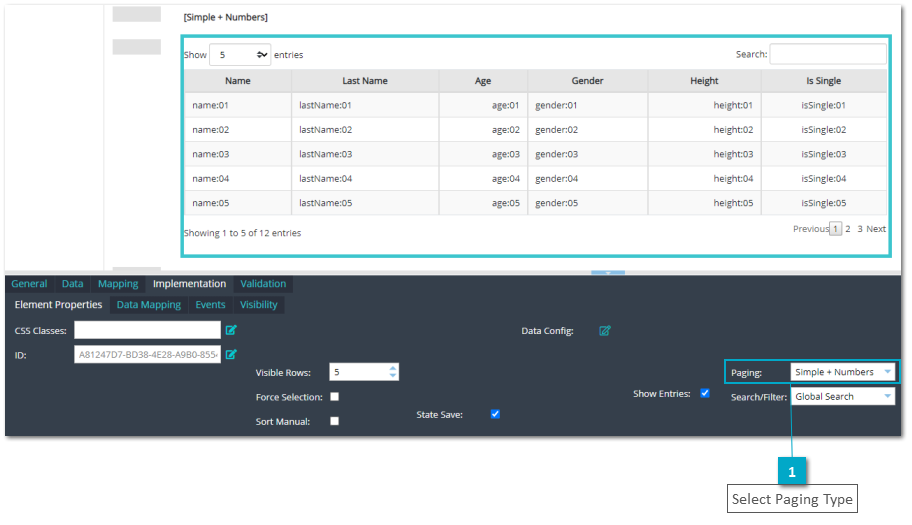
Paging [Numbers], [Simple], [Simple+Numbers], [Full], [Full Numbers], [None]
-
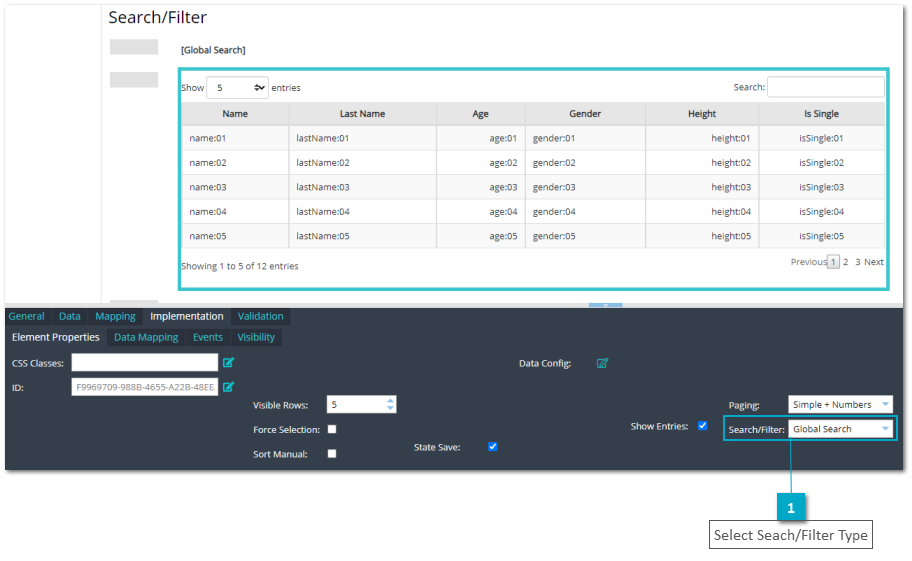
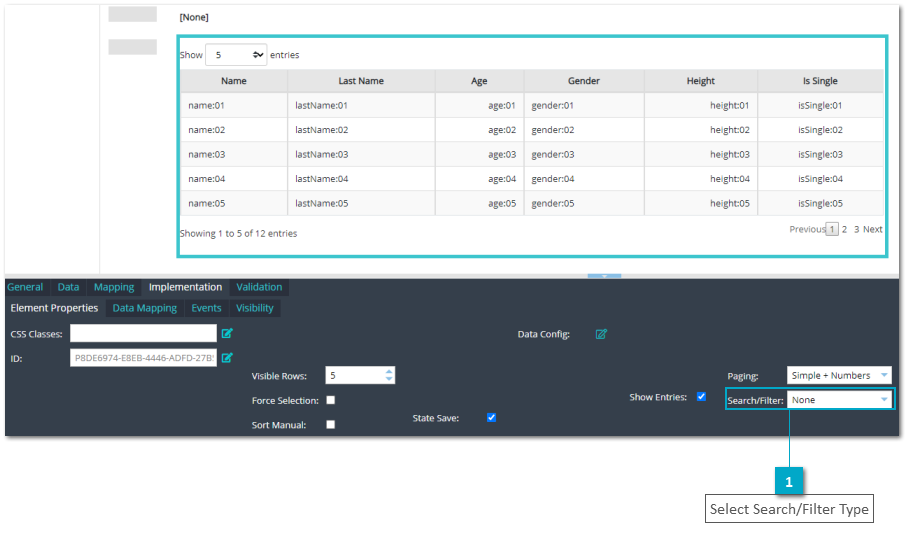
Search/Filter [Global Search], [Filter Top], [Filter Bottom], [None]

The following configuration are specified in TAB "Implementation", SubTab "Element Properties"
-
Step 3: Select UI Table of section "Visible Rows" to set "Visible Rows" with value 10

-
Step 4: Select UI Table of section "Sort Manual" to check "Sort Manual"
Remark: This will disable sorting and has to be impemented manually.

-
Step 5: Select UI Table of section "Show Entries/Unchecked" to uncheck "Show Entries"

-
Step 6: Select UI Table of section "Paging/Numbers" to select "Paging: Numbers"

-
Step 7: Select UI Table of section "Paging/Simple" to select "Paging: Simple"

-
Step 8: Select UI Table of section "Paging/Simple + Numbers" to select "Paging: Simple + Numbers"
-
Step 9: Select UI Table of section "Paging/Full" to select "Paging: Full"

-
Step 10: Select UI Table of section "Paging/Full Numbers" to select "Paging: Full numbers"

-
Step 11: Select UI Table of section "Paging/None" to select "Paging: None"

-
Step 12: Select UI Table of section "Search/Filter/Global Search" to select "Search/Filter: Global Search"
-
Step 13: Select UI Table of section "Search/Filter - Filter Top" to select "Search/Filter: Filter Top"
-
Step 14: Select UI Table of section "Search/Filter - Filter Bottom" to select "Search/Filter: Filter Bottom"


-
Step 15: Select UI Table of section "Search/Filter - None" to select "Search/Filter: None"
Exercise 2 b: TAB "Element Properties" - Data Configuration
-
Step 1: Select UI Table of section "Data Configuration - Visible columns" to open dialog "Edit Table Columns" and default TAB "Selection"Remark: The attributes listed on the right area are visible columns of the table, the attributes listed on the left area will not be visibles on the UI Table
-
Step 2: Select attribute "Is Single" in section "Visible coumns" and click button "Arrow Left" to hide this column.
-
Step 3: Select attribute "Gender" in section "Visible coumns" and click button "Arrow Left" to hide this column.
-
Step 4: Use button "Arrow Up/Down" to order the columns of the UI Table.
-
Step 5: Click button "OK" to apply the configuration.

-
Step 6: Select UI Table of section "Data Configuration - Configuration: Label width" and select TAB "Configuration"
-
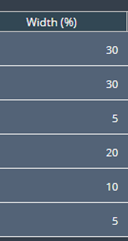
Step 7: In column "Width (%)" specify a value for each column of the UI table
-
Name [30%]
-
Last Name [30%]
-
Age [5%]
-
Gender [20%]
-
Height [10%]
-
Is Single [5%])Remark: The sum of all columns must be 100%.
-
Step 8: Click button "OK" to apply the configuration.
-
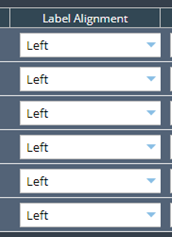
Step 9: Select UI Table of section "Data Configuration - Configuration: Label Alignment" and select TAB "Configuration"
-
Step 10: In column "Label Alignment" change default values (Center) to value "Left" for all attributes.
-
Step 11: Click button "OK" to apply the configuration.
-
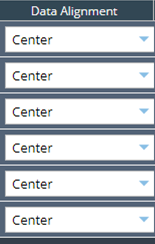
Step 12: Select UI Table of section "Data Configuration - Configuration: Data Alignment" and select TAB "Configuration"
-
Step 13: in column "Data Alignment" change default values to value "Center" for all attributes.
-
Step 14: Click button "OK" to apply the configuration.
-
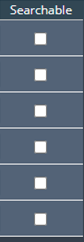
Step 15: Select UI table of section "Data Configuration - Searchable (unchecked)" and select TAB "Configuration"
-
Step 16: In column "Searchable" unmark each checkbox
-
Step 17: Click button "OK" to apply the configurationRemark: The value of attributes unchecked wont be considered when a search is made in the UI Table.


-
Step 18: Select UI table of section "Data Configuration - Header Title" and select TAB "Header Title"
-
Step 19: In column "Default" uncheck "passport" and enter in the textfield displayed at the right side "Passport". Also you can use icon Multi Language to define other labels for different languages
-
Step 20: Click button "OK" to apply the configuration

Exercise 3: TAB "Data Mapping"
Notice that attribute "visibleRows" has a "default value = 7"

-
Step 1: Select the UI table and open TAB "Implementation", SubTAB "Data Mapping"
-
Step 2: Drag&Drop attribute "visibleRows" from TAB "Business Objects" into field "Visible Rows"Remark: The value of this attribute will be taken as the number of rows that are displayed, initially.

Exercise 4: TAB "Single Selection"
-
Step 1: Select the UI table and open TAB "Implementation", SubTAB "Data Mapping"
-
Step 2: Drag&Drop BO [List] "employeeList" from TAB "Business Objects" into field "Data Mapping" to display the list in the UI table.
-
Step 3: Drag&Drop BO "selectedEmployee" from TAB "Business Objects" into field "Single Selection" to save the BO of the selected row.Remark: The corresponding BO attributes of the selected row will be displayed in the UI panel next to the UI table.

Exercise 5: TAB "Multiple Selection"
-
Step 1: Select UI table at the left side and open TAB "Implementation", SubTAB "Data Mapping"
-
Step 2: Drag&Drop BO [List] "employeeList" from TAB "Business Objects" into field "Data Mapping" to display the list in the UI table.
-
Step 3: Drag&Drop BO [List] "selectedEmployeeList" from TAB "Business Objects" into field "Multiple Selection" to save the BO of each selected row.Remark: The corresponding BO [List] of the selected rows will be displayed in the UI table on the right.
Exercise 6: TAB "Child Row"
-
Step 1: Select the UI table of TAB "Child Row" and open TAB "General", SubTAB "Element"
-
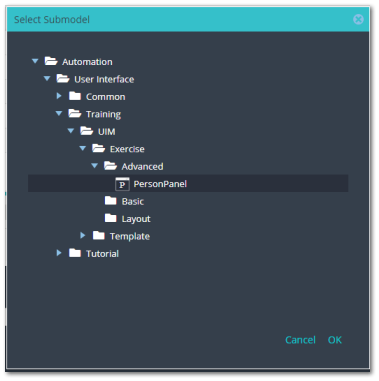
Step 2: Click button "Search" to open dialog "Select Submodel" and select UI panel "PersonPanel"
-
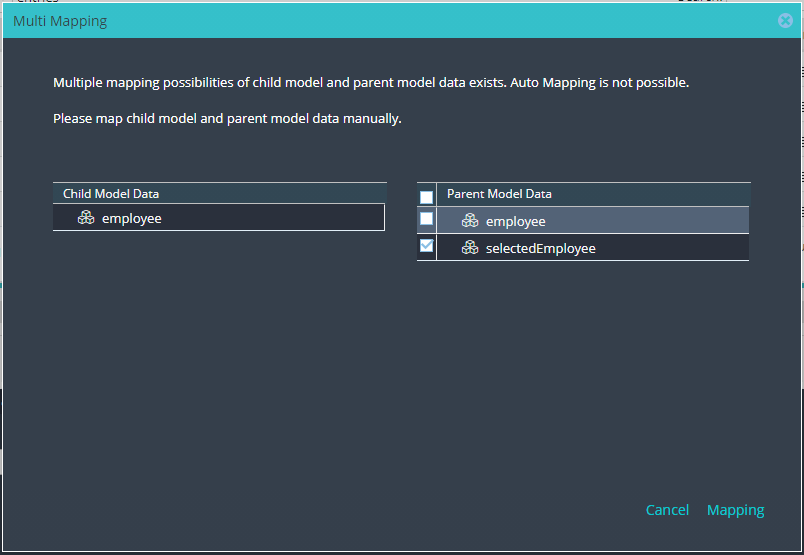
Step 3: In dialog "Multi Mapping" map child model attribute "employee" with attribute "selectedEmployee" of parent model
Exercise 7: TAB "Events" - Action Scripts
-
Step 1: Select the first UI table and open TAB "Implementation", SubTab "Events" to specify event type "onRowClick"
-
Step 2: Implement the action script, which displays the action at the right side of the UI element.
localData.eventType.onRowClick = globalDef.enums.Tutorial.UIM.DEF.EventMessage.ON_ROW_CLICK;

-
Step 3: Repeat Step 1 and 2 for the next UI table to specify event type "onRowDoubleClick" and related event action script, which display the action at the right side of the UI element.
-
event type "onRowDoubleClick"
localData.eventType.onRowDoubleClick = globalDef.enums.Tutorial.UIM.DEF.EventMessage.ON_ROW_DOUBLE_CLICK;
Exercise 8: TAB "Events" - Action & Validation Scripts
-
Step 1: Select the third UI table and open TAB "Implementation", SubTab "Events" to specify event type "onRowClick"
-
Step 2: Implement the action the validation scripts, which display the related event action at the right side of the UI element in case of no validation error.
-
action script "onRowClick" event
localData.eventType.onRowClickValid = globalDef.enums.Tutorial.UIM.DEF.EventMessage.ON_ROW_CLICK_VALID;
-
validation script "onRowClick" event
localData.eventType.isValid;

-
Step 3: Repeat Step 1 and 2 for the next UI table to specify event type "onRowDoubleClick" and related event action and validation scripts, which display the action at the right side of the UI element.
-
action script
-
"onRowDoubleClick" event
localData.eventType.onRowDoubleClickValid = globalDef.enums.Tutorial.UIM.DEF.EventMessage.ON_ROW_DOUBLE_CLICK_VALID;
-
validation script
-
"onRowDoubleClick" event
localData.eventType.isValid;
Exercise 9: TAB "Visibility"
-
Step 1: Drag&Drop attribute "toggleVisibility" from TAB "Data" into the third free span and keep default in dialog "Select Component" to add the corresponding UI label and UI checkbox to the UI page.

-
Step 2: Select the first UI Table and open TAB "Implementation" SubTab "Visibility"
-
Step 3: Click at visibility type "Editable" and select state "Script"
-
Step 4: Implement the visibility script, which toggles the visibility "enabled" and "disabled"
localData.toggleVisibility

-
Step 5: Repeat steps 2..4 for second UI Table for visibility type "Visible", which toggles the visibility "visible" and "invisible"
Exercise 10: Link UI Page to Frontend Service Model
-
Step 1: Open frontend service model "Automation/Service/Training/UIM/Exercise/Advanced/Table"
-
Step 2: Select UI page "View Table" to open TAB "General", SubTAB "Element"
-
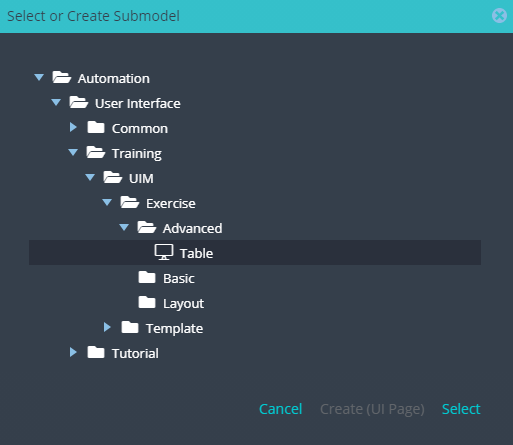
Step 3: Click button “Search“ to open dialog "Select or Create Submodel" and select UI page "Table" with double click
-
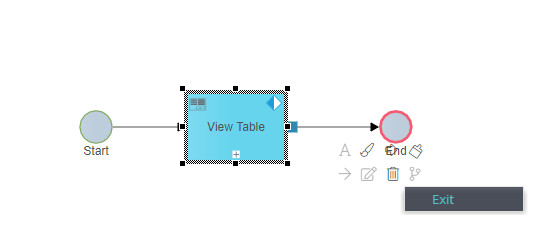
Step 4: Right click on button flow to select button "Exit".
Exercise 11: Test the UI Page
-
Step 1: Open UI Page and click button "Preview" in the toolbar to directly test the UI page within the UI editor
-
Step 2: Optionally publish the frontend service model and test the UI page in User Portal