Training Tutorial Smoke Test
Overview
The goal of this topic is to train you in the smoke test of the project "Tutorial - Process Digitalization".
Exercise
In this exercise you will learn how to do a smoke test after an update. You will publish the process and client services of the tutorial and execute them in User Portal.
Exercise 1: Publish Process Model "EasyCredit" and User Flow Diagrams
-
Step 1: Open process model "Automation/Business Process/Tutorial/EasyCredit" in the model tree
-
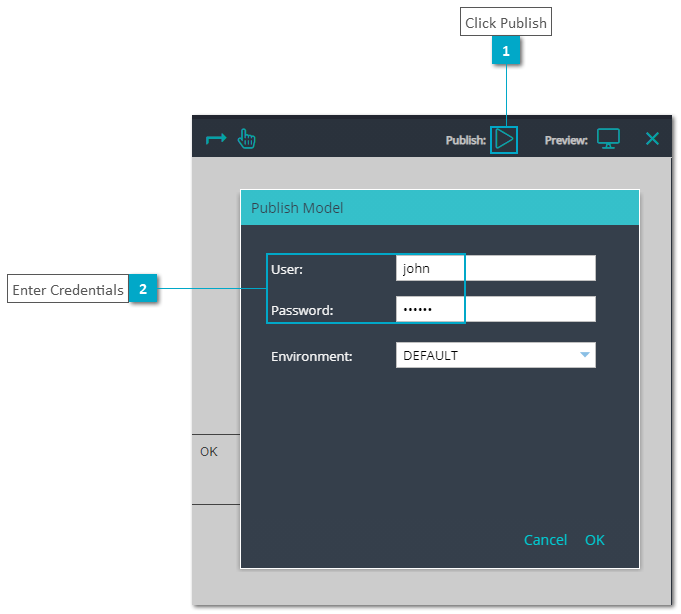
Step 2: Click button "Publish" to open the dialog "Publish Model"
-
Step 3: Enter username and password and set options "Start Process"
-
Step 4: Click button "OK" to publish the process model

-
Step 5: Open user flow diagram "Automation/Service/Tutorial/ConfirmCredit" in the model tree
-
Step 6: Click button "Publish" to open dialog "Publish Model"
-
Step 7: Enter username and password
-
Step 8: Click button "OK" to publish the user flow diagram
-
Step 9: Open user flow diagram "Automation/Service/Training/RequestCredit" in the model tree
-
Step 10: Repeat Steps 5 to 8 for user flow diagram "RequestCredit"
-
Step 11: Open user flow diagram "Automation/Service/Training/VerifyCredit" in the model tree
-
Step 12: Repeat Steps 5 to 8 for user flow diagram "VerifyCredit"
Exercise 2: Login into User Portal
In this exercise you will login into User Portal with user "john" and user "jane".
-
Step 1: Open xAPPnow User Portal in two separated browser TABs
-
Step 2: Login with user "john" and user "jane" in different browser TABs
Remark: After login the menu function "My Tasks" is opened directly to view the task list. User "john" will see the first user task "Request Credit" of the process. The task list of user "jane" is empty until the user task "VerifyCredit" is triggered.
Exercise 3: Execute User Task "Request Credit" (TeamA)
User "john" should enter a credit amount, which is greater than 10 x the monthly salary, which means the credit request has to be verified by "TeamB".
-
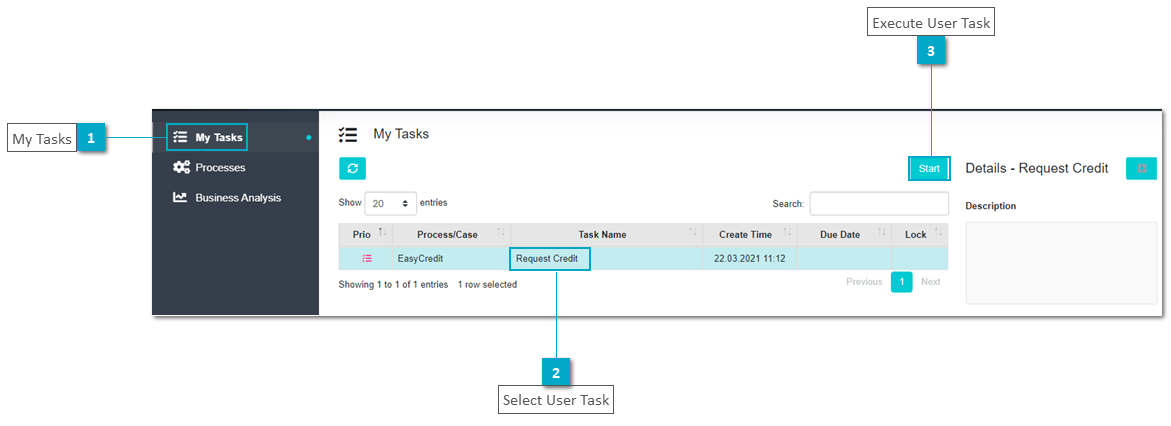
Step 1: Select user task "Request Credit" with double click or click button "Start" to display UI page "CreditRequest"
-
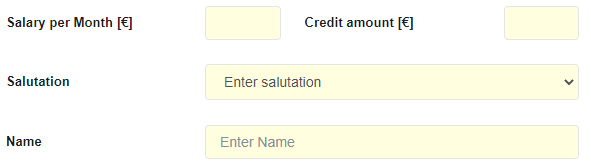
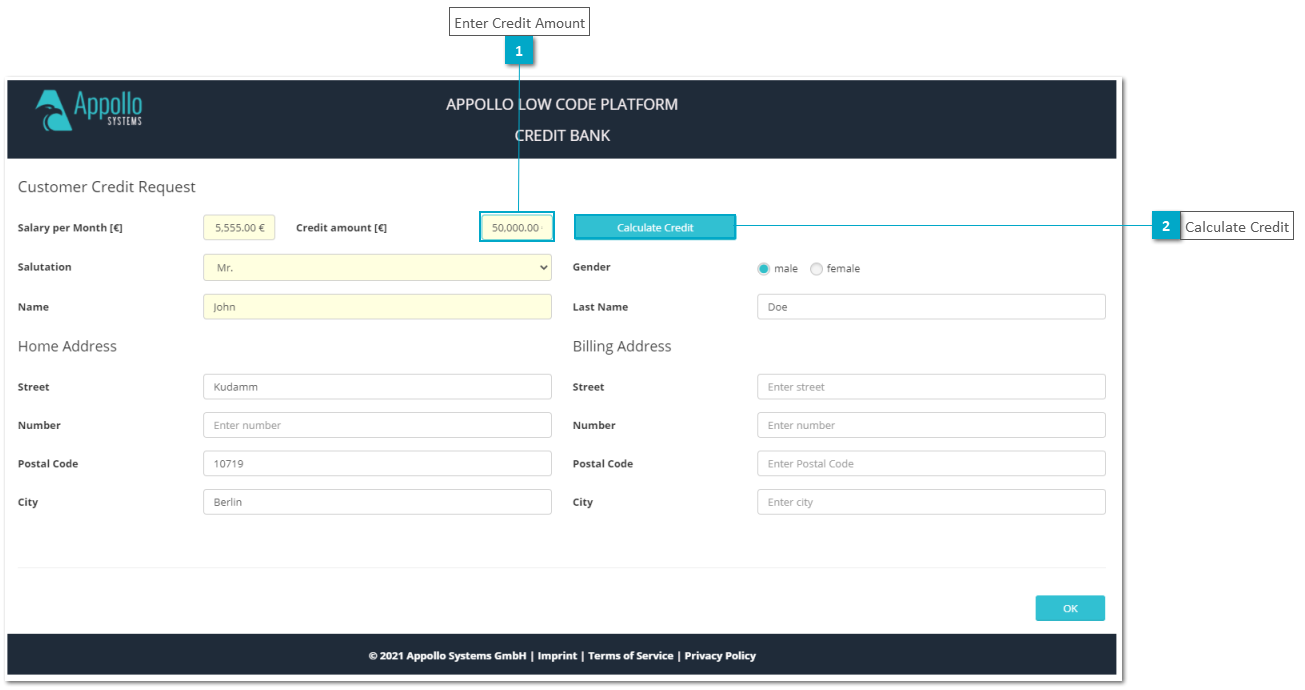
Step 2: Enter mandatory data of "Request Credit"
-
Step 3: Click button “Calculate Credit” and then calculate the credit in the pop up dialog
-
Step 4: Enter optional data of "Request Credit" and click button "OK" to complete the task

Exercise 4: Execute User Task "Verify Credit" (TeamB)
-
Step 1: Open second browser TAB of user "jane" and click button "Refresh" to update the task list
-
Step 2: Select user task "Verify Credit" with double click or click button "Start" to display UI page "Verify Credit"
-
Step 3: Keep "Credit manually confirmed" unchecked and click button "OK" to complete the task with status "Credit not confirmed"


Exercise 5: Execute User Task "Request Credit" (TeamA)
User "john" should enter a credit amount, which is less than 10 x the monthly salary, which means that the credit request will then be autoconfirmed directly.
-
Step 1: Open browser TAB of user "john" and click button "Refresh" to update the task list
-
Step 2: Select user task "Request Credit" with double click or click button "Start" to display credit rejected response
-
Step 3: Click button "OK" to close credit confirmation ui page.

-
Step 4: Click button "OK" to close ui page credit confirmation and open ui page "Credit Request"
-
Step 5: Modify credit amount to make it less than 10 x the monthly salary
-
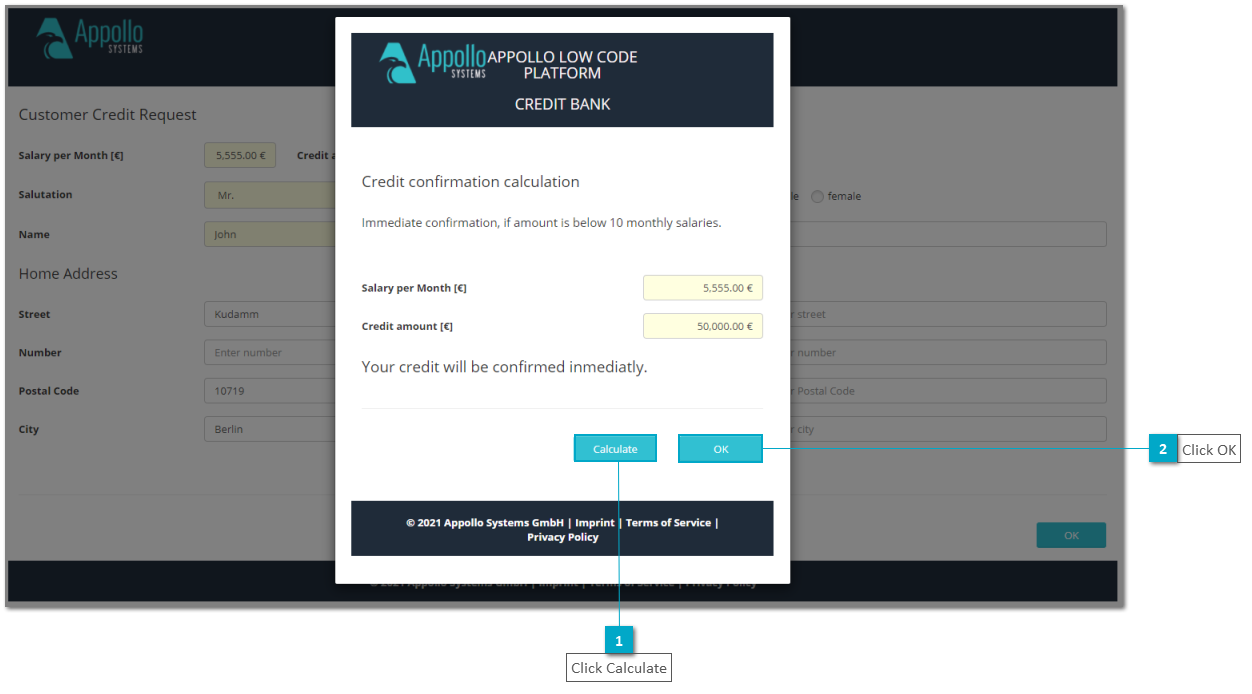
Step 6: Click button "Calculate Credit" to open dialog "Credit confirmation calculation"
-
Step 7: Click button "Calculate" and then click button "OK" to return to ui page "Credit Request"
-
Step 8: Click button "OK" of ui page "Credit Request"
Exercise 6: Execute User Task "Confirm Credit" (TeamA)
-
Step 1: Open browser TAB of user "john" and click button "Refresh" to update the task list
-
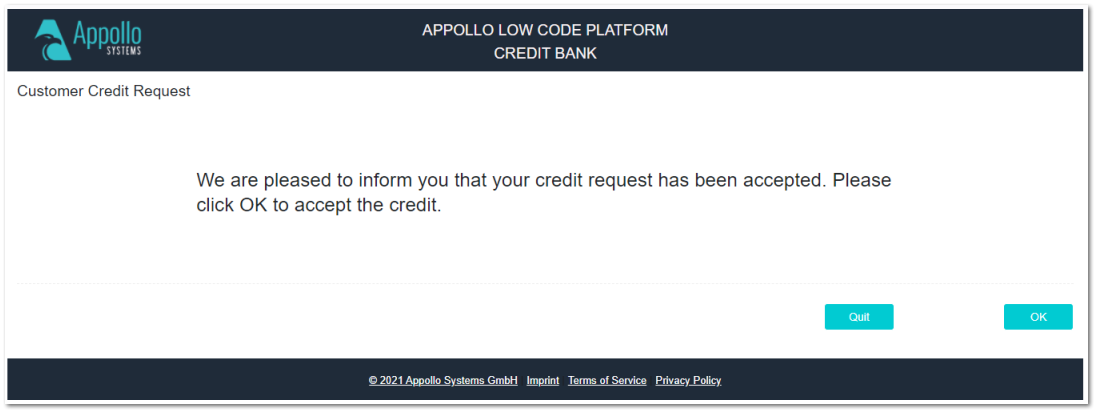
Step 2: Select user task "Confirm Credit" with double click or click button "Start" to display ui page "CreditConfirmation"
-
Step 3: View the credit confirmation message and click button "OK" or button "Quit" to reach the end of the process