Training Manage Runtime Environment
Overview
The goal of this topic is to train you in the management of Modeling Studio Environments. The Modeling Studio system administrator is the responsible for create, update, delete the environments. These environments can be configured to allow the Publish of models from current environment to a different engine environment and also issues created from that User Portal will be reflected on the Modeling Studio environment from where the model was published . This training involves the configuration of environments also on User Portal. To complete this training see Training Manage Runtime Environment on User Portal.
Exercise
In this exercise you will create a new environment "Test". To start this training you must Log in into Modeling Studio using credentials of the System Administrator defined during the installation process.
Exercise 1: Create new environment
-
Step 1: Open menu "Administration" to select option "Environments"

-
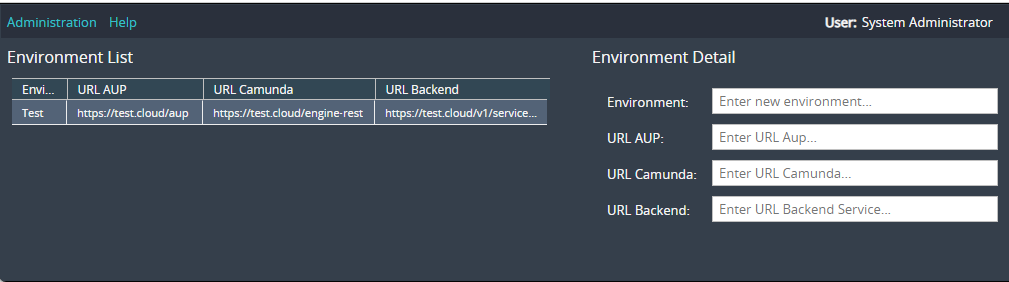
Step 2: Enter the required environment information:
-
Environment: Test
-
URL User Portal: https://test.cloud/aup
-
URL Camunda: https://test.cloud/engine-rest
-
URL Backend: https://test.cloud/v1/service-deployment
-
Description: Test Environment
-
Step 3: Click button "Add" at the bottom of the page to create the new environment specified.The created environments will be listed on the left area of the screen.