Online Process Execution
Chapter Overview
In this training chapter you will execute process "EasyCredit" in the xAPPnow User Portal.
Exercise
Exercise 1: Login into User Portal
In this exercise you will login into User Portal with user "john" and user "jane".
-
Step 1: Open xAPPnow User Portal (https://innovate.appollo.cloud/aup) in two separated browser TABs
-
Step 2: Login with user "john" and user "jane" in different browser TABs
Exercise 2: Execute User Task "Request Credit" (TeamA)
User "john" should enter a credit amount, which is greater than 10 x the monthly salary, which means the credit request has to be verified by "TeamB".
-
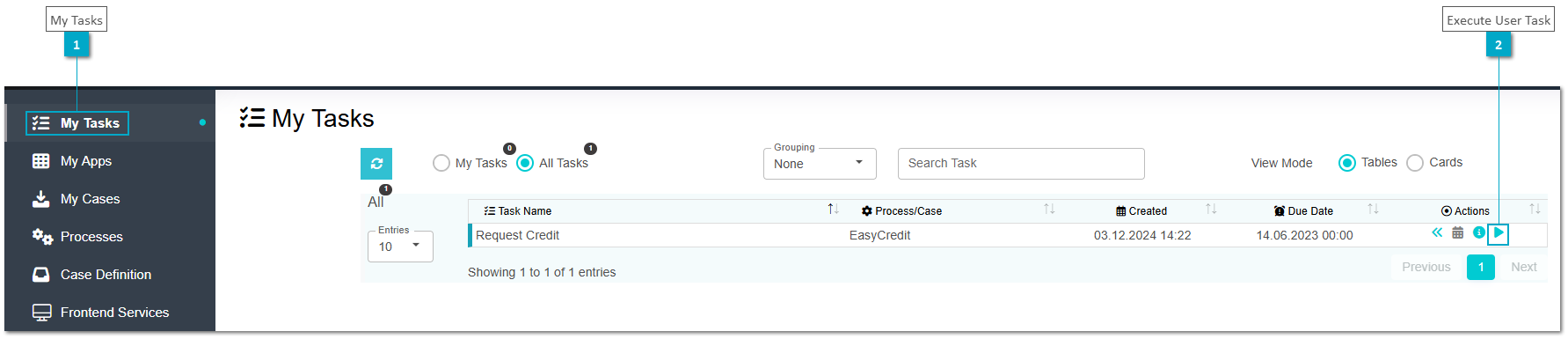
Step 1: Open "My Tasks" and select user task "Request Credit" with double click or click button "Start" to display UI page "CreditRequest"
-
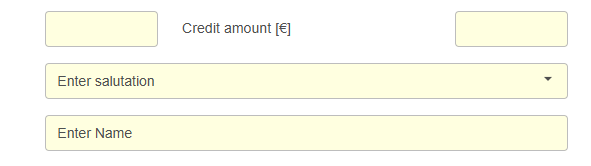
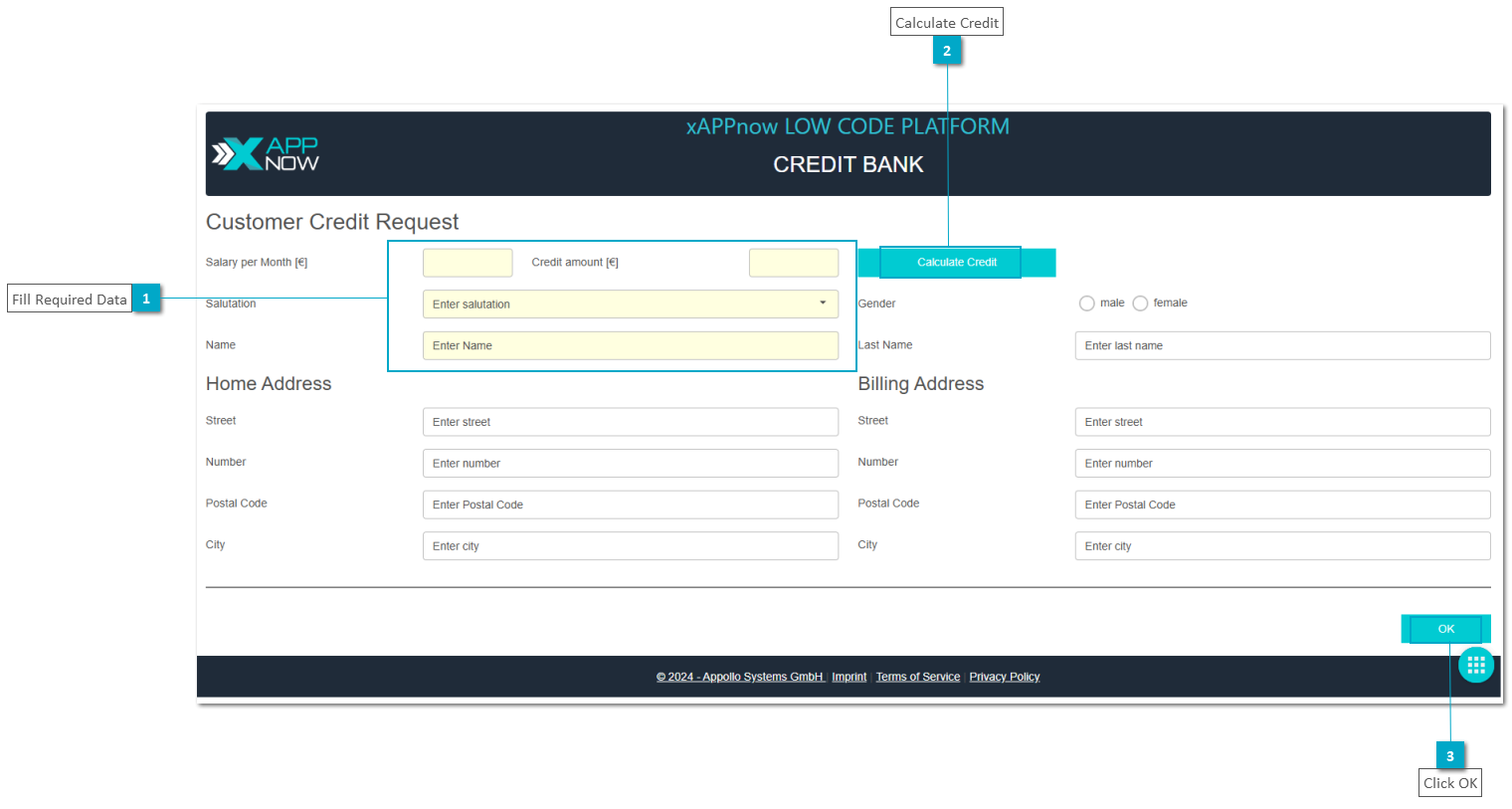
Step 2: Enter mandatory data of "Request Credit"
-
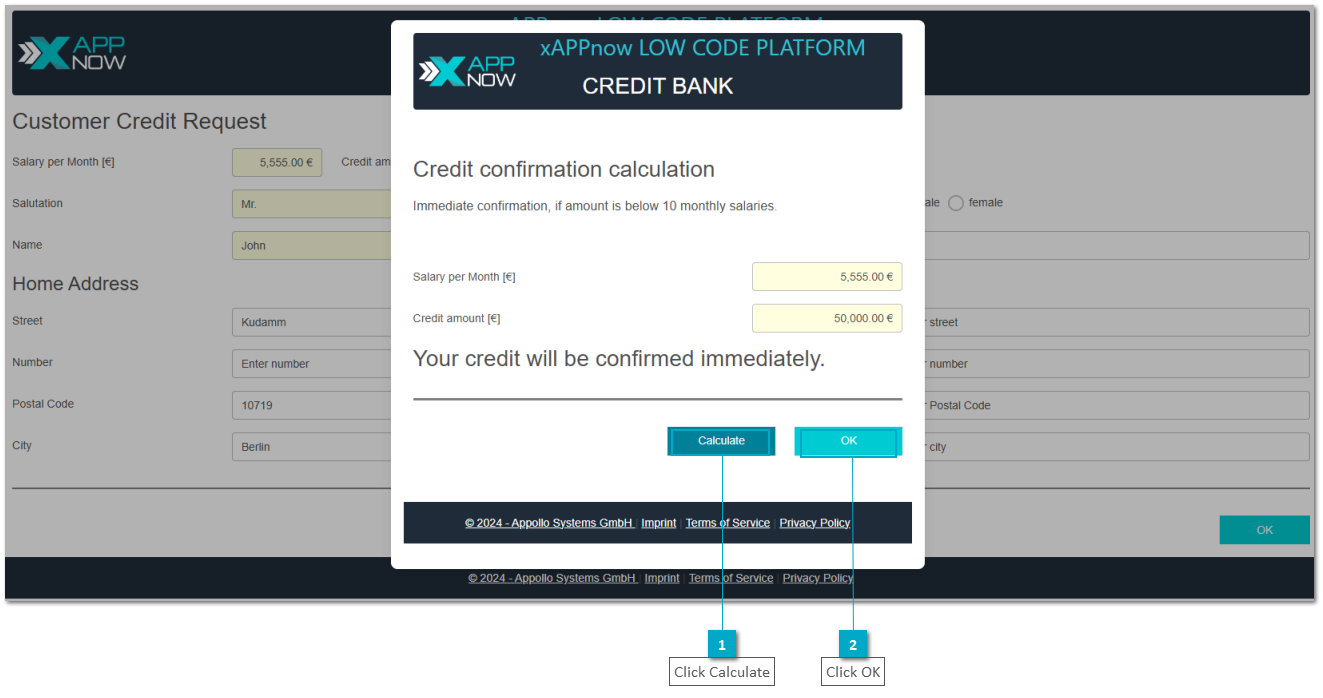
Step 3: Click button “Calculate Credit” and then calculate the credit in the pop up dialog
-
Step 4: Enter optional data of "Request Credit" and click button "OK" to complete the task
Exercise 3: Execute User Task "Verify Credit" (TeamB)
-
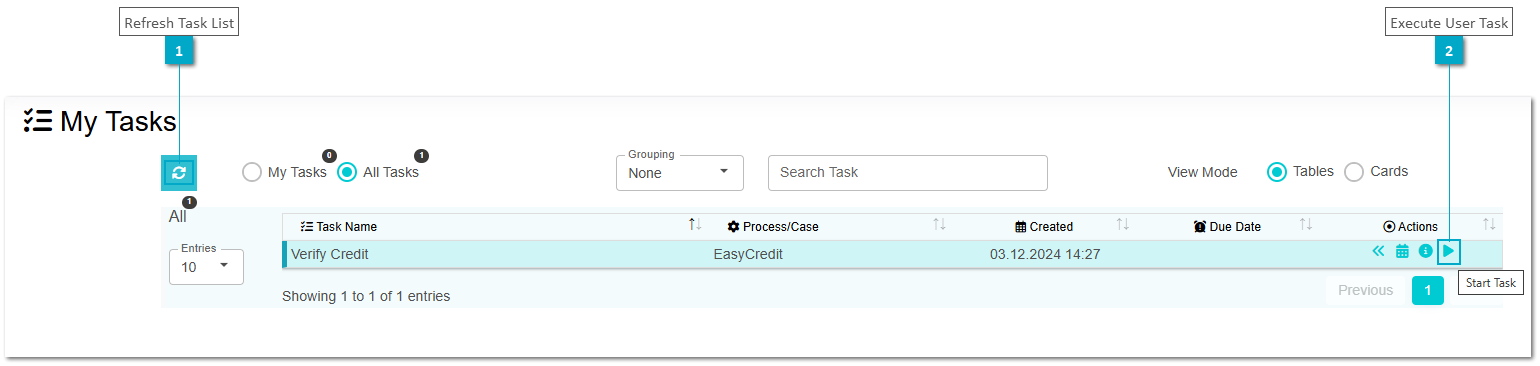
Step 1: Open second browser TAB of user "jane" and click button "Refresh" to update the task list
-
Step 2: Select user task "Verify Credit" with double click or click button "Start" to display UI page "Verify Credit"
-
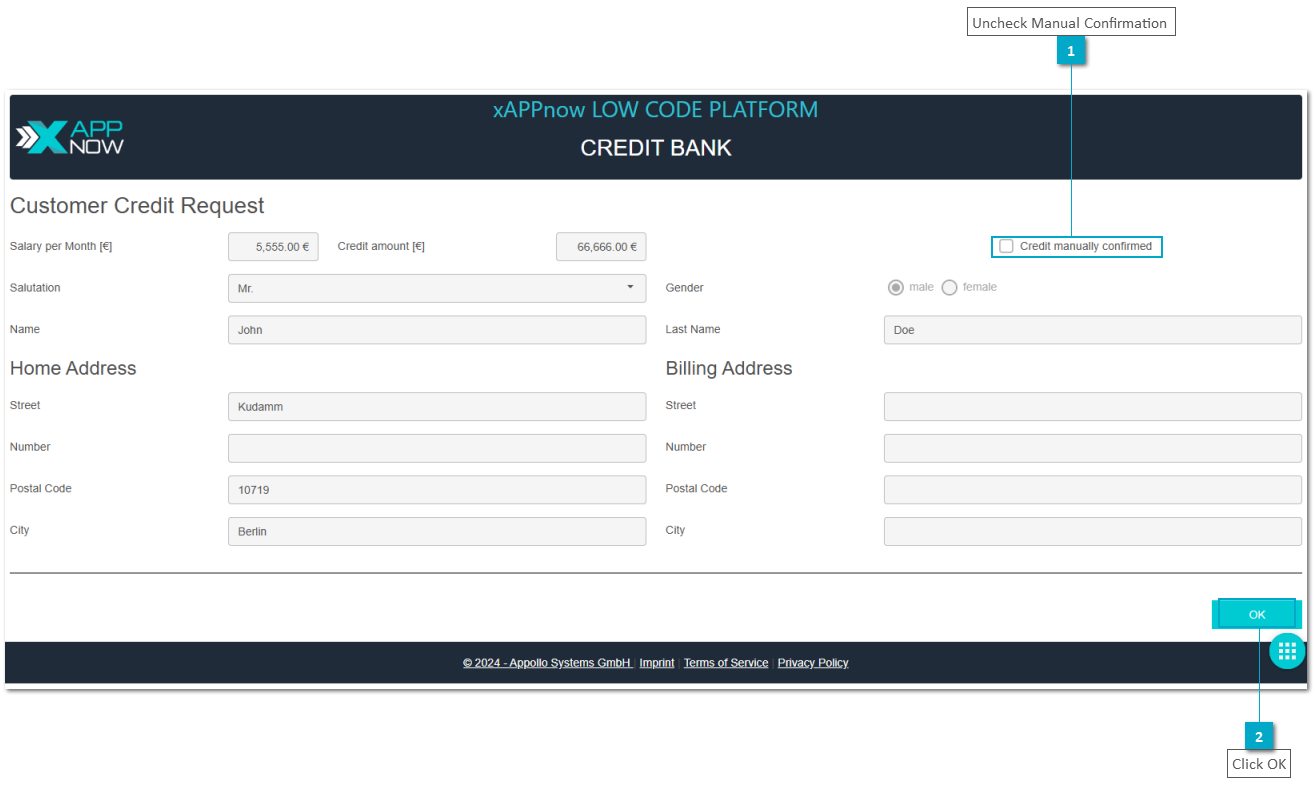
Step 3: Keep "Credit manually confirmed" unchecked and click button "OK" to complete the task with status "Credit not confirmed"
Exercise 5: Execute User Task "Request Credit" (TeamA)
User "john" should enter a credit amount, which is less than 10 x the monthly salary, which means that the credit request will then be autoconfirmed directly.
-
Step 1: Open browser TAB of user "john" and click button "Refresh" to update the task list
-
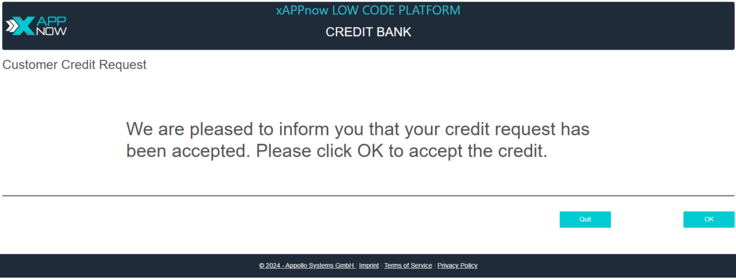
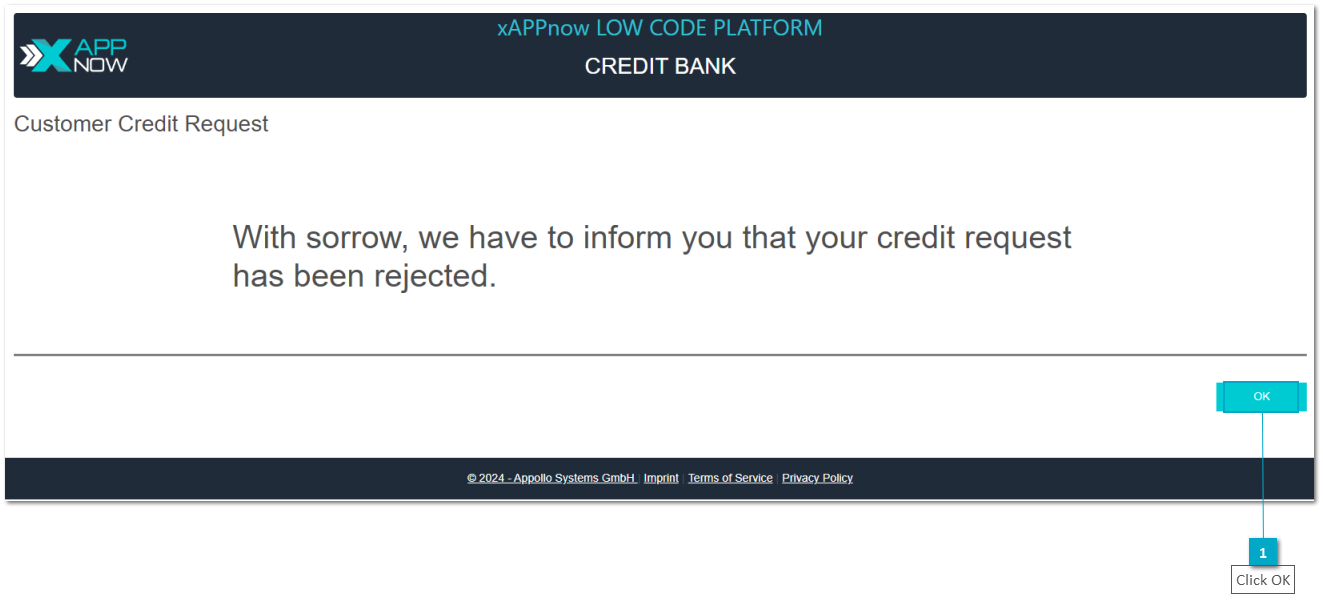
Step 2: Select user task "Request Credit" with double click or click button "Start" to display credit rejected response
-
Step 3: Click button "OK" to close credit confirmation ui page.
-
Step 4: Click button "OK" to close ui page credit confirmation and open ui page "Credit Request"
-
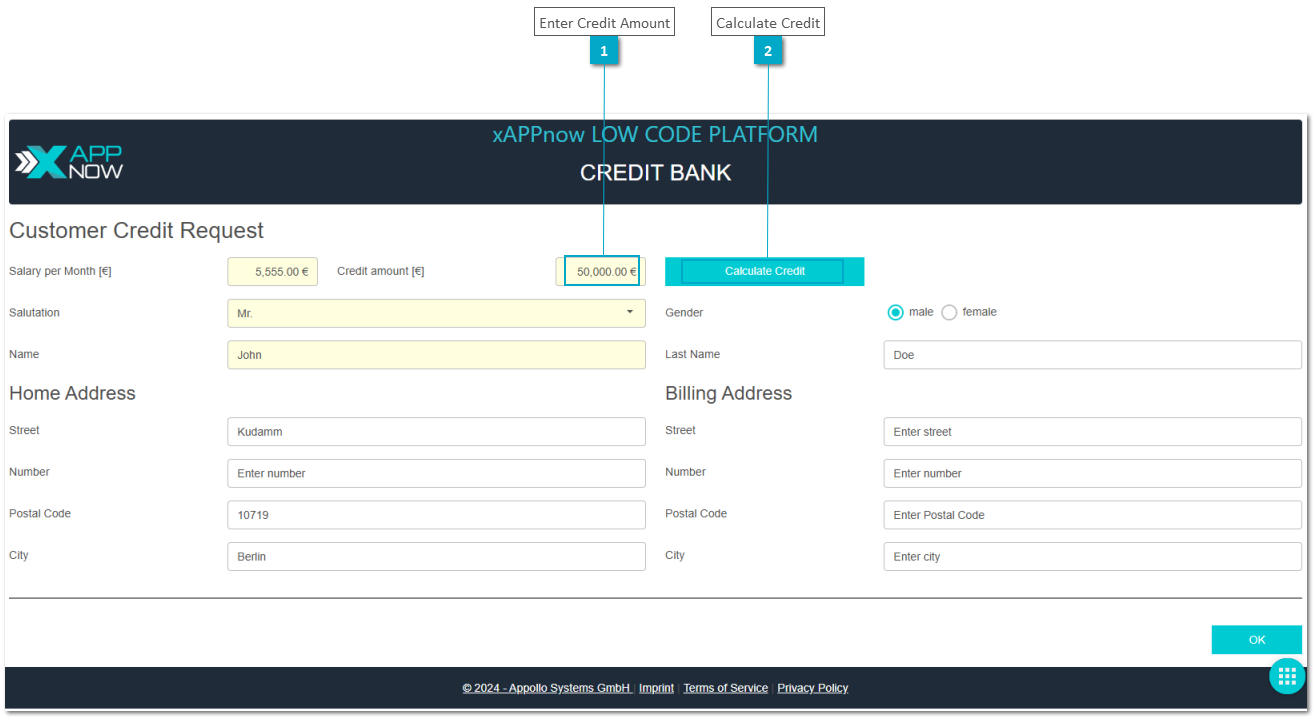
Step 5: Modify credit amount to make it less than 10 x the monthly salary
-
Step 6: Click button "Calculate Credit" to open dialog "Credit confirmation calculation"
-
Step 7: Click button "Calculate" and then click button "OK" to return to ui page "Credit Request"
-
Step 8: Click button "OK" of ui page "Credit Request"
Exercise 6: Execute User Task "Confirm Credit" (TeamA)
-
Step 1: Open browser TAB of user "john" and click button "Refresh" to update the task list
-
Step 2: Select user task "Confirm Credit" with double click or click button "Start" to display ui page "CreditConfirmation"
-
Step 3: View the credit confirmation message and click button "OK" or button "Quit" to reach the end of the process