xAPPnow LOW CODE PLATFORM - User Manual 

Still no account yet?

×

Complete Process Model "EasyCredit"


Chapter Overview

 
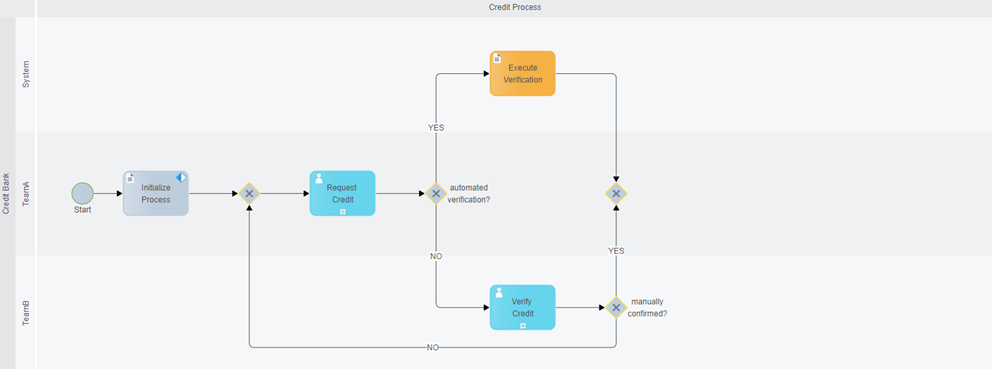
In this training chapter you will complete process model "EasyCredit", which contains the inital process steps.


Exercise

 
In this exercise you will add missing process steps of process model "EasyCredit" and implement the flow condition of gateway "creditAccepted?".


Exercise 1: Add missing Process Steps
 
  • Step 1: Open process model "Automation/Business Process/Training/EasyCredit" in the model tree
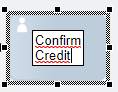
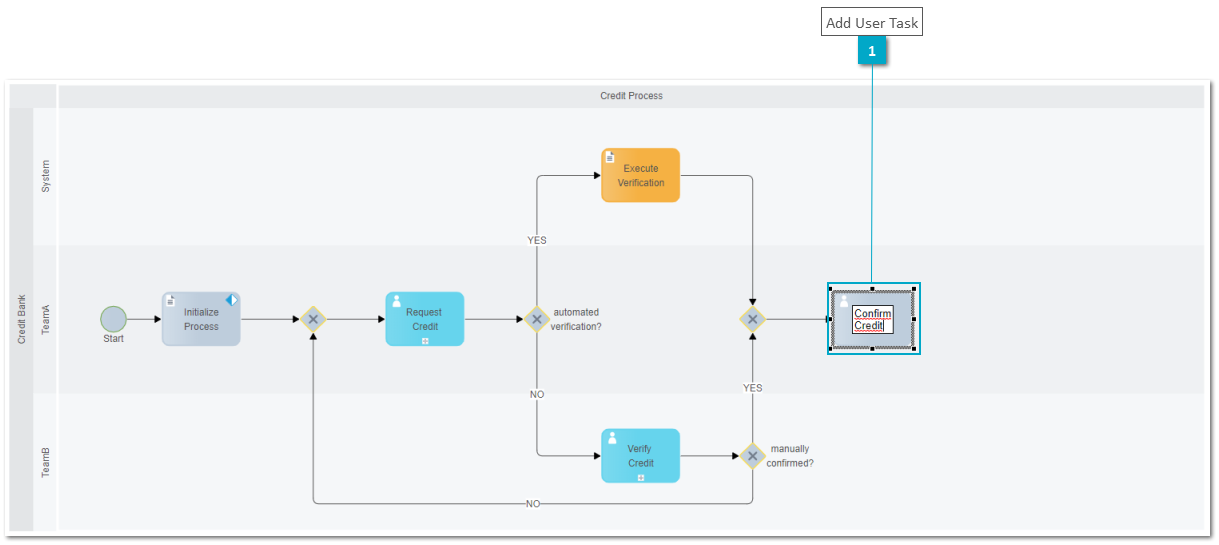
  • Step 2: Open context menu of joining exclusive gateway and click a user task element to connect it with label"Confirm Credit"
     
    Remark: Press Ctrl+Enter keys to perform a break line on elements label


    Complete Process Model "EasyCredit"


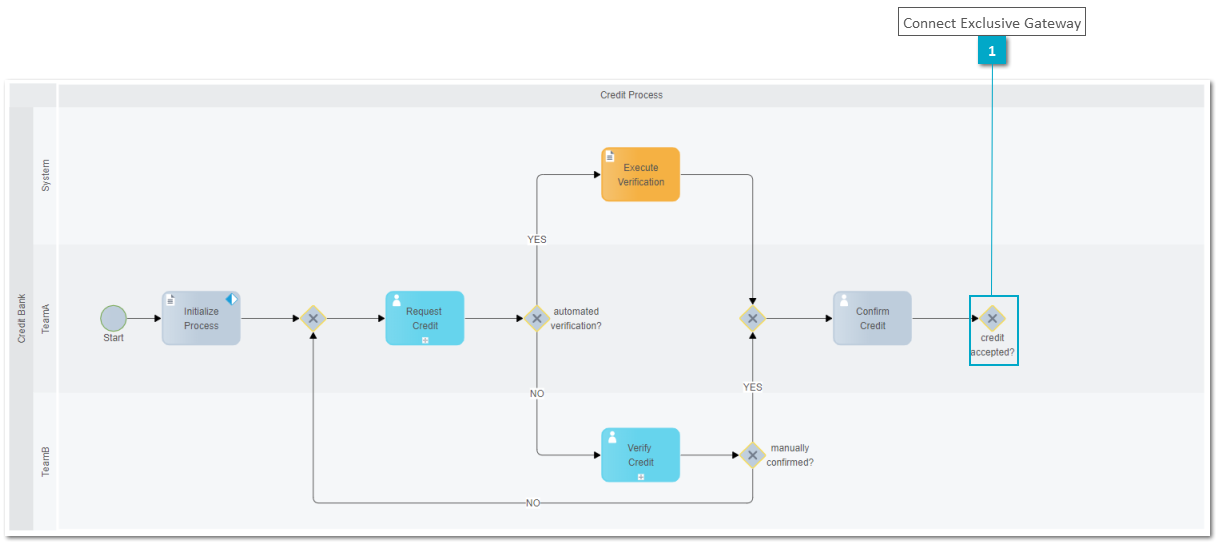
  • Step 3: Open context menu of user task "Confirm Credit" and drag&drop an exclusive gateway element to connect it with label "credit accepted?"


    Complete Process Model "EasyCredit"


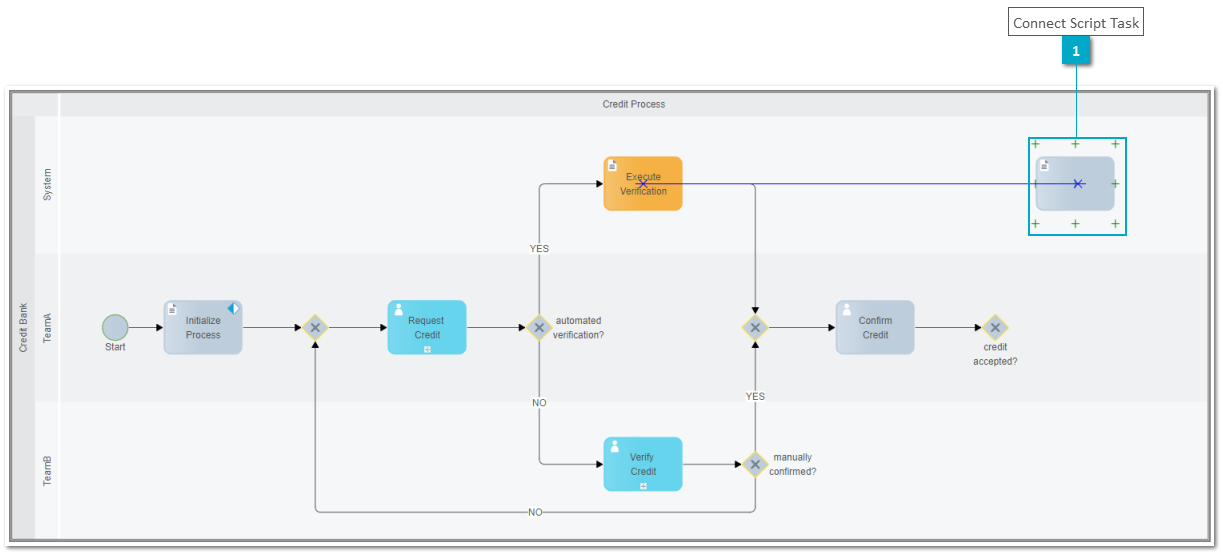
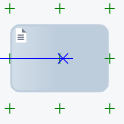
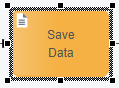
  • Step 4: Open context menu of exclusive gateway "credit accepted?" and drag&drop a script task to first lane "System" with label "Save Data"


    Complete Process Model "EasyCredit"


  • Step 5: Select conditional flow of exclusive gateway "credit accepted?" and press F2 key to enter label "YES" then drag&drop it to the middle of the conditional flow
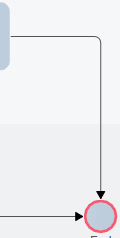
  • Step 6: Open context menu of exclusive gateway "credit accepted?" and drag&drop an end event into lane "TeamA" with label "End"
  • Step 7: Repeat the actions described on Step 5 for the second conditional flow of exclusive gateway "credit accepted?" entering label "NO"


    Complete Process Model "EasyCredit"


  • Step 8: Draw a flow from script task "Save Data" to end event "End" to connect the two elements
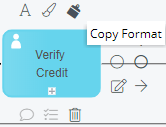
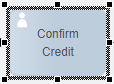
  • Step 9: Open context menu of user task "Verify Credit" and select "Copy Format" option then click at user task "Confirm Credit" to paste format


    Complete Process Model "EasyCredit"


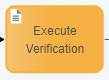
  • Step 10: Open context menu of script task "Execute Verification" and select "Copy Format" option then click at script task "Save Data" to paste format


    Complete Process Model "EasyCredit"


  • Step 11: Select user task “Confirm Credit“ to open TAB "General", SubTAB "Element"
  • Step 12: Click button “Search“ to open dialog “Select or Create Submodel“


    Complete Process Model "EasyCredit"


  • Step 13: Select user task model “Automation/Service/Training/Confirm Credit“ and uncheck option "Generate User Task Title" and click button "Select"


    Complete Process Model "EasyCredit"


Exercise 2: Implement Flow Condition
 
  • Step 1: Select conditional flow "NO" of exclusive gateway "credit accepted?" to open TAB "Implementation"


    Complete Process Model "EasyCredit"


  • Step 2: Type localData.customer.creditData.creditAccepted at the left script area to access attribute "creditAccepted"
  • Step 3: Select value "==" from the combobox to specify condition operator
  • Step 4: Type false at the right script area


    Complete Process Model "EasyCredit"


  • Step 5: Repeat Steps 2 and 3 for conditional flow "YES"
  • Step 6: Type true at the bottom script area


    Complete Process Model "EasyCredit"


    1

    Add User Task

    1. Add User Task
    Open context menu of joining exclusive gateway and click a user task to connect it with label"Confirm Credit"
     
    1

    Connect Exclusive Gateway

    1. Connect Exclusive Gateway
    Open context menu of user task "Confirm Credit" and drag&drop an exclusive gateway element to connect it with label "credit accepted?"
     
    1

    Connect Script Task

    1. Connect Script Task
    Open context menu of exclusive gateway "credit accepted?" and drag&drop a script task to first lane "System" with label "Save Data"
     
    1

    Enter Label YES

    1. Enter Label YES
    Select conditional flow of exclusive gateway "credit accepted?" and press F2 key to enter label "YES" then drag&drop it to the middle of the conditional flow
    2

    Connect End Event

    2. Connect End Event
    Open context menu of exclusive gateway "credit accepted?" and drag&drop an end event into lane "TeamA" with label "End"
    3

    Enter Label NO

    3. Enter Label NO
    Select second conditional flow of exclusive gateway "credit accepted?" and press F2 key to enter label "NO" then drag&drop it to the middle of the conditional flow
     
    1

    Connect elements

    1. Connect elements
    Draw a flow from script task "Save Data" to end event "End" to connect the two elements
    2

    Copy Format

    2. Copy Format
    Open context menu of user task "Verify Credit" and select "Copy Format" option
    3

    Paste Format

    3. Paste Format
    Click at user task "Confirm Credit" to paste format
     
    1

    Copy Format

    1. Copy Format
    Open context menu of script task "Execute Verification" and select "Copy Format" option
    2

    Paste Format

    2. Paste Format
     Click at script task "Save Data" to paste format
     
    1

    Open subTAB Element

    1. Open subTAB Element
    Select user task “Confirm Credit“ to open TAB "General" SubTAB "Element"
    2

    Search Submodel

    2. Search Submodel
    Click button “Search“ to open dialog “Select or Create Submodel“
     
    1

    Select User Task Model

    1. Select User Task Model
    Select user task model “Automation/Service/Training/Confirm Credit“ with double click or click button "Select"
    2

    Uncheck User Task Title

    2. Uncheck User Task Title
    Deselect this option to select submodel
     
     
    1

    Select TAB Implementation

    1. Select TAB Implementation
    Select conditional flow "NO" of exclusive gateway "credit accepted?" to open TAB "Implementation"
     
    1

    Enter Left Script

    1. Enter Left Script
    Type localData.customer.creditData.creditAccepted at the left script area to access attribute "creditAccepted"

    2

    Select Operator

    2. Select Operator
    Select value "==" from the combobox to specify condition operator
    3

    Enter Right Script

    3. Enter Right Script
    Type false at the right script area
     
    1

    Select TAB Implementation

    1. Select TAB Implementation
    Select conditional flow "YES" of exclusive gateway "credit accepted?" to open TAB "Implementation"
    2

    Enter Left Script

    2. Enter Left Script
    Type localData.customer.creditData.creditAccepted at the left script area to access attribute "creditAccepted"
    3

    Select Operator

    3. Select Operator
    Select value "==" from the combobox to specify condition operator
    4

    Enter Right Script

    4. Enter Right Script
    Type true at the right script area