xAPPnow LOW CODE PLATFORM - User Manual 

Still no account yet?

×

Complete Business Object Model "Customer"


Chapter Overview

 
In this training chapter you will complete business object model "Person", which consists of a root business object (BO) "Person" and the associated referenced business object (RefBO) "homeAddress".


Exercise

 
In this exercise you will add a new attribute "street" to BO "Address" and then associate BO "Person" with RefBO "homeAddress".
 
 
Exercise 1: Add new Attribute "street" to BO "Address"
 
  • Step 1: Open business object model "Automation/Data Object/Training/Customer" in the model tree
  • Step 2: Select BO "Address" to open TAB "Attributes"
  • Step 3: Click button "New" to add attribute "street"
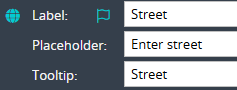
  • Step 4: Open SubTAB "User Interface" and enter label "Street", placeholder "Enter street" and tooltip "Street"


Complete Business Object Model "Customer"


Exercise 2: Associate BO "Person" with RefBO "homeAddress"
 
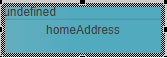
  • Step 1: Drag&drop a RefBO from the palette below BO "Person" with label "homeAddress". Automatically the dialog "Select Reference Business Object" will be displayed
  • Step 2: Select BO "Address" in dialog "Select Reference Business Object" to set RefBO type
 
Remark: Use context menu of RefBO to open dialog "Select Reference Business Object" manually


Complete Business Object Model "Customer"


Step 3: Draw association from BO "Person" to RefBO "homeAddress"


Complete Business Object Model "Customer"


1

Open TAB "Attributes"

1. Open TAB "Attributes"
Select BO "Credit" to open TAB "Attributes"
2

Add Attribute "street"

2. Add Attribute "street"
Click button "New" to add attribute "street"
3

Enter User Interface Properties

3. Enter User Interface Properties
Open SubTAB "User Interface" and enter label "Street", placeholder "Enter street" and tooltip "Street"
 
1

Drag&drop RefBO

1. Drag&drop RefBO
Drag&drop a RefBO from palette below the RefBO "bankAccount" and enter label "creditData". Automatically the dialog "Select Reference Business Object" will be displayed
2

Select RefBO
"Credit"

2. Select RefBO
"Credit"
Open "Reference" combobox and choose "Credit" then click button "Select" to set the RefBO type
 
1

Draw a Flow
to Associate
BO

1. Draw a Flow
to Associate 
BO
Draw a standard flow from BO "Customer" to the new created RefBO "creditData" to associate them