xAPPnow LOW CODE PLATFORM - User Manual 

Still no account yet?

×

My Tasks Dialog - xAPPnow User Portal


My Tasks dialog of the xAPPnow User Portal displays in the central section the user task list of the user. The table displays the following properties:
 
  • Task Name: the name of the user task
  • Process/Case: the name of the business process or case model that contains the task
  • Created Time: the creation date of the user task
  • Due Date: an optional due date defined on the configuration Sub TAB on xAPPnow Modeling Studio.  See BPMN - User Task: Configuration
  • Action Buttons: actions to Claim, Postpone, show Details and Start a task
     
 
Above the list, a group of filters allows to group by Priority or Due Date and also Search a specific user task. To execute a user task you can either double click at row or select a row and click the "Start" button.
 
By default the list is displayed groupped by Priority. Each priority has it's own color to rapidly identify the must critical ones. Also tasks that reached the due dates are marked in red. The following image displays a list of All Tasks, this means that all tasks of all groups of the domain are displayed, in "Table" View Mode.
 
 
My Tasks Dialog - xAPPnow User Portal


Second image displays the tasks groupped by "Due Date" and using "Card" View Mode.
 
 
My Tasks Dialog - xAPPnow User Portal
 
 
My Tasks Dialog - xAPPnow User Portal
 
 
When click at button "Task Details" a  modal dialog is displayed at the right side of the page with the details of the user task properties.
 
 
My Tasks Dialog - xAPPnow User Portal


1

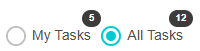
Select My Tasks or All Tasks

1. Select My Tasks or All Tasks
All Tasks option displays all tasks of all groups of the domain. My Tasks displays only the tasks assigned to the logged user. A user can claim a task form the All Tasks list using the action button.
2

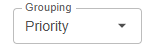
Select Groupping option

2. Select Groupping option
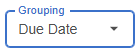
Tasks list can be groupped by priority, due date or none criteria
3

Search Task

3. Search Task
Enter specific task name to search them in the list
4

Select View Mode

4. Select View Mode
Select to display tasks in a table view or display cards
5

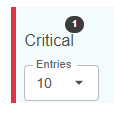
Display Group
Properties

5. Display Group 
Properties
Each group has a color and the indicator with the amount of tasks by group
6

Due Date

6. Due Date
When the due date is reached it is marked in red
 
1

Select Due Date

1. Select Due Date
This option displays first the Overdue tasks, then the Upcoming tasks and finally tasks that has no due date defined.
2

Select Card

2. Select Card
Select this option to see each task in card view mode
3

Action Buttons

3. Action Buttons
These buttons allows to Claim, Postpone, show Details and Start a task
1

Claim/Unclaim Task

1. Claim/Unclaim Task
Click to Claim this task to avoid that this task can be opened by another user.
2

Postpone Task

2. Postpone Task
Click to open Postpone Task dialog. This dialog allows to enter a date until the task will be postponed.
My Tasks Dialog - xAPPnow User Portal
3

Task Details

3. Task Details
Click to open Task Details.
4

Start Task

4. Start Task
Click to Start the Task after select it or double click at a task to start it.