UI Layout Element - Responsive Design
Related subfolder of the training project: "Training/UIM/Exercise/Layout"
Chapter Overview
In this training chapter you get familiar with the responsive design technology of UI pages, which supports any device.
By default, the responsive design technology detects the current device and inserts auto line breaks after a span, depending on the screen width. In general this could be acceptable but in many cases the look&feel is insufficient. For this reason the xAPPnow Low Code Platfrom provides the possibility to enhance the user experience by NO-Code for all kind of devices:
-
configure line breaks using hidden spans
-
configure span width to reorganize the row
to enhance the user experience by NO-Code for all kind of devices.
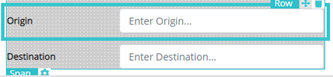
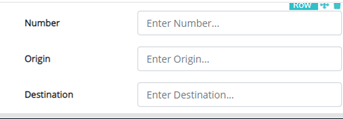
The following screen shots demonstrate the responsive design technology using auto line breaks and manually inserted line breaks based on the responsive configuration of the xAPPnow platform.
auto configuration of responsive design manual configuration of responsive design


Exercise
In this exercise you will optimize the responsive design of a UI page for a smart device.
Exercise 1: Create UI Page "ResponsiveDesign"
-
Step 1: Open context menu of folder "Automation/User Interface/Training/Exercise/Layout" in the model tree
-
Step 2: Select menu function "Create Model" to open dialog "Create User Interface Model"
-
Step 3: Enter model name "ResponsiveDesign" and keep option "Model Type: UI Page"
-
Step 4: Select option "From: UI Page" to open dialog "Select UI Page", open folder "…/Training/UIM/Template/Layout" to select UI page "TMPL_ResponsiveDesign" with double click then keep default option for "Default Device" and click button "OK" to create the UI page

Exercise 2: Test the responsive Mobile View in UIM Preview
Exercise 3: Hide second Row
-
Step 1: Select the second row and open TAB "Implementation" SubTAB "Responsive Configuration"
-
Step 2: Select "hidden" span for mobile device to hide the row

Exercise 4: Configure Label and Textfield into one Row
-
Step 1: Select the row "Number" of "BUS - LINE 1" and open TAB "Implementation" SubTAB "Responsive Configuration"
-
Step 2: Select "4, 8" span for mobile device to configure label and textfield into one row.

-
Step 3: Repeat Step 1 and 2 for row "Origin" and "Destination" of "BUS - LINE 1"
-
Step 4: Repeat Step 1 and 2 for row "Number", "Origin" and "Destination" of "BUS - LINE 2"

Exercise 5: Remove the Line Breaks at the Tabbed Panel
-
Step 1: Select the row of the tabbed panel and open TAB "Implementation" SubTAB "Responsive Configuration"
-
Step 2: Select "hidden" for mobile device to hide the empty span before the tabbed panel
-
Step 3: Select "hidden" for mobile device to hide the empty span after the tabbed panel

Exercise 6: Remove Line Breaks before the Buttons and place them into one Row
-
Step 1: Select the panel that contains the button template and then click at row label of the button template and open TAB "Implementation" SubTAB "Responsive Configuration"
-
Step 2: Select "hidden" for mobile device to hide the three empty spans before button "Cancel" template panel
-
Step 3: Select "4, 4, 4" span for mobile device to place button "Cancel" and "OK" into one row.

Exercise 7: Test the responsive Mobile View in UIM Preview