UI Layout Element - Referenced UI Panel
Related subfolder of the training project: "Training/UIM/Exercise/Layout"
Chapter Overview
In this training chapter you get familiar with the referenced UI panel element.
You can create a referenced UI panel in the model tree or directly in a UI Page. In both cases you have the possibility to generate a referenced UI panel from a business object.

Remark: A referenced UI panel is nestable and reusable. In contrary to a UI template a referenced UI panel cannot be modified within a UI page.
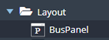
The following UI page contains a referenced UI panel "BusPanel"

Exercise
In this exercise you will get familiar with the referenced UI panel by implementing a UI page as described above.
Exercise 1: Create UI Page "ReferencedUiPanel"
-
Step 1: Open context menu of folder "Automation/User Interface/Training/Exercise/Layout" in the model tree
-
Step 2: Select menu function "Create Model" to open dialog "Create User Interface Model"
-
Step 3: Enter model name "ReferencedUiPanel" and keep option "Model Type: UI Page"
-
Step 4: Select option "From: UI Page" to open dialog "Select UI Page", open folder "…/Training/UIM/Template/Layout" to select UI page "TMPL_ReferencedUiPanel" with double click, keep default option for "Default Device" and then click button "OK" to create the UI page

Exercise 2: Add referenced UI panel "Header" to the UI page
In this excercise you will add the referenced UI panel "Header" to the UI page, which is used in all UI tutorials. The header panel will be mapped automatically with attribute "subtitle" to display the UI page title "Referenced UI Panel".
-
Step 1: Drag&Drop a referenced UI panel into the first row and select UI panel "Header" from folder "Common/Tutorial/UIpanel"


Exercise 3: Add UI elements for "BUS - Line 1" and "BUS - Line 2"
-
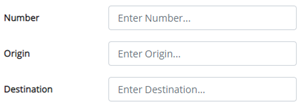
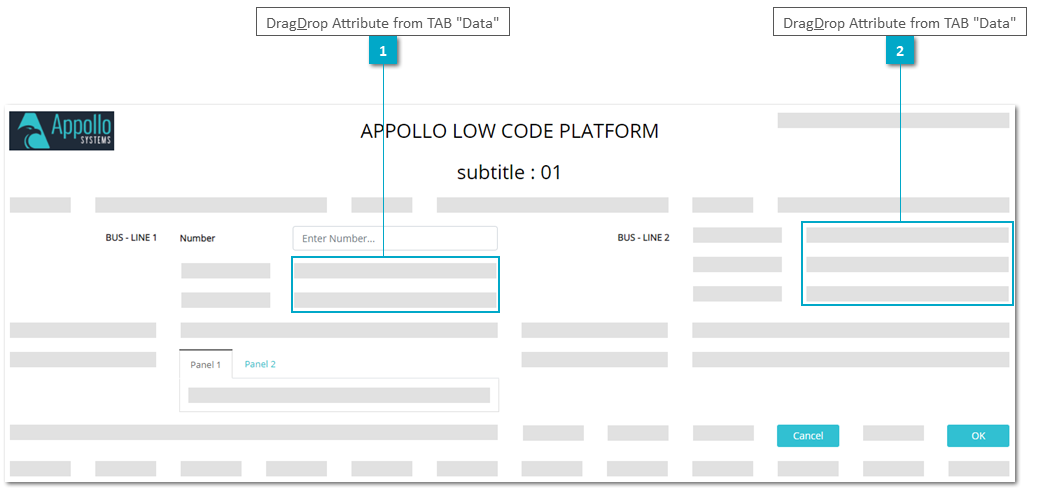
Step 1: Drag&Drop attribute "bus1.number" from TAB "Data" into second free span of third row to open dialog "Select Component"
-
Step 2: Keep default in dialog "Select Component" to add the corresponding UI Label and UI TextField to the UI page.

-
Step 3: Repeat Step 1 and 2 for the 2 spans below and add Label and TextField for attributes
-
"bus1.origin"
-
"bus1.destination"
-
Step 4: Repeat Step 1 and 2 for "BUS - LINE 2" and add Label and TextField for attributes
-
"bus2.number"
-
"bus2.origin"
-
"bus2.destination"
Exercise 4: Enter Label "BUS - LINE 3" and "BUS - LINE 4" for the Tabbed Panel
-
Step 1: Select the tabbed panel to open TAB "Implementation" SubTAB "Element Properties"
-
Step 2: Click button "Data Config" to open dialog "Edit TAB Panel Configuration"
-
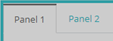
Step 3: Click button "Edit Label" to enter "BUS - LINE 3" for Panel 1 and "BUS - LINE 4" for Panel 2

Exercise 5: Drag&Drop a Referenced UI Panel into Tabbed Panel "BUS - LINE 3"
In this excercise you will learn to generate a referenced UI panel from a business object.
-
Step 1: Drag&Drop a referenced UI panel into the tabbed panel "BUS- LINE 3" to open dialog "Select and create UI Panel"

-
Step 2: In dialog "Select and create UI Panel" select folder "Training/Exercise/Layout" and click button "Create" to open dialog "Create Panel"
-
Step 3: In dialog "Create Panel" enter model name "BusPanel" and set checkbox "From Business Object" to open dialog "Select Business Object"

-
Step 4: In dialog "Select Business Object" select folder "Tutorial/UIM/BO" and double click at BO "Bus"
-
Step 5: In dialog "Create Panel" click button "Attributes" to open dialog "Configure Attributes"
-
Step 6: In dialog "Configure Attributes" set column "Display" of attribute "seat" and "driver" to "No"


-
Step 7: In dialog "Create Panel" select Layout "4 + 8" and click button "OK" to add the referenced UI panel to the UI page

Remark: At this point, the auto mapping feature will detect a multi mapping possibility for attribute "bus" and dialog "Multi Mapping" will open.
-
Step 8: Select attribute "bus3" in dialog "Multi Mapping"
-
Step 9: Click button "Mapping" to map parent attribute "bus3" to child attribute "bus"


Exercise 5: Reuse the referenced UI panel for Tabbed Panel "BUS - LINE 4"
-
Step 1: Drag&Drop a referenced UI panel into the tabbed panel "BUS- LINE 4" to open dialog "Select and create UI Panel"

-
Step 2: Select UI panel "BusPanel" and click button "OK" to add it to the UI page.

-
Step 3: Select attribute "bus4" in dialog "Multi Mapping"
-
Step 4: Click button "Mapping" to map parent attribute "bus4" to child attribute "bus"
Exercise 6: Test the UI Page in the Preview