
UI Layout Element - Grid Layout
Related subfolder of the training project: "Training/UIM/Exercise/Layout"
Chapter Overview
In this training chapter you get familiar with the Grid Layout element, which provides the containers for UI elements.

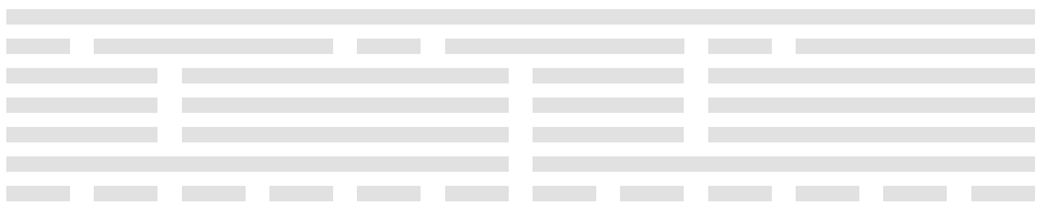
The Grid Layout consists of any number of rows. Each row is devided into 12 columns (= spans) . You can combine 2 or more columns into one span at any position within the row.
Remark: A row has various configuration posibilities for CSS, Responsive Configuration and Visibility.
In the screenshot below the grid layout is build up as follows
-
row: 12 span
-
row: 1 + 3 + 1 + 3 + 1 + 3 span
-
row: 2 + 4 + 2 + 4 span
-
row: 2 + 4 + 2 + 4 span
-
row: 2 + 4 + 2 + 4 span
-
row: 6 + 6 span
-
row: 1 + 1 + 1 + 1 + 1 + 1 + 1 + 1 + 1 + 1 + 1 + 1 span
Exercise
In this exercise you will get familiar with the configuration posibilities of the Grid Layout element by implementing a UI Template as described above.
Remark: A UI Template can be used either to create a UI Page from Template or to insert the UI template into a span
Exercise 1: Create UI Template "Grid"
-
Step 1: Open context menu of folder "Automation/User Interface/Training/Exercise/Layout" in the model tree
-
Step 2: Select menu function "Create Model" to open dialog "Create User Interface Model"
-
Step 3: Enter model name "Grid", select option "Model Type: UI Template" and click button "OK" to create the UI Template

Exercise 2: Create Grid Layout
-
Step 1: Drag&drop layout element "Grid" into the UI page to open dialog "Add Grid Layout"
-
Step 2: Specify column layout "12" and number of rows "1" in dialog "Add Grid Layout" and click button "OK" to add row #1

-
Step 3: Repeat Step 1 and 2 do add further rows to complete the following grid layout
-
row: 12 span
-
row: 1 + 3 + 1 + 3 + 1 + 3 span
-
row: 2 + 4 + 2 + 4 span
-
row: 2 + 4 + 2 + 4 span
-
row: 2 + 4 + 2 + 4 span
-
row: 6 + 6 span
-
row: 1 + 1 + 1 + 1 + 1 + 1 + 1 + 1 + 1 + 1 + 1 + 1 span