UI Element - Spinner
Related subfolder of the training project: "Training/UIM/Exercise/Basic"
Chapter Overview
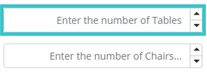
In this training chapter you get familiar with the configuration possibilities of the UI Element Spinner.

TAB "Element Properties"
The TAB "Element Properties" contains the configuration for
-
UI element value horizontal alignment (left, center, right)
-
UI element width configuration (percentage, pixel)
-
UI container horizontal alignment (left, center, right)

TAB "Data Mapping"
The TAB "Data Mapping" contains the attribute type related mapping of the UI element
-
integer
-
float percentage
-
float number
-
float currency

TAB "Data Validation"
The TAB "Data Validation" contains the attribute type related validation, default value and mandatory specification of the UI element based on the BO attribute configuration in SubTAB "Values and Validation".
-
integer mandatory
-
integer default value
-
integer value
-
float range
-
float out of range
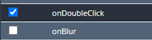
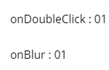
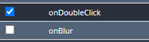
 TAB "Events"The TAB "Events" contains the events and related "Action" and "Validation" scripts of the UI element.
 -
onClick
-
onDoubleClick
-
onBlurFor each UI element the related event action is displayed at the right side of the UI element. In case of a validation error a default error message is displayed at the top right of the UI page and the action script is not executed.
 TAB "Visibility"The TAB "Visibility" contains the visibility configuration and the "Visibility" scripts of the UI element.
 -
editable/readonly
-
visible/invisibleFor each UI element the visibility can be changed by the checkbox "Visibility Toggle".

Exercise
In this exercise you will get familiar with the configuration possibilities of the UI element by completing the UI TABs as described above. You can test the implementation in UI Page Preview, in the Preview of the Frontend Service Model and optionally in the xAPPnow User Portal.
Exercise 1: Create UI Page "Spinner"
-
Step 1: Open context menu of folder "Automation/User Interface/Training/UIM/Exercise/Basic" in the model tree
-
Step 2: Select menu function "Create Model" to open dialog "Create User Interface Model"
-
Step 3: Enter model name "Spinner" and keep option "Model Type: UI Page"
-
Step 4: Select option "From: UI Page" to open dialog "Select UI Page", open folder "…/Training/UIM/Template/Basic" to select template "TMPL_Spinner" with double click then keep default option for "Default Device" and click button "OK" to create the UI page

Exercise 2: TAB "Element Properties"
-
Step 1: Drag&Drop attribute "stockItem.quantity" from TAB "Data" into second free span to open dialog "Select Component", select "Spinner" on list, keep the checkbox "Create Label" selected to add the corresponding UI Label and UI Spinner to the UI page and click button "OK".


-
Step 2: Repeat Step 1 and add Label and Spinner for attribute "stockItem.quantity" to
-
H-Aligment [Center], [Right]
-
Width [50%], [100px]
-
Container H-Aligment [Left], [Center], [Right]

-
Step 3: Open TAB "Implementation" SubTab "Element Properties" and select each UI Spinner on "H-Alignment" to configure the values [Left], [Center], [Right]

-
Step 4: In next row select the UI Spinner to configure width [50%] and width [100px]

-
Step 5: In row "Container (H-Alignment)" for each UI Spinner:
-
Select each UI Spinner to configure width [50%].
-
Select button "Span" to configure H-Alignment [Left], [Center], [Right] of the UI element

Exercise 3: TAB "Data Mapping"
-
Step 1: Drag&Drop attribute "purchase.amount" from TAB "Data" into second free span to open dialog "Select Component" to add the corresponding UI Label and UI Spinner to the UI page.

-
Step 2: Repeat Step 1 and add Label and Spinner for attributes
-
"purchase.discount"
-
"purchase.category"
-
"purchase.price"

Exercise 4: TAB "Data Validation"
-
Step 1: Drag&Drop attribute "product.id" from TAB "Data" into the third free span of second row to open dialog "Select Component" to add the corresponding UI Label and UI Spinner to the UI page.

-
Step 2 Repeat Step 1 and add Label and Spinner for attributes
-
"product.shelf"
-
"product.saleID"
-
"product.costPrice"
-
"product.salePrice"

Exercise 5: TAB "Events" - Action Scripts
-
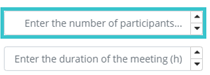
Step 1: Drag&Drop attribute "meeting.id" from TAB "Data" into second free span to open dialog "Select Component" to add the corresponding UI Label and UI Spinner to the UI page.

-
Step 2 Repeat Step 1 to add Label and Spinner for attributes
-
"meeting.participants"
-
"meeting.duration"
-
Step 3: Select the first UI Spinner and open TAB "Implementation" SubTab "Events" to specify event type "onClick"
-
Step 4: Implement the action script, which displays the event action at the right side of the UI element.

localData.eventType.onClick = globalDef.enums.Tutorial.UIM.DEF.EventMessage.ON_CLICK;

-
Step 5: Repeat Step 3 and 4 for the other UI elements to specify further event types and related action scripts, which display the related event action at the right side of the UI element.
-
event type "onDoubleClick"
localData.eventType.onDoubleClick = globalDef.enums.Tutorial.UIM.DEF.EventMessage.ON_DOUBLE_CLICK;
-
event type "onBlur"
localData.eventType.onBlur = globalDef.enums.Tutorial.UIM.DEF.EventMessage.ON_BLUR;

Exercise 6: TAB "Events" - Action & Validation Scripts
-
Step 1: Select the UI Spinner with placeholder "...and click here." and open TAB "Implementation" SubTab "Events" to specify event type "onClick"
-
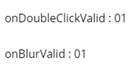
Step 2: Implement the action and the validation scripts, which display the related event action at the right side of the UI element in case of no validation error.
-
action script "onClick" event
localData.eventType.onClickValid = globalDef.enums.Tutorial.UIM.DEF.EventMessage.ON_CLICK_VALID;
-
validation script "onClick" event
localData.eventType.isValid;

-
Step 3: Repeat Step 1 and 2 for the other UI elements to specify further event types and related action and validation scripts, which display the related event action at the right side of the UI element.
-
action script
-
"onDoubleClick" event
localData.eventType.onDoubleClickValid = globalDef.enums.Tutorial.UIM.DEF.EventMessage.ON_DOUBLE_CLICK_VALID;
-
"onBlur" event
localData.eventType.onBlurValid = globalDef.enums.Tutorial.UIM.DEF.EventMessage.ON_BLUR_VALID;
-
validation script
-
"onDoubleClick" event
localData.eventType.isValid;
-
"onBlur" event
localData.eventType.isValid;

Exercise 7: TAB "Visibility"
-
Step 1: Drag&Drop attribute "toggleVisibility" from TAB "Data" into the third free span of third row to open dialog "Select Component" to add the corresponding UI Label and UI CheckBox to the UI page.

-
Step 2: Select the first UI Spinner and open TAB "Implementation" SubTab "Visibility"
-
Step 3: Click at visibility type "Editable" and select state "Script"
-
Step 4: Implement the visibility script, which toggles the visibility "editable" and "readonly"
localData.toggleVisibility;

-
Step 5: Repeat steps 2..4 for second UI Spinner for visibility type "Visible", which toggles the visibility "visible" and "invisible"

Exercise 8: Link UI Page to Frontend Service Model
-
Step 1: Open frontend service model "Automation/Service/Training/UIM/Exercise/Basic/Spinner"
-
Step 2: Select UI page "View Spinner" to open TAB "General", SubTAB "Element"
-
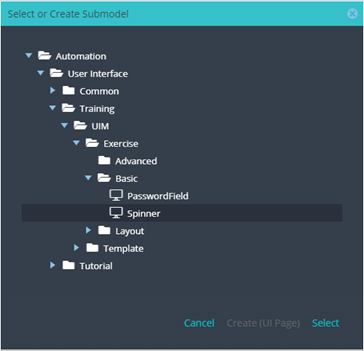
Step 3: Click button “Search“ to open dialog "Select or Create Submodel" and select UI page "Spinner" with double click
-
Step 4: Right click on button flow to select button "Exit".

Exercise 9: Test the UI Page
-
Step 1: Open UI Page and click button "Preview" in the toolbar to directly test the UI page within the UI editor
-
Step 2: Optionally publish the frontend service model and test the UI page in User Portal