
Training Platform Monitoring
Overview
The goal of this topic is to train you in the configurations needed for the cloud monitoring for xAPPnow Platform. This tools can be used optionally.
To access the cloud tools that allows the monitoring for the xAPPnow Server, follow these steps:
mkdir -p <INSTALL_ROOT>
Where INSTALL_ROOT is the installation directory for cloud tools
Exercise 1: Configure cloud monitor
-
Step 1: Install images, optional if you are offline.
cd cloud-image-project
chmod +x setup-images.sh
./setup-images.sh grafana
-
Step 2: Set mail password for infrastructure user in file infrastructure-secret.txt
-
Step 3: Copy the file to INSTALL_ROOT directory
cp infrastructure-secret.txt <INSTALL_ROOT>
Sample: Showing infrastructure-secret.txt content:
$ cat infrastructure-secret.txt
secret
-
Step 4: Decompress monitor-<version>.tar on an empty directory
mkdir <INSTALL_ROOT>/<MONITOR_DIR>
tar -xpvf monitor-<version>.tar -C <INSTALL_ROOT>/<MONITOR_DIR>
-
Step 5: Execute install command
cd <INSTALL_ROOT>/<MONITOR_DIR>
./install.sh --label <LABEL>
Where:
LABEL is a text that will appear on the alert sent to email.
MONITOR_DIR is monitoring installation directory.
Exercise 2. Configure logging / Install logging tools
-
Step 1: Install images, optional if you are offline.
cd cloud-image-project
./setup-images.sh kibana
-
Step 2: Decompress proxy-<version>.tar on an empty directory
mkdir <INSTALL_ROOT>/<LOGGING_DIR>
tar -xpvf logging-<version>.tar -C <INSTALL_ROOT>/<LOGGING_DIR>
-
Step 3: Secure Kibana http access
cd <INSTALL_ROOT>/<LOGGING_DIR>
./generate-kibana-auth.sh
-
Step 4: Execute install command
./install.sh
Where LOGGING_DIR is logging installation directory.
Exercise 3. Configure reverse proxy
The reverse proxy allows https access to cloud services.
-
Step 1: Decompress proxy-<version>.tar on an empty directory
tar -xvpf proxy-<version>.tar -C <INSTALL_ROOT>/<PROXY_DIR>
-
Step 2: Execute install command
cd <INSTALL_ROOT>/<PROXY_DIR>
./install.sh
-
Step 3: To overwrite existing cloud certificates (This is only for the cloud server)
./install.sh true
Where PROXY_DIR is proxy installation directory.
Remark: If previous command produces error, change the variable staging=0 to staging=1 so certificate limit is avoided for testing purposes. Finally, it can be changed to staging=0 again when certificates are correctly generated.
Exercise 4: Renew certificates
-
Step 1: Execute install command
cd <INSTALL_ROOT>/<PROXY_DIR>
./renew-certificates.sh
Remark: This script can be automated with a cron task to run every week, for automatic certificate renewal.
Exercise 5: Access monitoring URL, and try to log in.
Using:
|
URL
|
https://<GRAFANA_FQDN>
|
|
user
|
<ADMIN_USER>
|
|
password
|
<ADMIN_PASSWORD>
|
Where:
GRAFANA_FQDN is grafana domain
ADMIN_USER is admin first time.
ADMIN_PASSWORD is admin first time.
*Use default user admin and password admin.
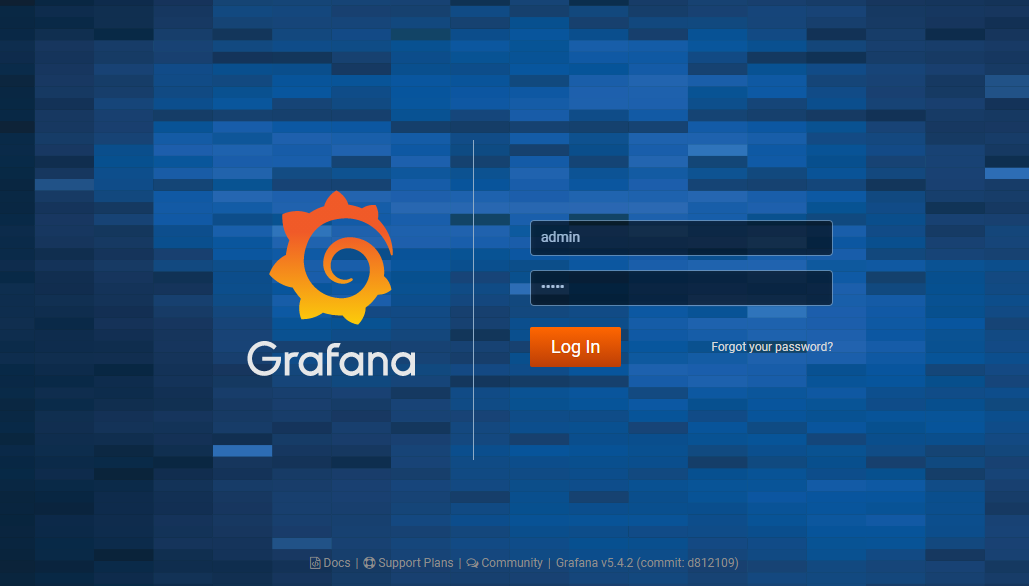
-
Step 1: Change default password for a new one.
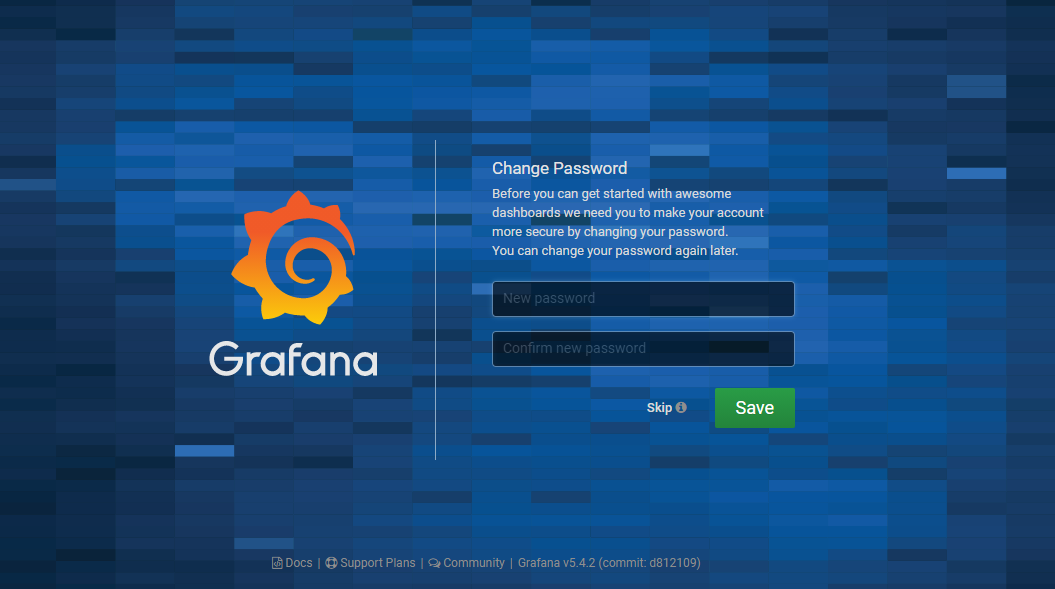
-
Step 2: Once the user authenticates, access the button on the left corner, on user Preferences menu.
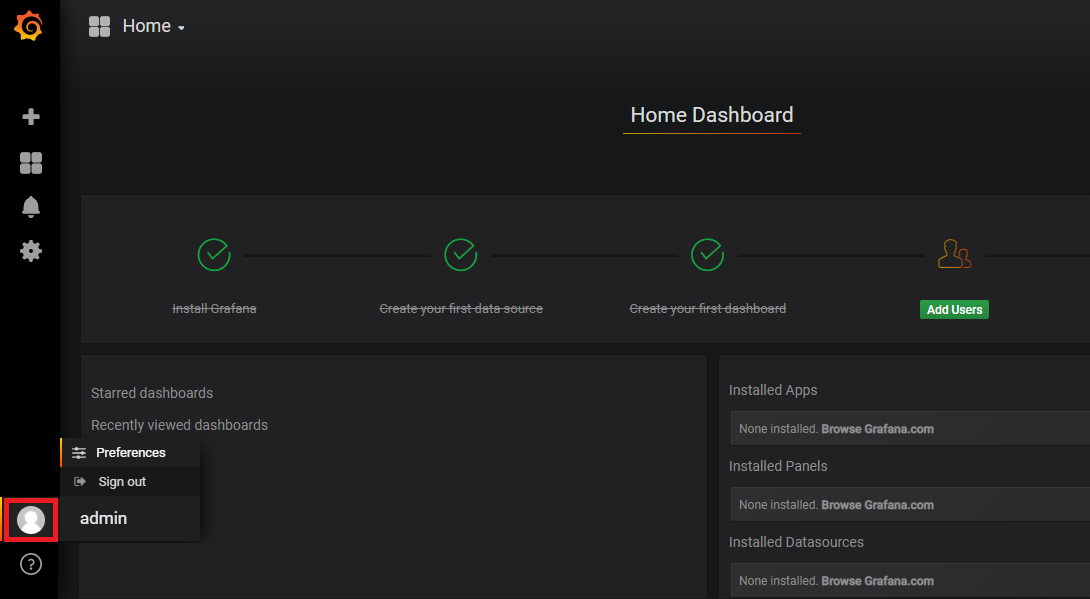
-
Step 3: Change admin user name
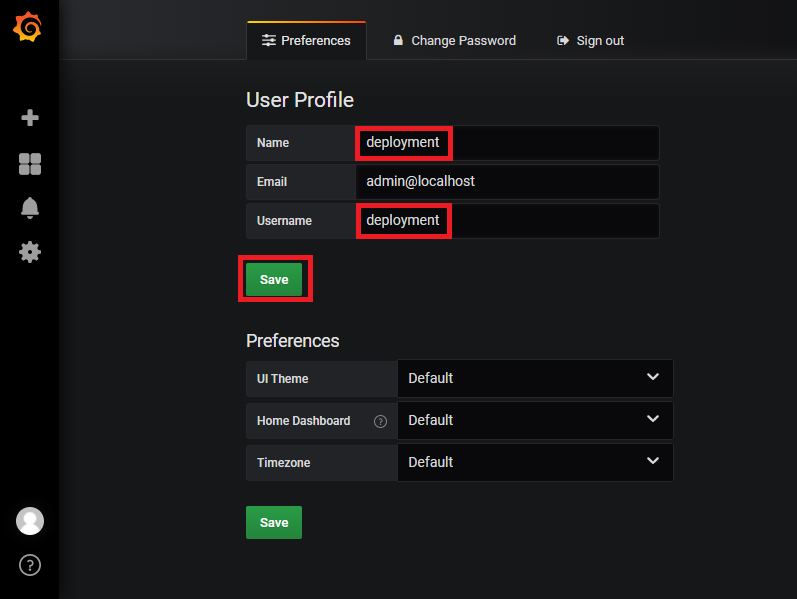
-
Step 4: Go to menu Home to show dashboards
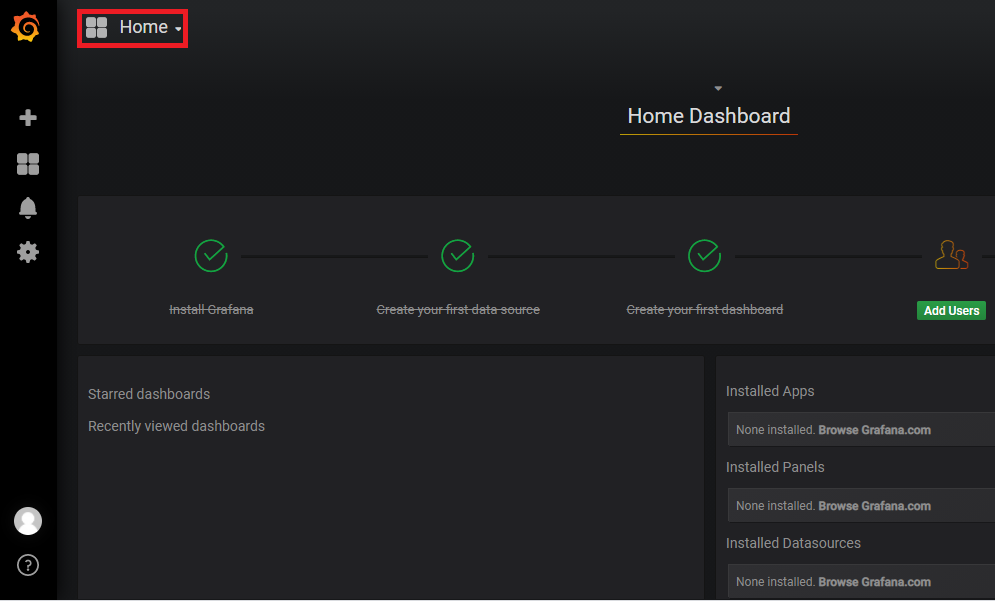
-
Step 5: Access menu Docker Containers to show containers dashboards
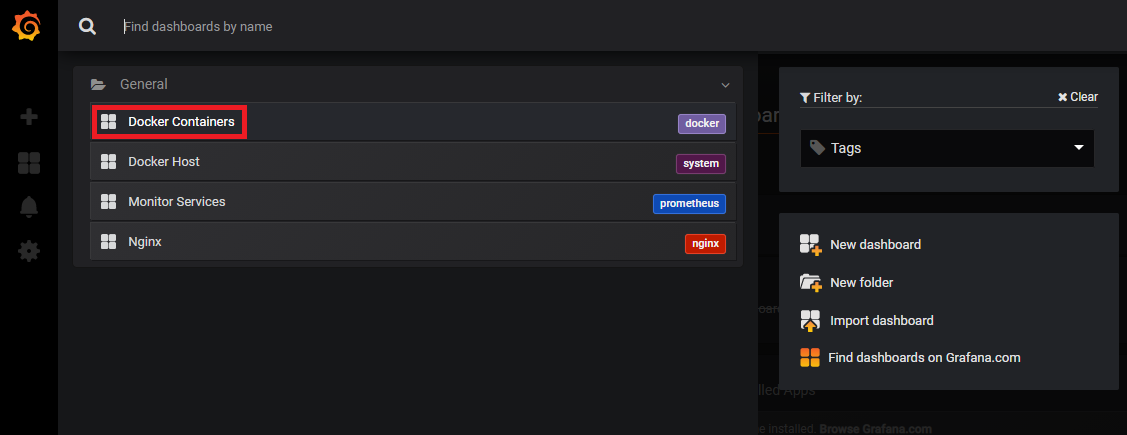
-
Step 6: Check that the dashboards looks like this

Exercise 6: Access kibana URL, and try to log in.
Using:
|
URL
|
https://<KIBANA_FQDN>
|
|
user
|
<KIBNA_USER>
|
|
password
|
<KIBANA_PASSWORD>
|
Where:
KIBANA_FQDN is kibana domain
KIBANA_USER is configured during installation script.
KIBANA_PASSWORD is configured during installation script.
Exercise 7: Configure Kibana
-
Step 1: Press management button
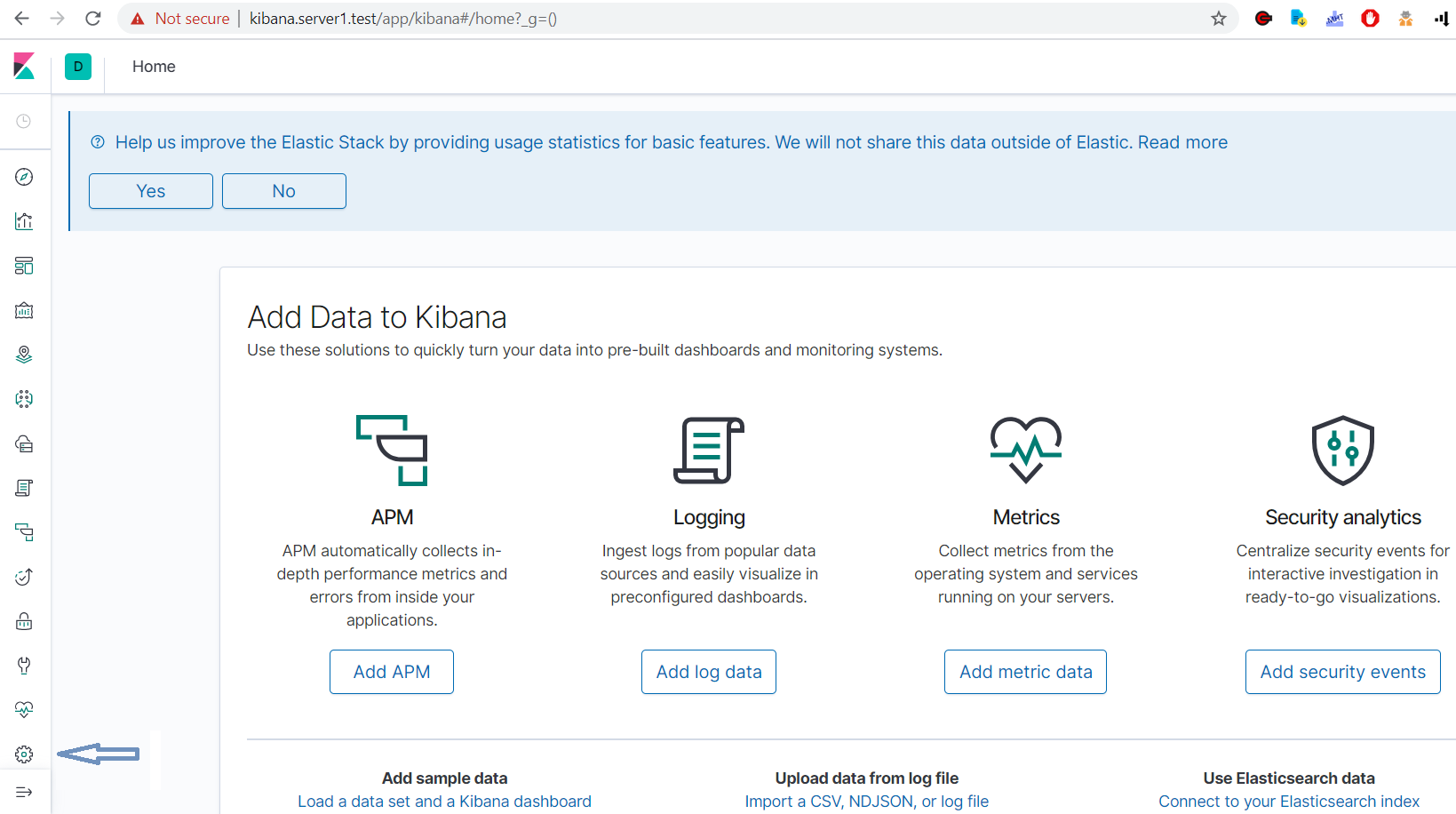
-
Step 2: In the left menu options click option "Index Patterns"
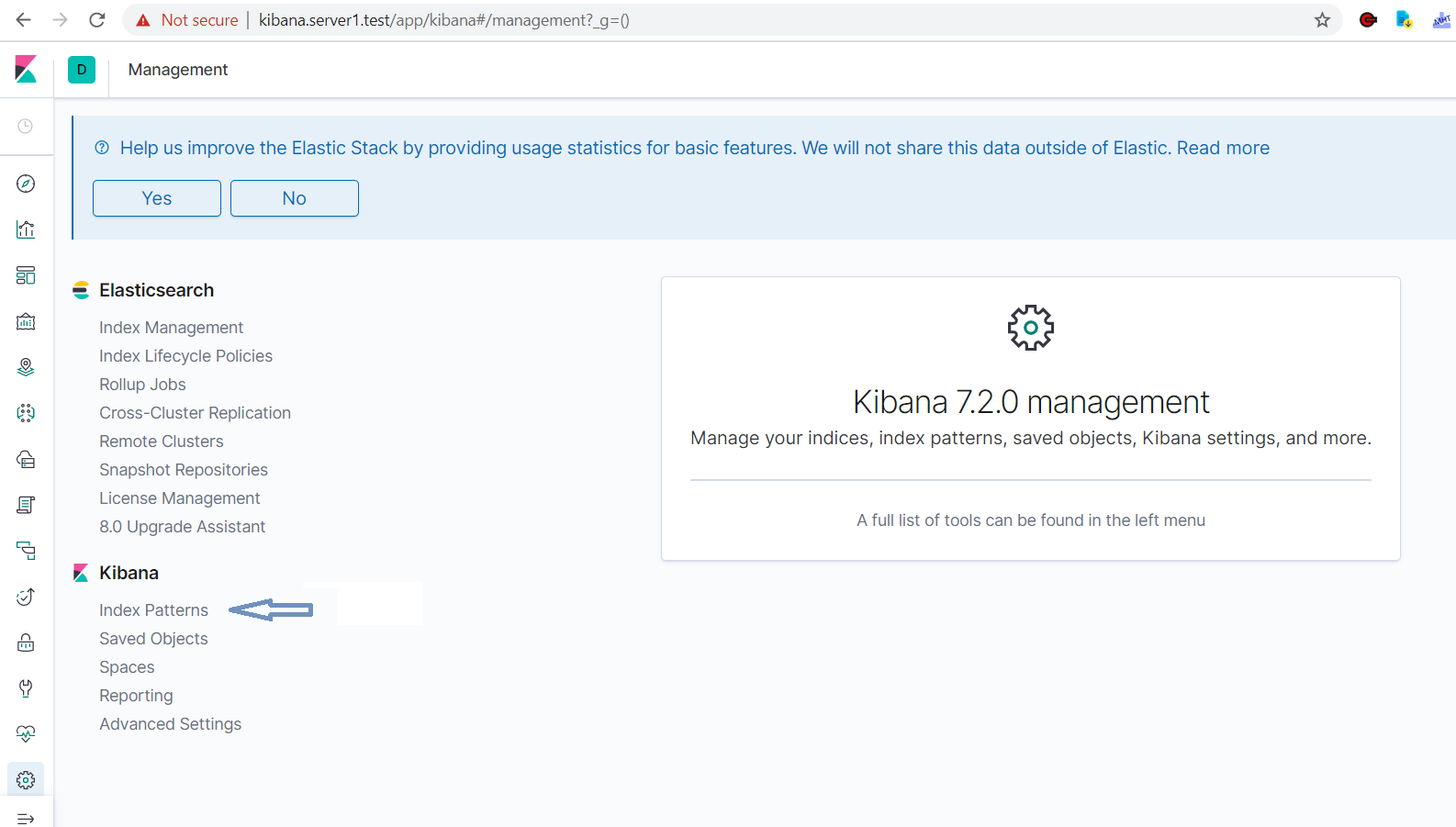
-
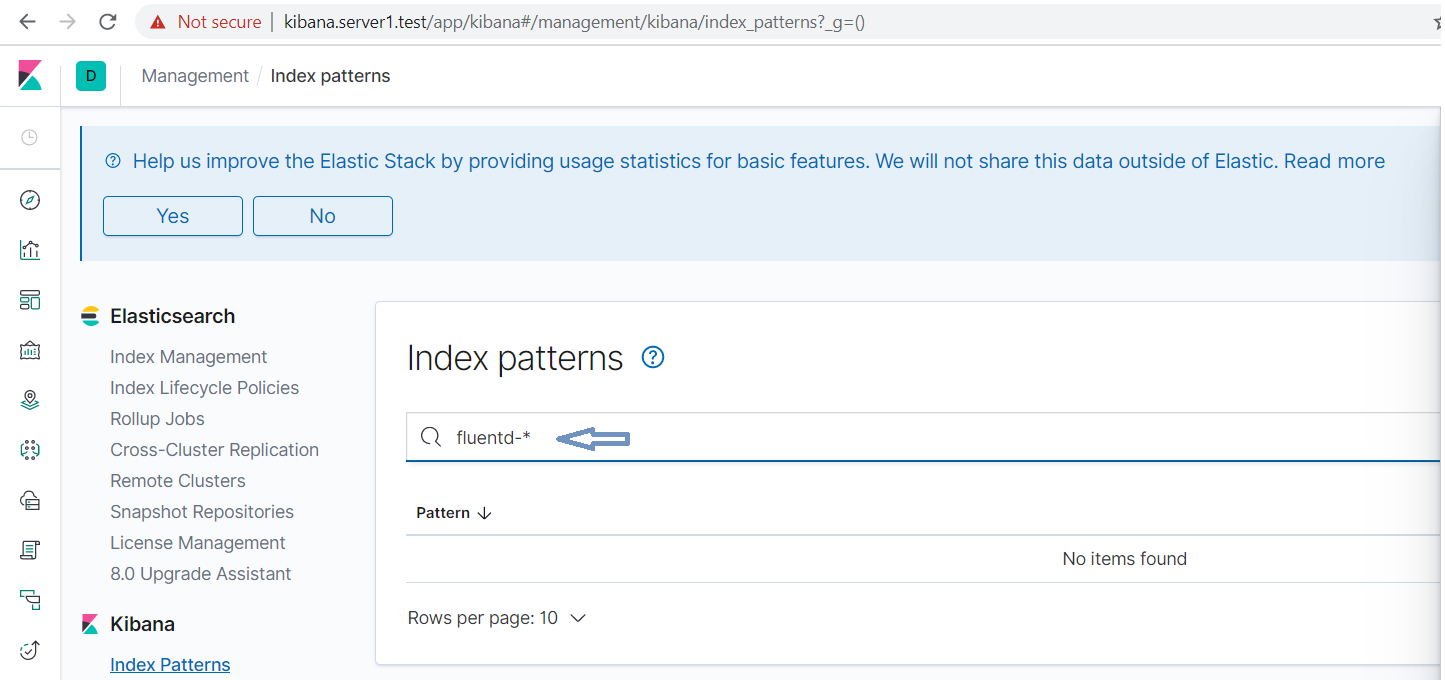
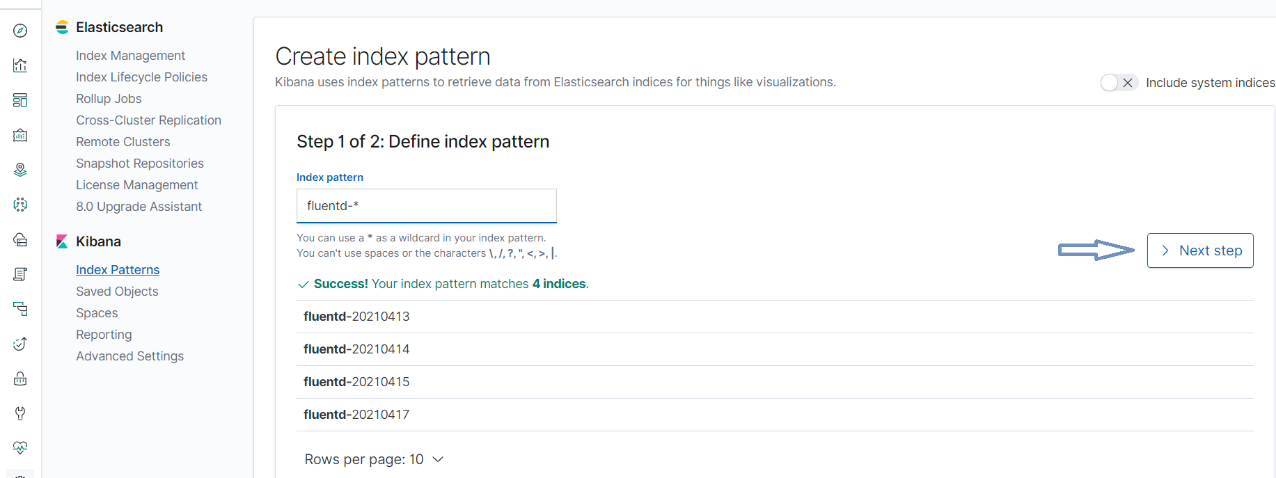
Step 3: In the pattern search box enter as criteria fluentd-*
-
Step 4: Click button "Create index pattern"
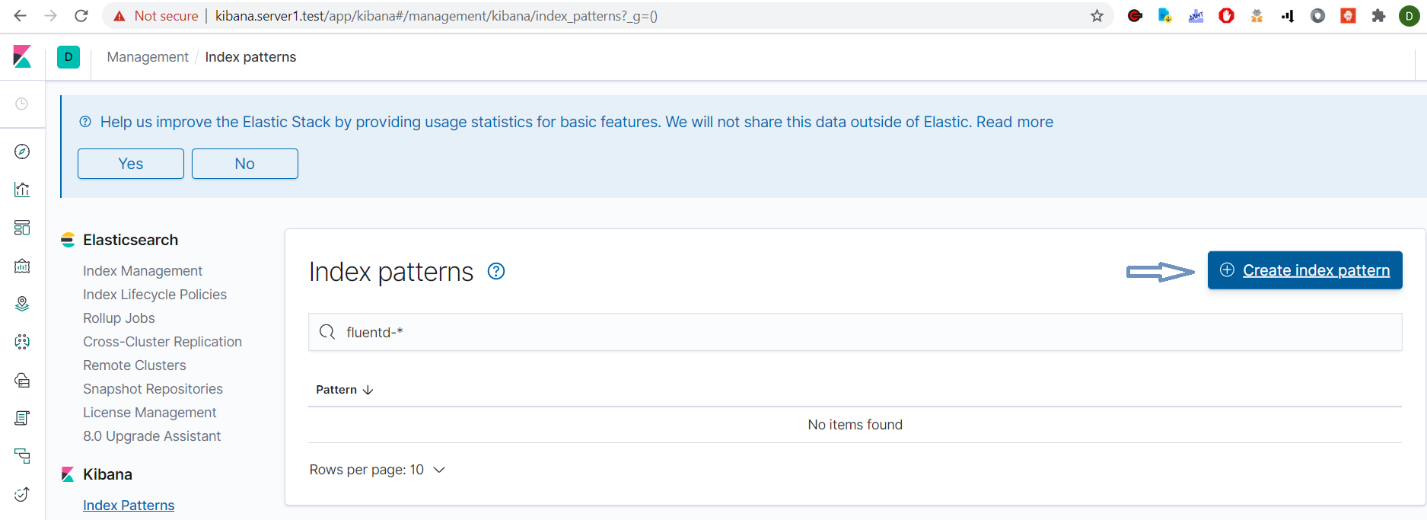
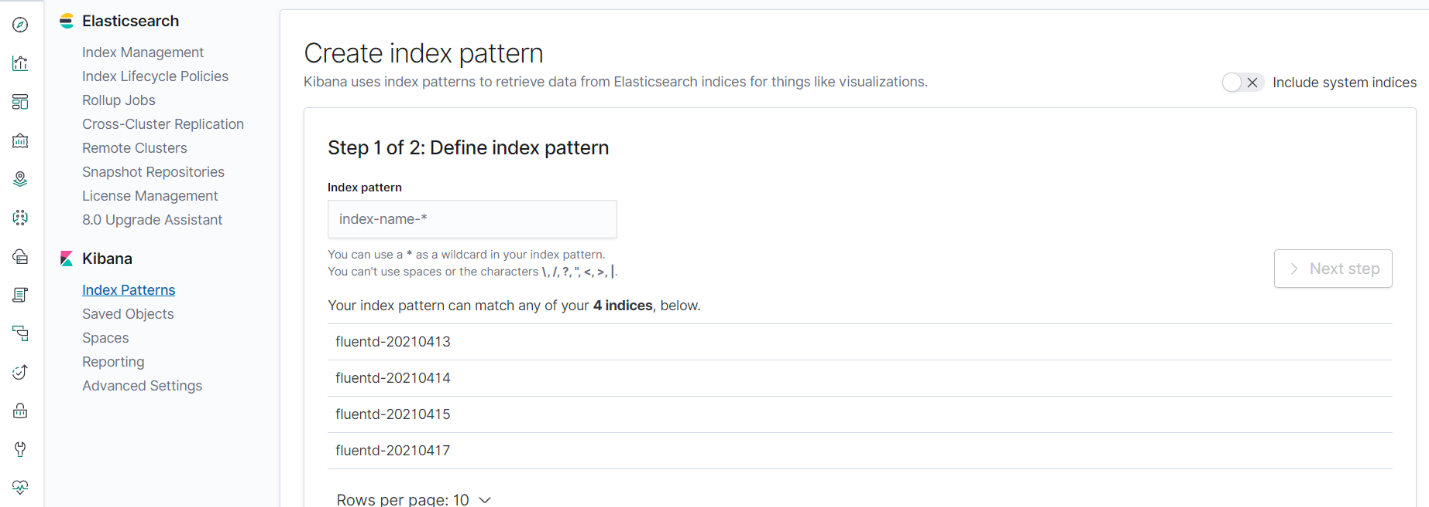
The following page will be displayed
-
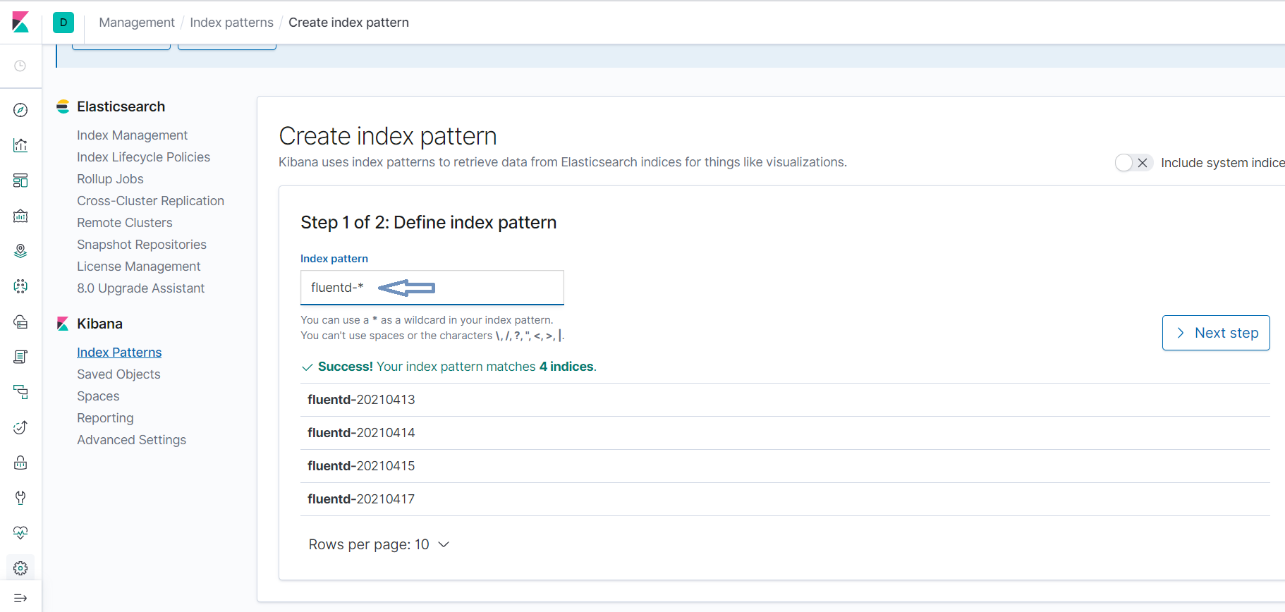
Step 5: Define index pattern again
-
Step 6: Click button "Next step"
-
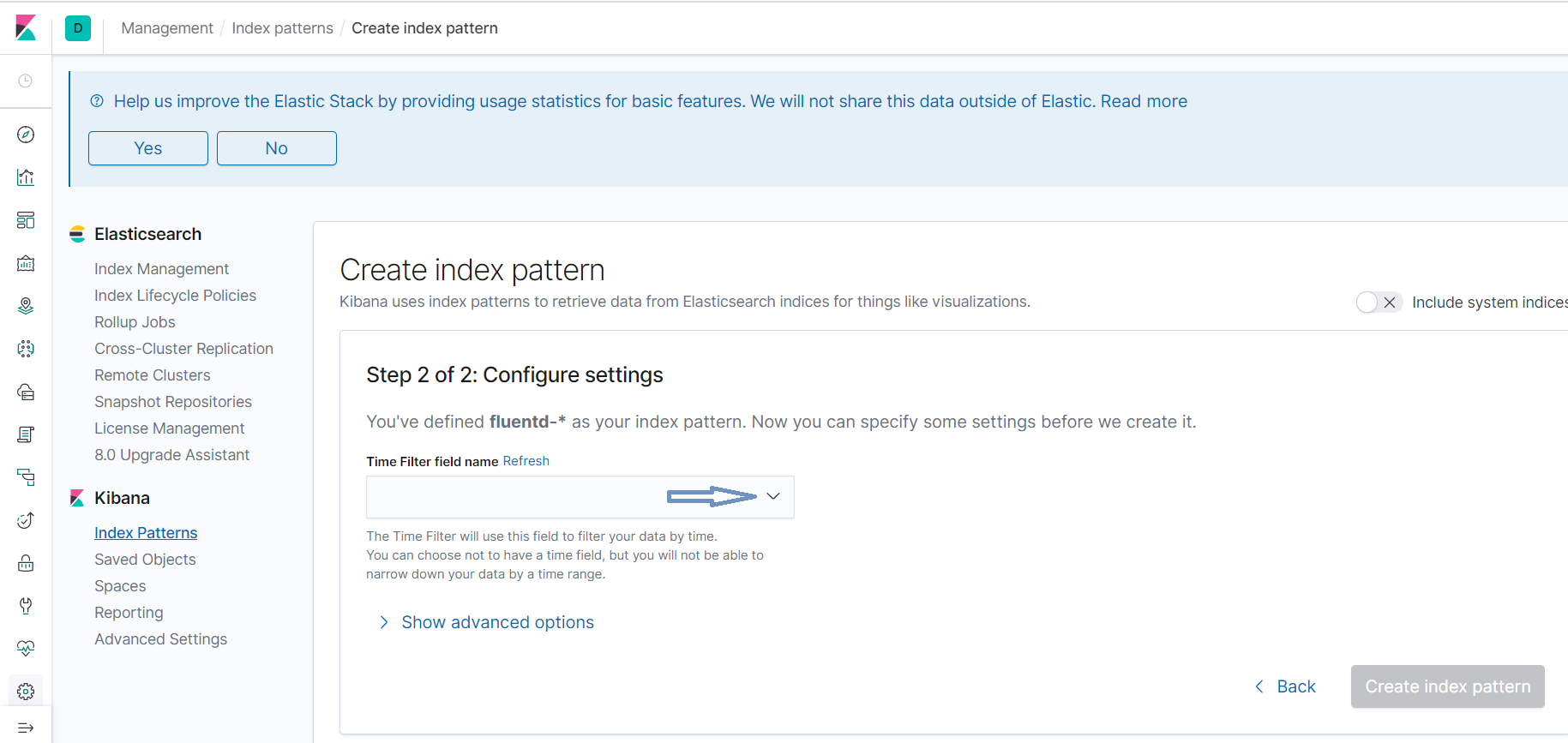
Step 7: Configure settings
-
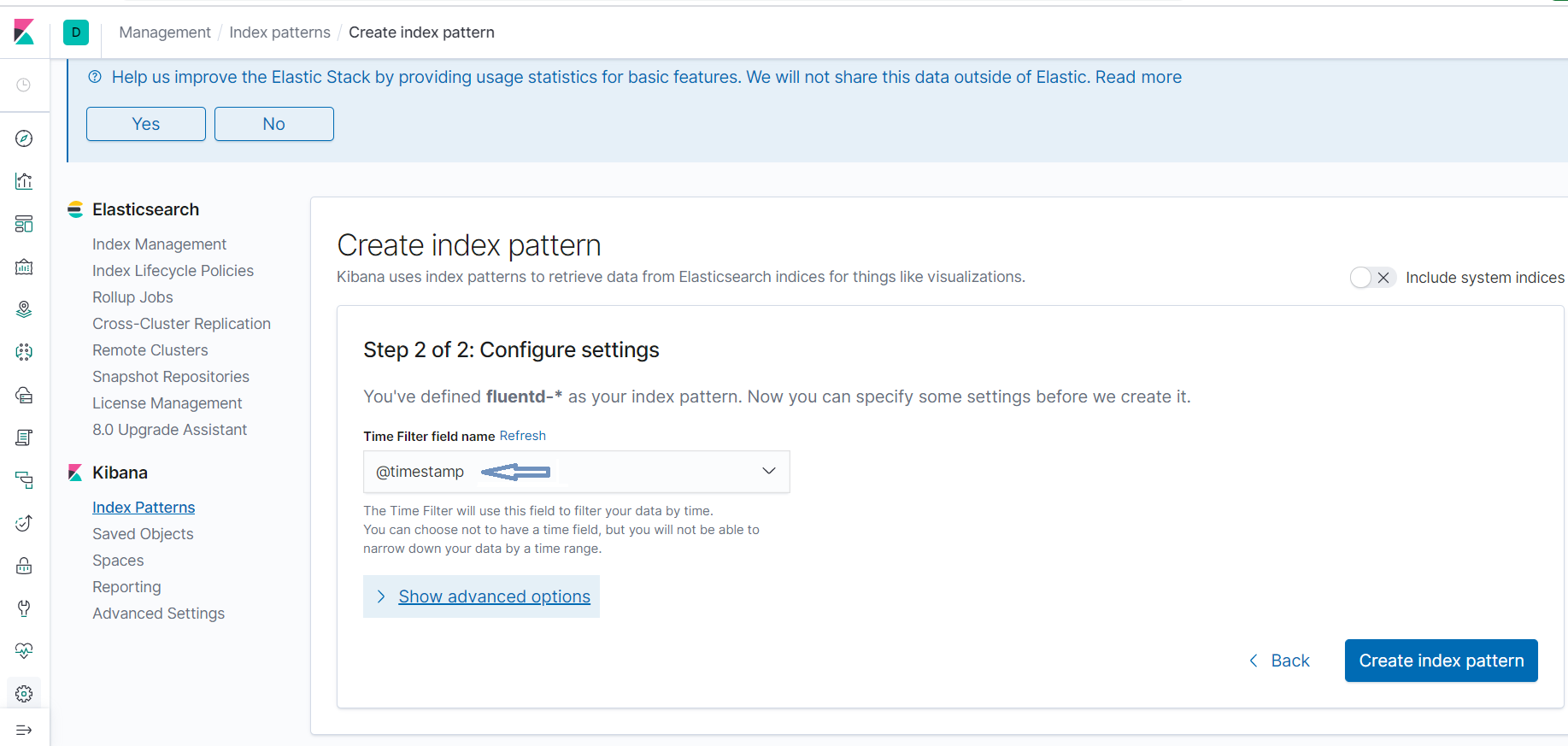
Step 8: Select time filter settings @timestamp
-
Step 9: Click button "Create index pattern "
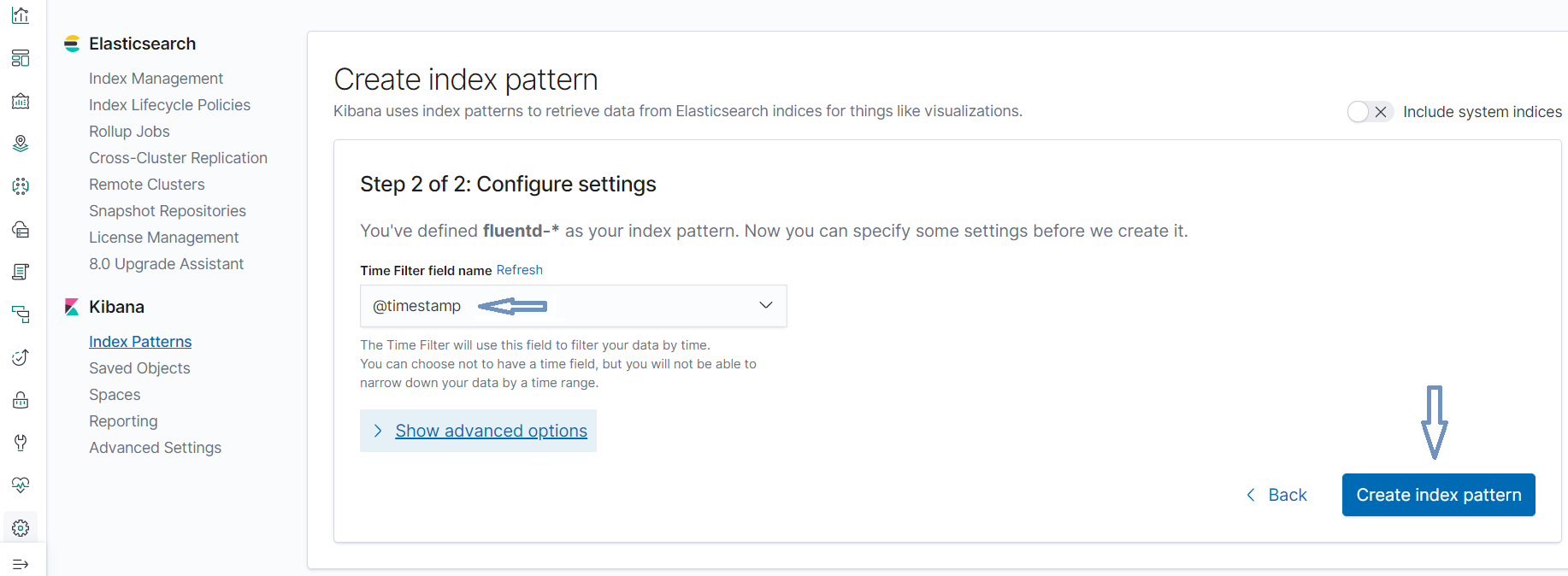
It will display fields of fluentd-* index
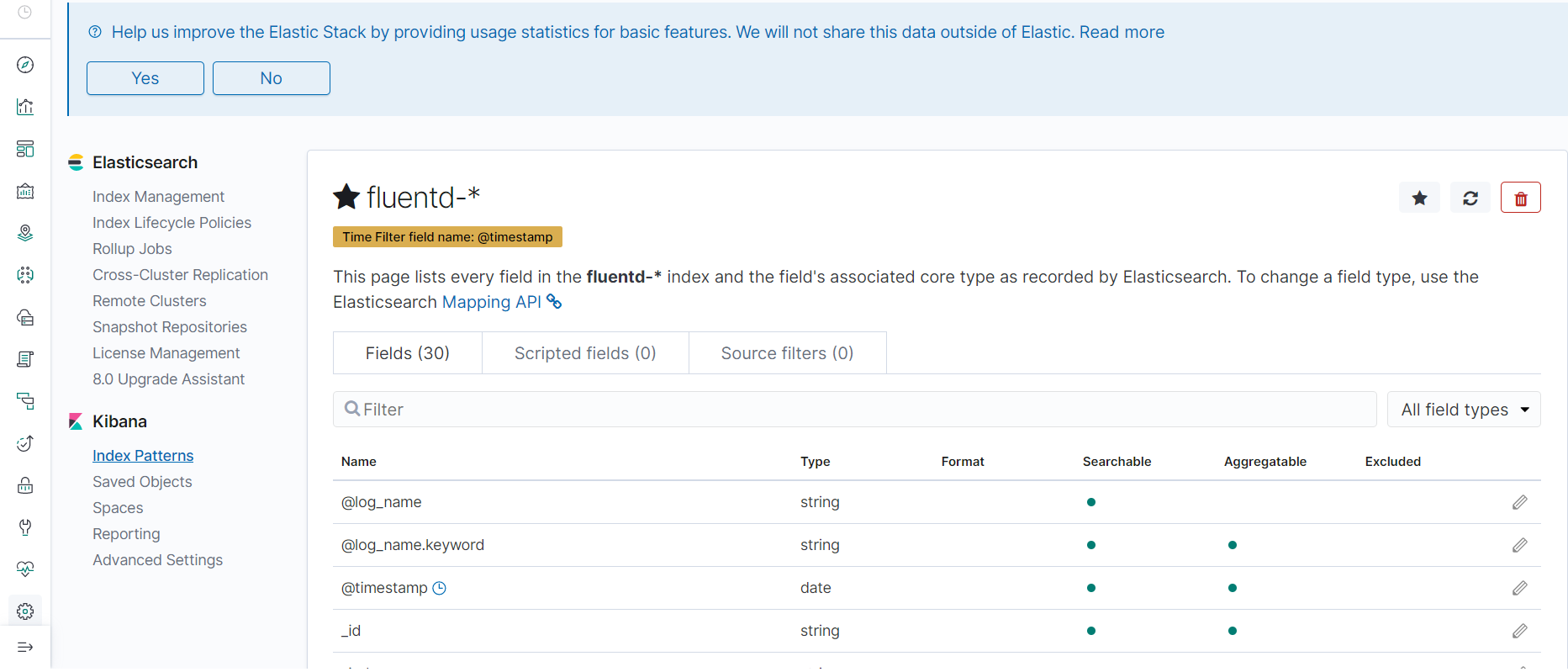
-
Step 10: After this step, go to button discover and place a search pattern in the search box