xAPPnow LOW CODE PLATFORM - User Manual 

Still no account yet?

×

Publish and Execution on User Portal


Chapter Overview

 
In this training chapter you will publish and execute Mobile App "HelloWorld" into User Portal.
 
 
Exercise 1: Publish Mobile App "HelloWorld"
 
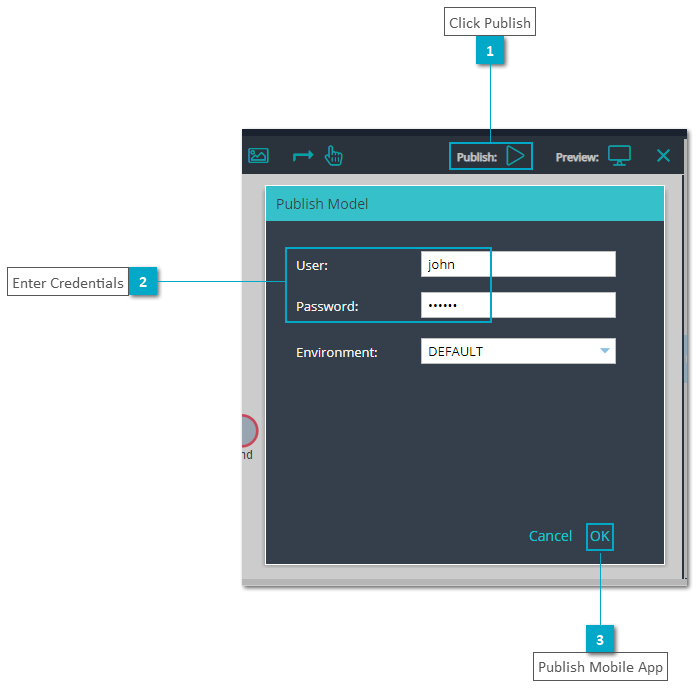
  • Step 1: Click button "Publish" to open dialog "Publish Model"
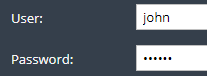
  • Step 2: Enter username and password
  • Step 3: Click button "OK" to publish the mobile app


Publish and Execution on User Portal
 
 
Exercise 2: Execute Mobile App "HelloWorld"
 
 
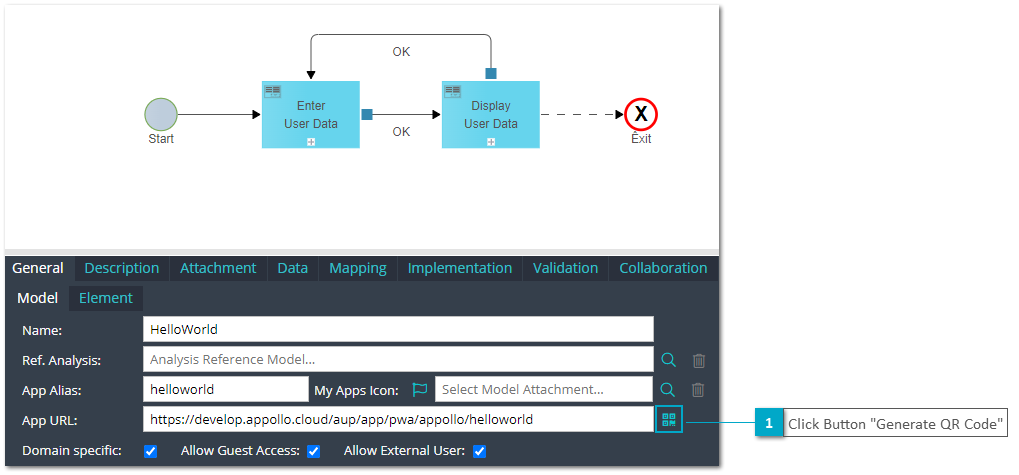
  • Step 4: Click button "Generate QR Code" to open dialog "QR-Code Application URL"
 
 
Publish and Execution on User Portal
 
 
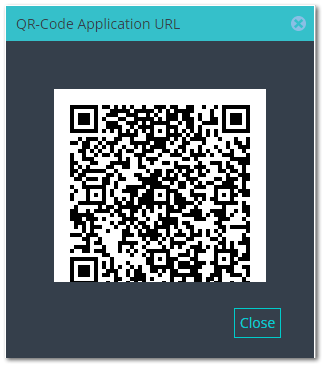
  • Step 5: Scan QR - Code to open URL: https://develop.appollo.cloud/aup/app/pwa/tutorial/helloworld
     
 
Publish and Execution on User Portal
 
 
  • Step 6: Login into User Portal using a valid user to execute the application
 
 
Publish and Execution on User Portal
 
 
  • Step 7: Click button at the right corner to display more Chrome options
     
 
Publish and Execution on User Portal
 
 
  • Step 8: Click at option "Install app"
     
 
Publish and Execution on User Portal
 
  • Step 9: Click at button "Install" to install the app on your smartphone
 
Publish and Execution on User Portal
 
 
  • Step 10: Check the new PWA was installed on your desktop or homescreen
 
 
Publish and Execution on User Portal
 
 
  • Step 11: Close the application and re-open the application directly from your desktop or homescreen of your smartphone
 
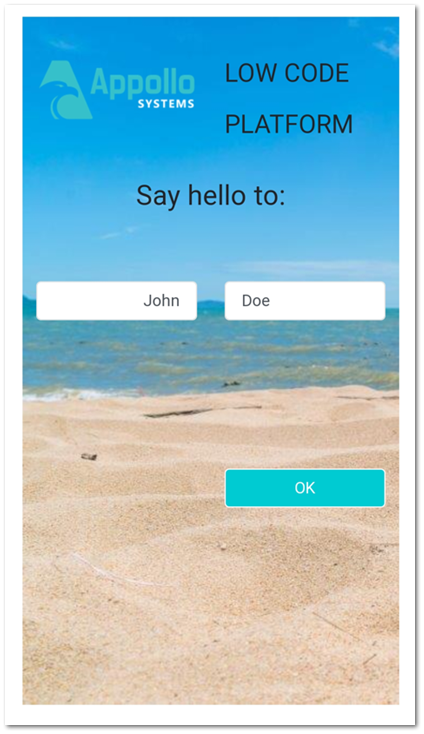
  • Step 12: Enter First Name and Last Name and click button "OK"
 
 
Publish and Execution on User Portal
 
 
  • Step 13: After hello message and user data are displayed click button "OK"
 
 
Publish and Execution on User Portal


1

Click Publish

1. Click Publish
Click button "Publish" to open the dialog "Publish Model"
2

Enter Credentials

2. Enter Credentials
Enter username and password
3

Publish Mobile App

3. Publish Mobile App
Click button "OK" to publish the Mobile App
1

Click Button "Generate QR Code"

1. Click Button "Generate QR Code"
Click button "Generate QR Code" to open dialog "QR-Code Application URL"
1

Enter User Credentials

1. Enter User Credentials
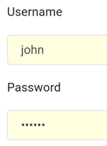
Login into User Portal using a valid user to execute the application
1

Display Browser Options

1. Display Browser Options
Click button at the right corner to display more Chrome options
1

Click "Install app"

1. Click "Install app"
Click at option "Install app"
1

Click Button Install

1. Click Button Install
Click at button "Install"
1

Check App

1. Check App
Check the new PWA was installed on your desktop or homescreen